👬Team Management
What is Team Management?
Team Management allows you to invite colleagues to collaborate on your workspace. Team members can access call tracking data, analytics, and campaigns based on their assigned role. This feature is perfect for agencies managing multiple clients or teams that need to collaborate on call tracking.

Agency Plan Required: Team Management is only available on the Agency plan. Indie plan users can upgrade to access this feature.
Team Roles
Ring Tonic offers three role levels to control what team members can access and modify:
Admin
Full access including billing and team management
Admins have complete control over the workspace:
Manage billing and subscription
Invite and remove team members
Change member roles
Create, edit, and delete campaigns
View and export all analytics
Configure workspace settings
Access all API integrations
Best for: Account managers, workspace owners, or senior team members who need full control.
Manager
Create and edit campaigns, view analytics
Managers can work with campaigns and analytics but cannot manage billing or team:
Create, edit, and delete campaigns
View and export all analytics
Configure campaign settings
Cannot manage billing
Cannot invite or remove team members
Cannot change workspace settings
Member
View-only access to analytics
Members have read-only access to workspace data:
View analytics and reports
View campaign details
Export analytics data
Cannot create or edit campaigns
Cannot manage billing or team
Cannot modify any settings
1. Invite Team Members
Add new members to your workspace by sending email invitations.
How to Invite a Member
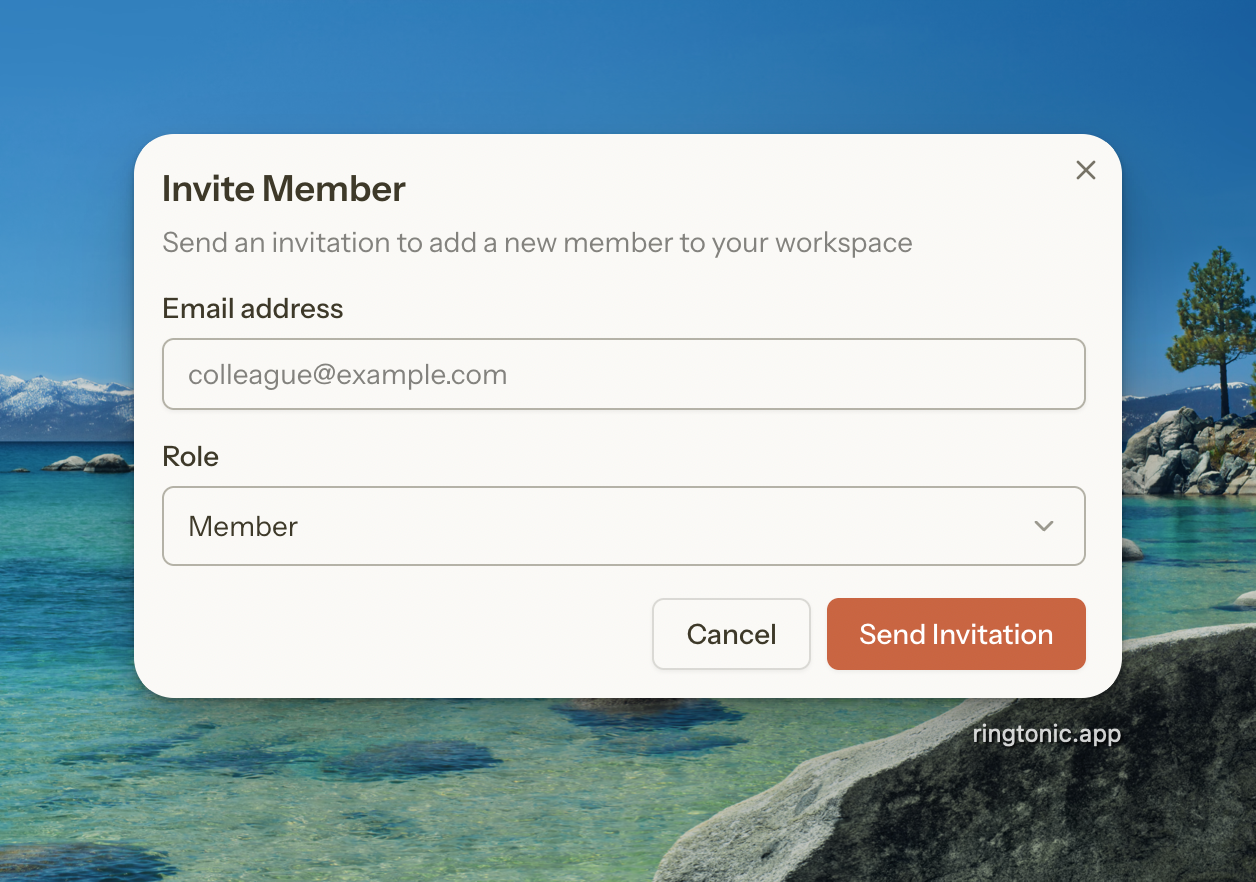
Step 1: Open the Invite Dialog
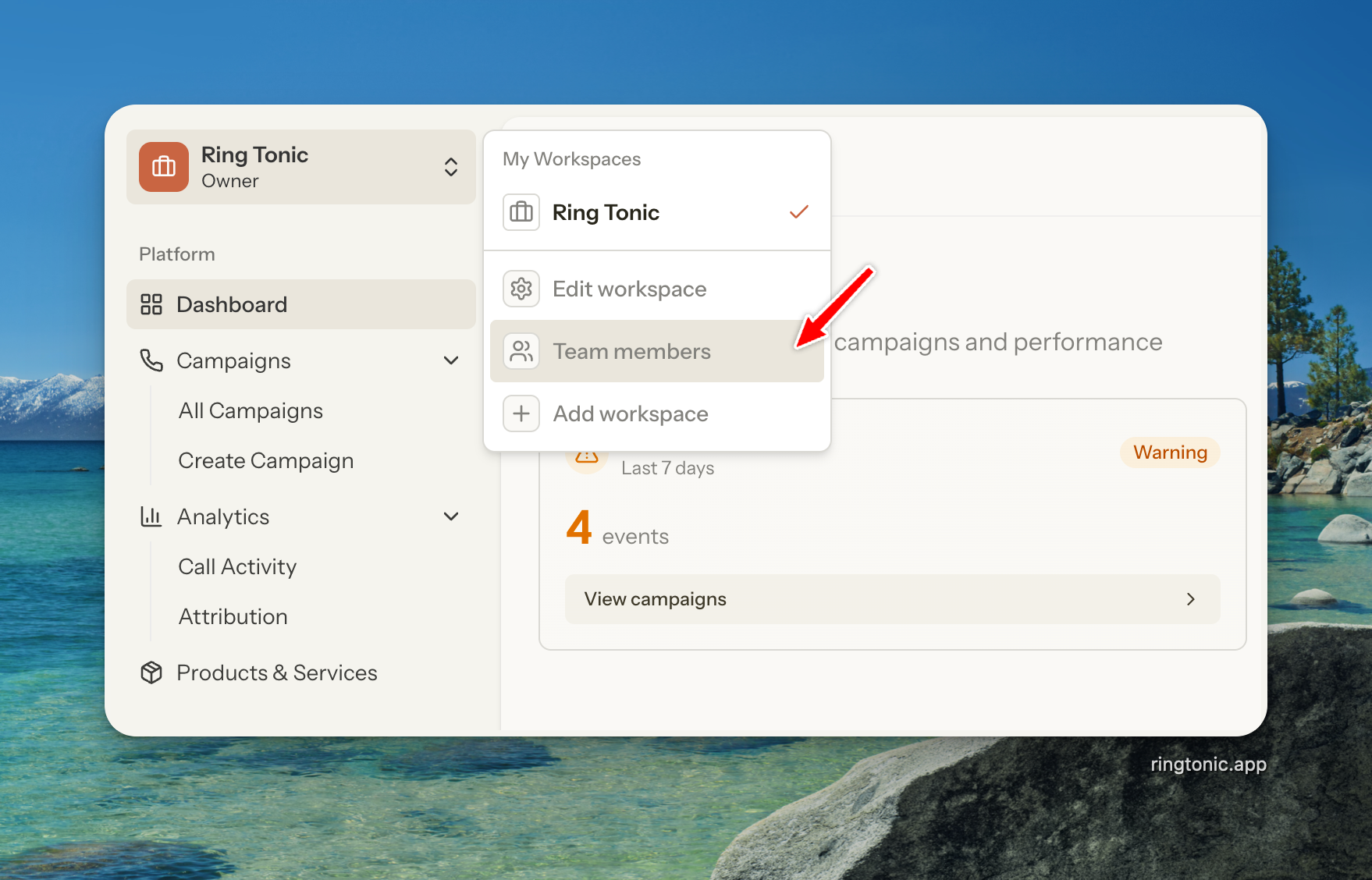
Go to Workspace Members
Click Invite Member button in the top right

Step 2: Enter Member Details
Email address: Enter the colleague's email address
Role: Select the appropriate role (Admin, Manager, or Member)

Step 3: Send Invitation
Click Send Invitation to email the invitation to your colleague.
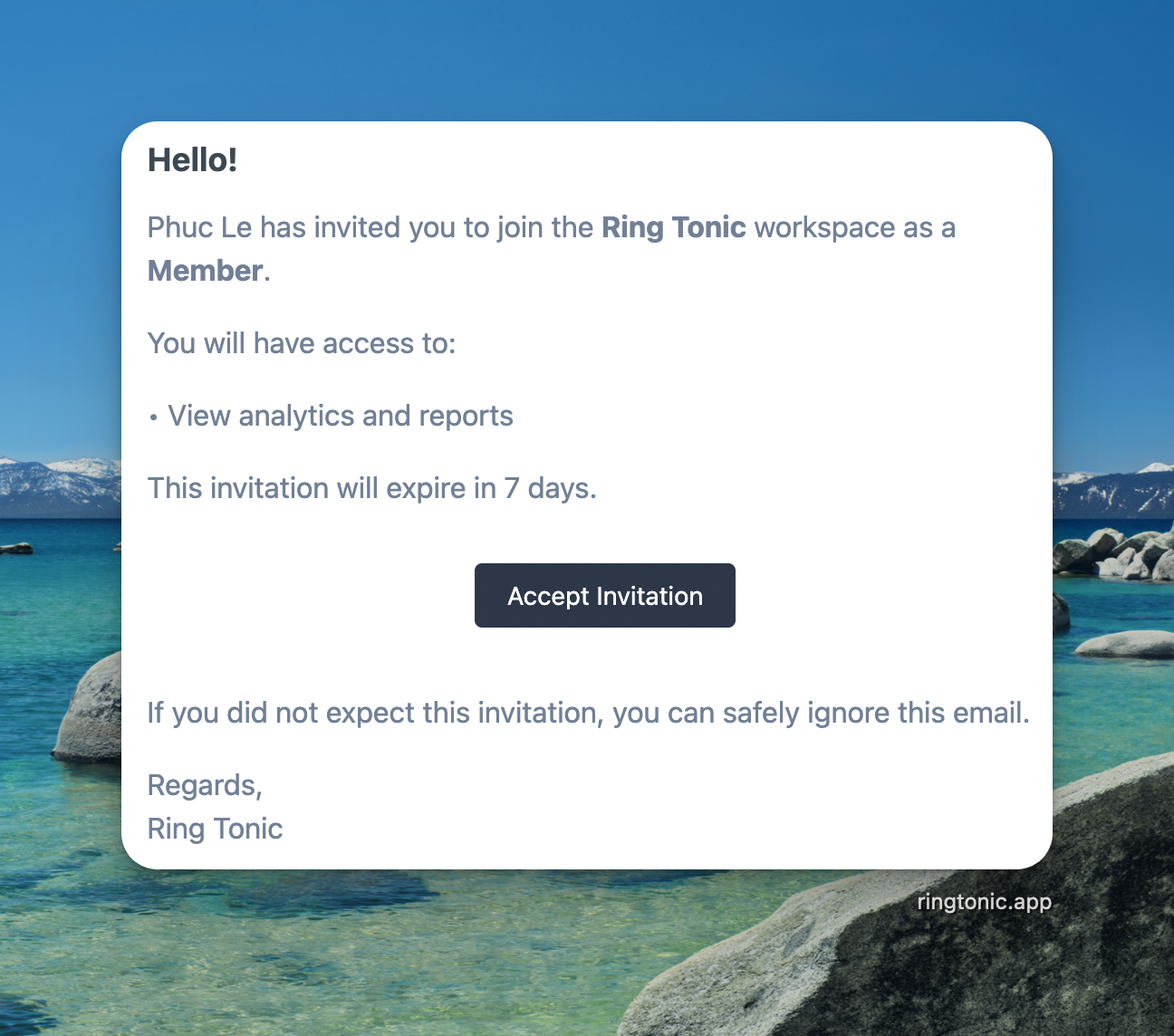
The invitation email includes a secure link that expires in 7 days. The recipient can click the link to accept the invitation and join your workspace.

What Happens After Sending?
Email Sent: Recipient receives an invitation email with a secure link
Pending Status: Invitation appears in the "Pending Invitations" table
7-Day Expiry: Invitation expires automatically after 7 days
Acceptance: When accepted, the member is added to your workspace with the assigned role
2. Manage Pending Invitations
Track and manage invitations that haven't been accepted yet.
View Pending Invitations
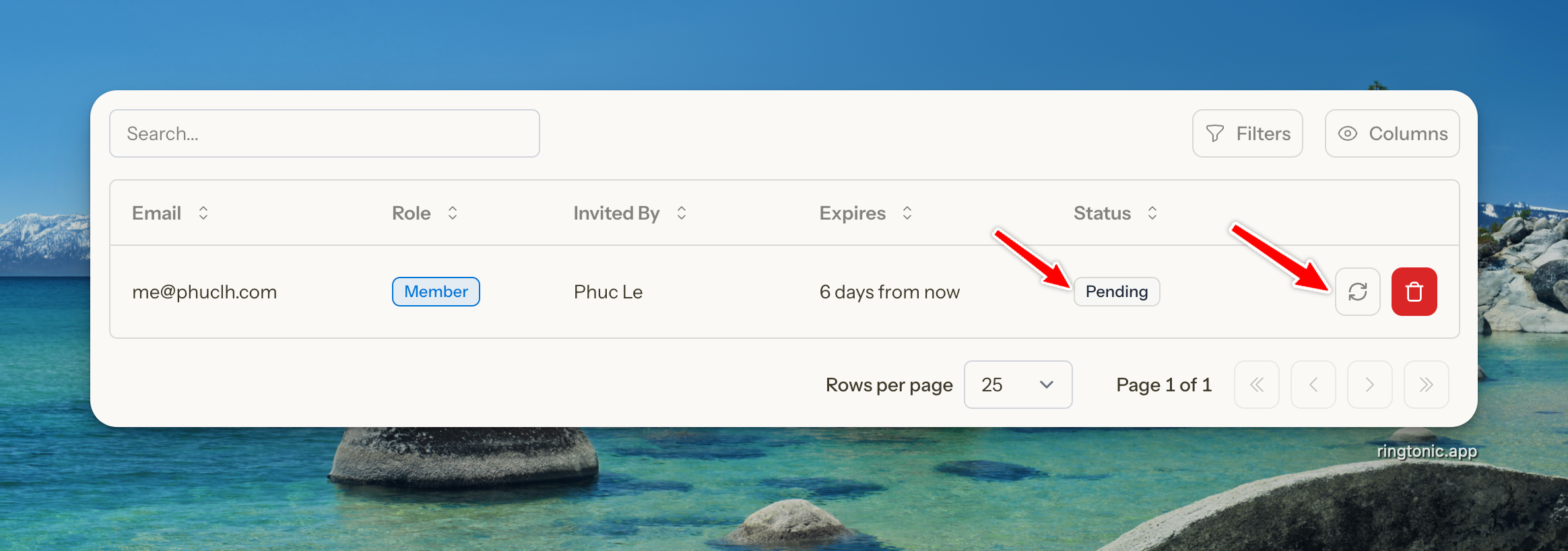
The "Pending Invitations" table shows all outstanding invitations with:
Email: Invited person's email address
Role: Assigned role (Admin, Manager, or Member)
Invited By: Team member who sent the invitation
Expires: Expiration date (7 days from send date)
Status: Pending or Expired

Resend an Invitation
If the recipient didn't receive the email or the link expired:
Find the invitation in the "Pending Invitations" table
Click the Resend button (refresh icon)
A new email is sent with a fresh 7-day expiration
Resending an invitation automatically extends the expiration by 7 days from the current date.
Revoke an Invitation
To cancel an invitation before it's accepted:
Find the invitation in the "Pending Invitations" table
Click the Revoke button (trash icon)
Confirm the revocation
Once revoked, the invitation link becomes invalid. The recipient cannot use it to join the workspace, even if they had the email.
3. Change Member Roles
Update a team member's role to adjust their permissions.
How to Change a Role
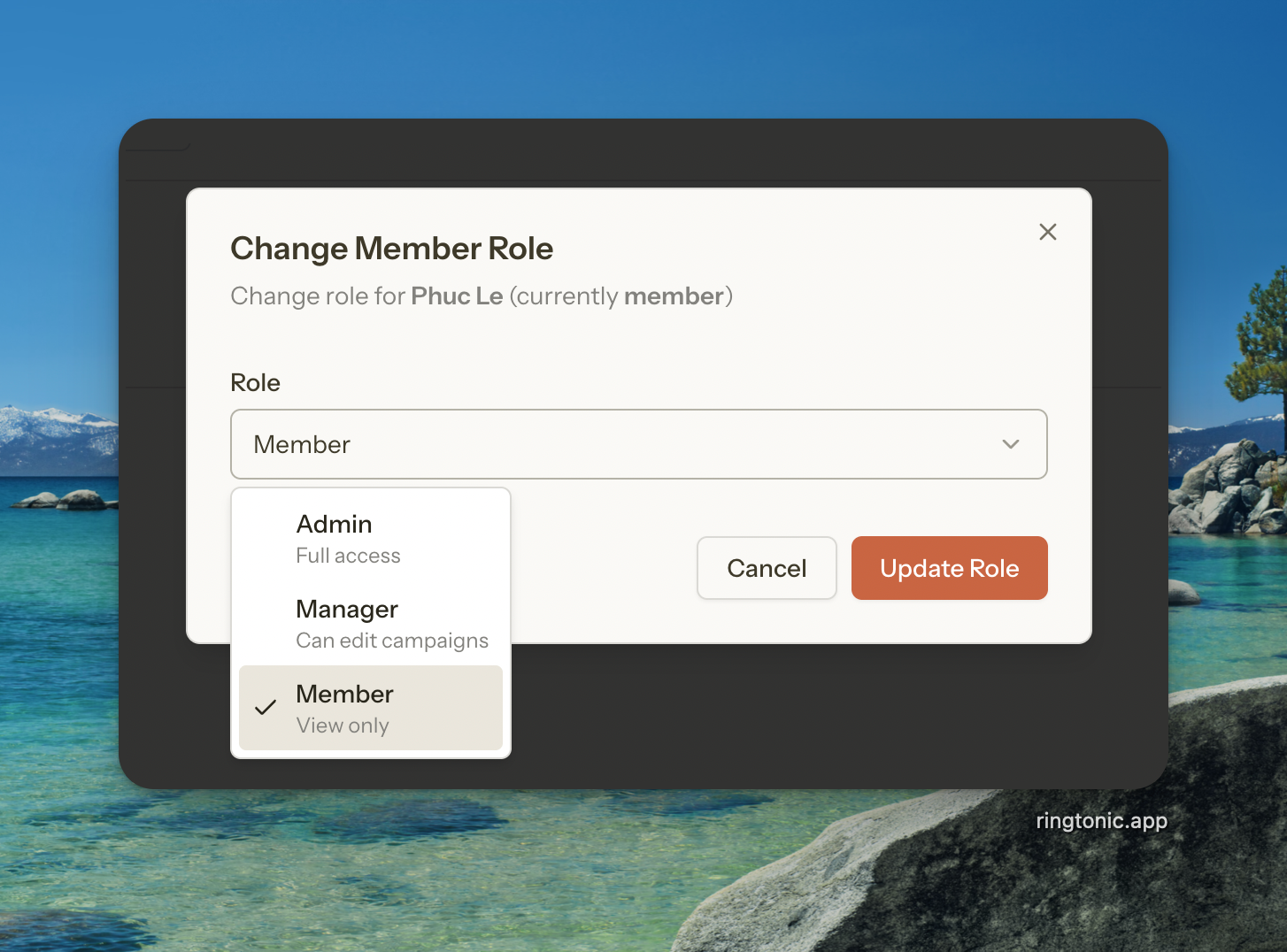
Step 1: Open Change Role Dialog
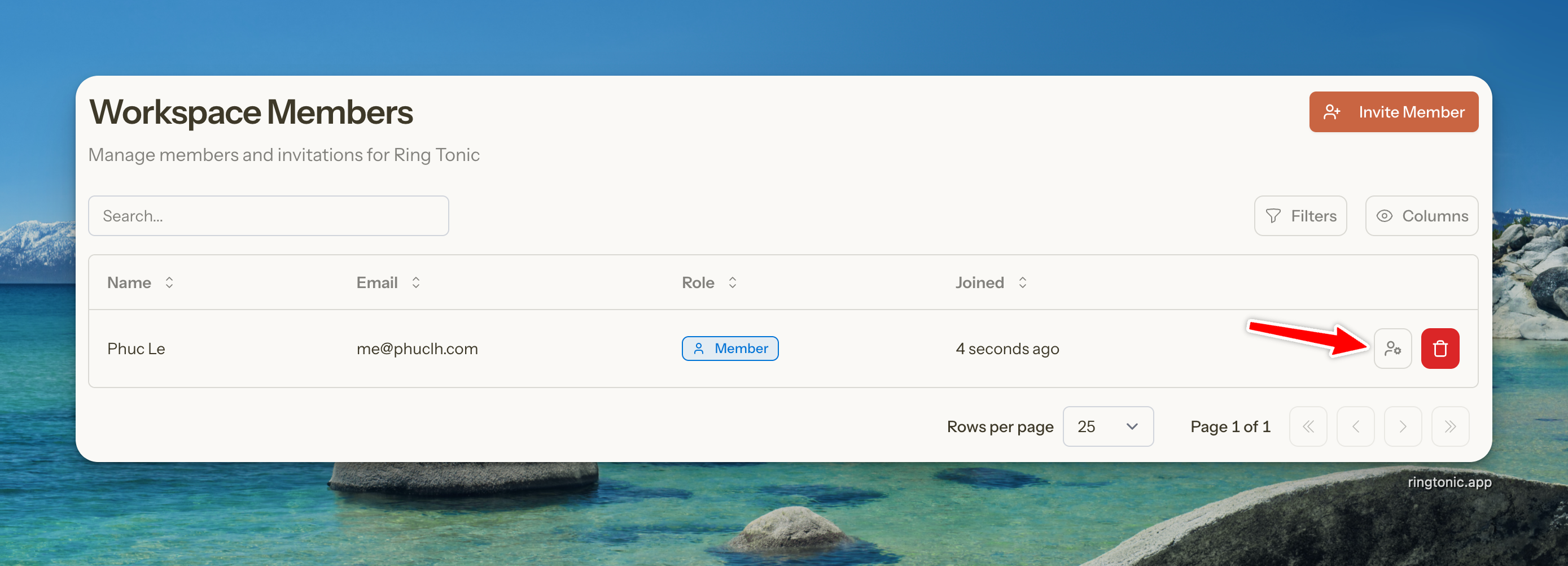
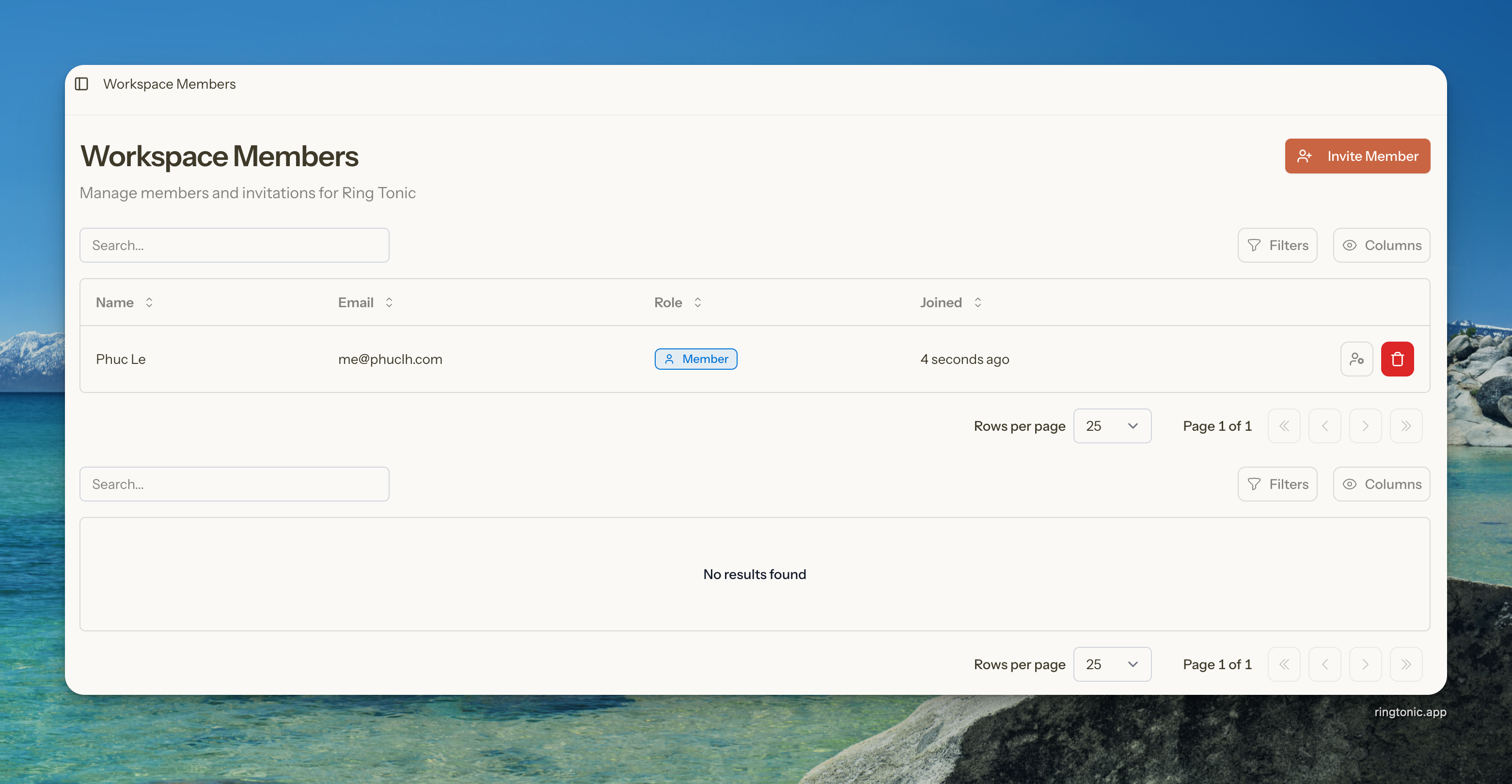
Find the member in the "Current Members" table
Click the Change Role button (user-cog icon)

Step 2: Select New Role
Review the current role in the dialog description
Select the new role from the dropdown:
Admin: Full access
Manager: Can edit campaigns
Member: View only

Step 3: Update Role
Click Update Role to save the changes.
Role changes take effect immediately. The member's permissions update as soon as you confirm the change.
5. Remove Team Members
Remove a member's access to the workspace.
How to Remove a Member
Step 1: Click Remove Button
Find the member in the "Current Members" table
Click the Remove button (trash icon)
You cannot remove yourself or the workspace owner. These buttons are hidden for those members.
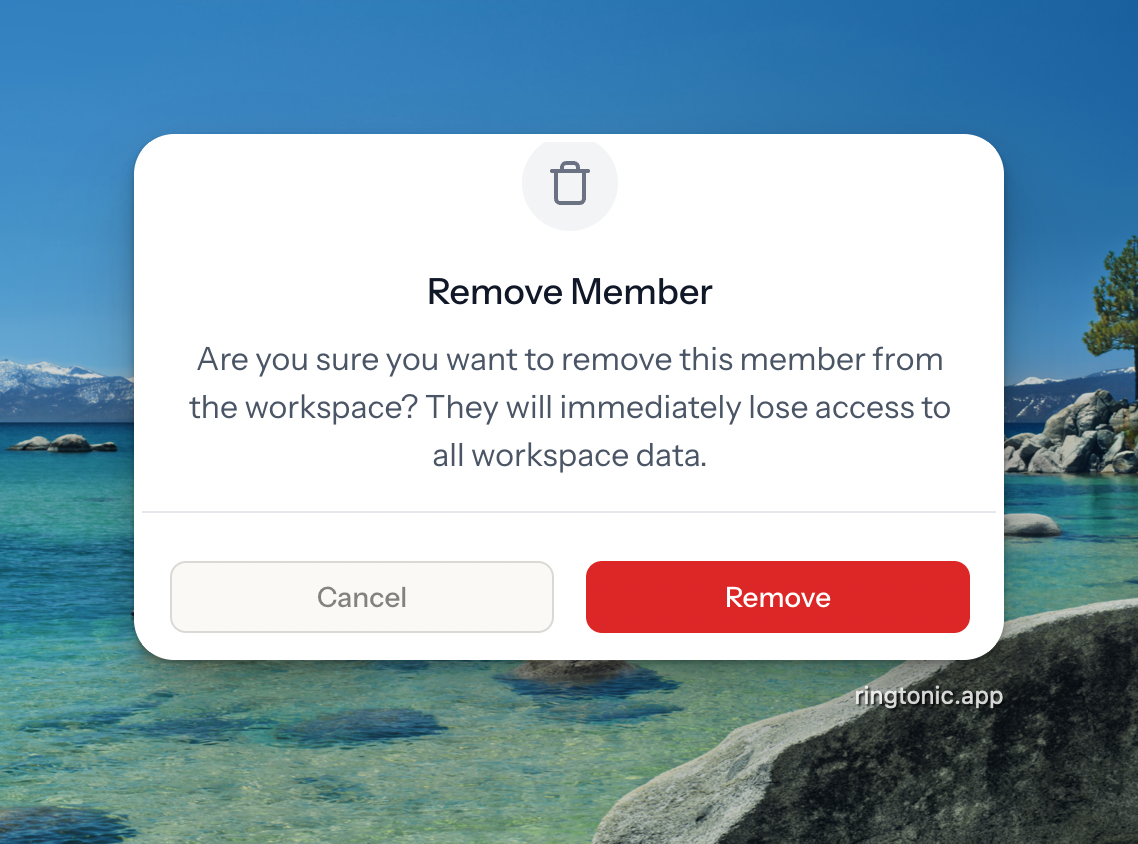
Step 2: Confirm Removal
Read the confirmation message carefully
Click Remove to confirm
Warning: Removed members immediately lose access to ALL workspace data including:
Call logs and analytics
Campaign details
Workspace settings
Any in-progress work
This action cannot be undone. The member must be re-invited to regain access.

Troubleshooting
Last updated