🏠Setup Workspace

What is a workspace?

A workspace is an isolated environment for managing a single business or client. Each workspace has its own dedicated tracking numbers, campaigns, call logs, team members, and analytics reports. This separation is essential for agencies that need to keep client data completely private and organized. Think of it like having multiple separate accounts, but managed from one convenient dashboard.

When you create an account, Ring Tonic automatically sets up a default workspace for you.

Here are a few quick steps to get your new workspace ready:

1. Set up Twilio for Tracking Calls

Ring Tonic uses Twilio to provision phone numbers and track calls. To get started, create a Twilio account and connect it to your workspace using your Account SID and Auth Token. This lets Ring Tonic search for numbers, purchase tracking lines, and log incoming calls on your behalf.

How to Get Your Twilio Credentials

Step 1: Create a Twilio Account

  1. Fill out the registration form with your information

  2. Verify your email address and phone number

  3. Complete the onboarding process

Twilio offers a free trial with credits to get started. You can test Ring Tonic's features before committing to a paid plan.

Step 2: Find Your Account SID and Auth Token

Once you're logged into Twilio:

  1. Navigate to the Twilio Console

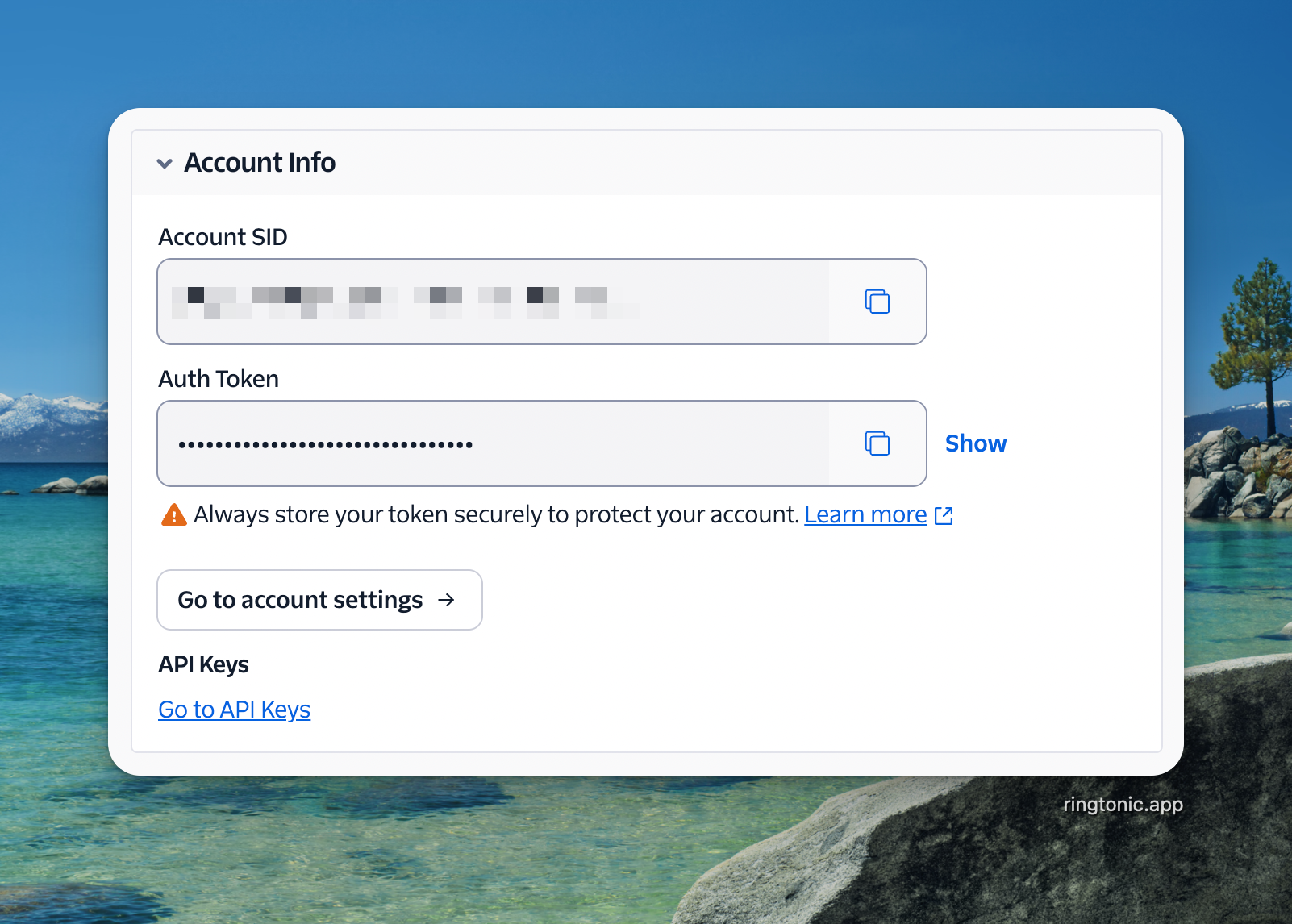
  2. You'll see your Account SID and Auth Token displayed under the Account Info section

  3. The Account SID starts with "AC" followed by 32 characters

  4. Click "Show" next to the Auth Token to reveal it

Your Account SID and Auth Token are displayed on the Twilio Console dashboard
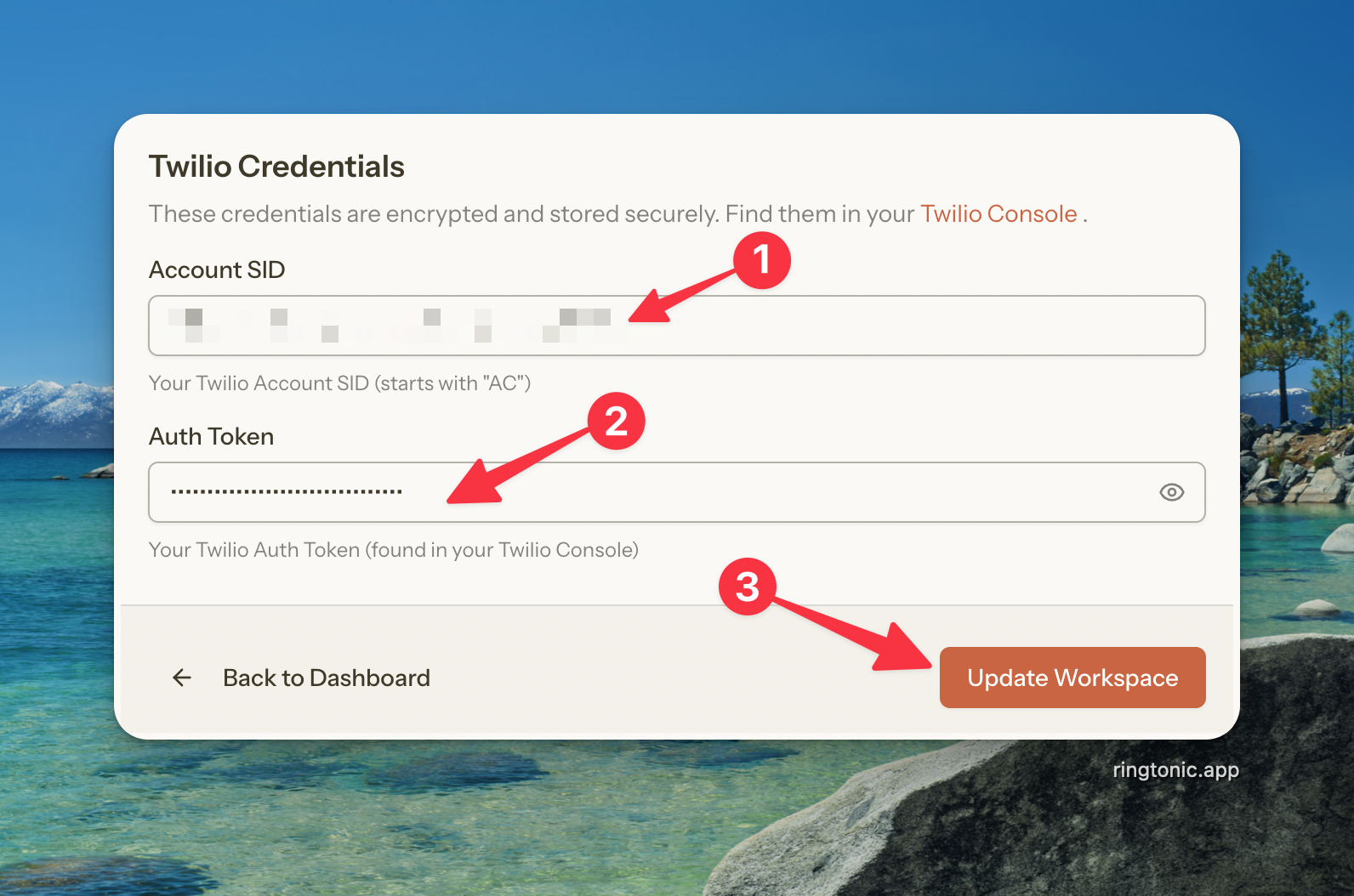
Step 3: Add Credentials to Your Workspace

  1. In Ring Tonic, navigate to your workspace settings

  2. Scroll down to the Twilio Credentials section

  3. Paste your Account SID into the "Account SID" field

  4. Paste your Auth Token into the "Auth Token" field

  5. Click "Save" or "Update Workspace" to save your credentials

Enter your Twilio credentials in the workspace settings

Once saved, Ring Tonic will be able to:

  • Search for available phone numbers in your desired area codes

  • Purchase tracking numbers on your behalf

  • Receive and log incoming calls

  • Provide call recordings and metadata

2. Set up Call Transcription & Sentiment Analysis

Call transcription turns recorded conversations into searchable text, making it easy to find calls, analyze patterns, and spot keywords without replaying full recordings.

Transcription with AssemblyAI

Ring Tonic supports Deepgram and AssemblyAI—both offer automatic transcription with speaker identification, but differ in speed, accuracy, and pricing.

Don't know which provider to choose? We recommend AssemblyAI for most users. It provides the best accuracy with 30% improvement in noisy environments, making it ideal for phone call transcription where audio quality can vary.

Choosing a Transcription Provider

Ring Tonic integrates with two powerful transcription providers. Here's how they compare:

Feature
Deepgram
AssemblyAI

Processing Speed

10x faster than real-time

Standard processing

Accuracy

Excellent

Best-in-class (30% better in noisy environments)

Speaker Diarization

Up to 100,000+ speakers

Up to 50 speakers

Language Support

30+ languages

100+ languages

Best For

High-volume call centers, batch processing

Maximum accuracy, challenging audio conditions

Pricing

~$0.0043/minute

~$0.00065/minute

How to Set Up AssemblyAI

Step 1: Create an AssemblyAI Account

  1. Sign up for a new account

  2. Verify your email address

  3. Complete the onboarding questionnaire

AssemblyAI provides $50 free credits to get started, allowing you to test their transcription quality with your actual call recordings.

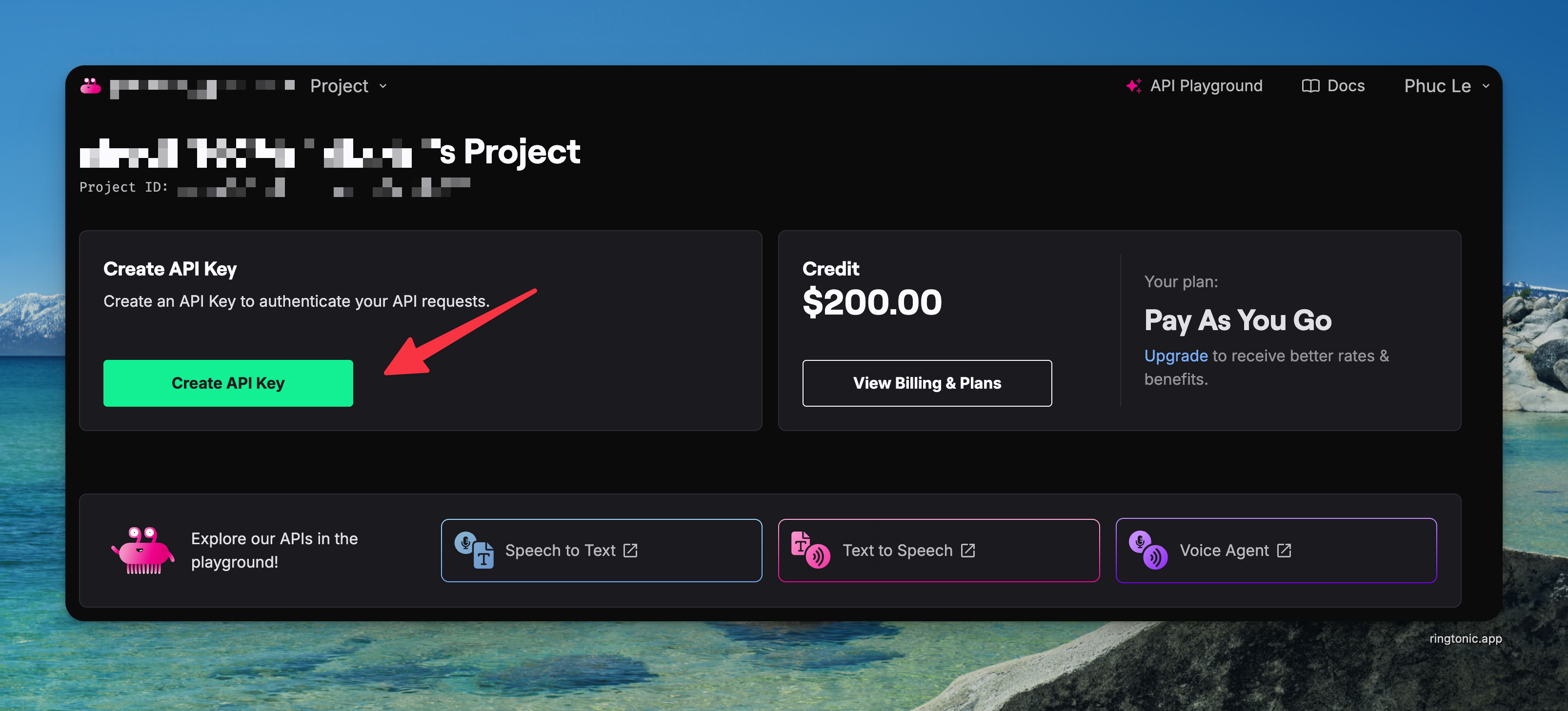
Step 2: Get Your AssemblyAI API Key

  1. After logging in, you'll be taken to the AssemblyAI Dashboard

  2. Your API key is displayed prominently on the dashboard homepage

  3. Click "Copy" to copy your API key to your clipboard

  4. Alternatively, you can access your API key at any time from the API Keys page

Your AssemblyAI API key is shown on the dashboard
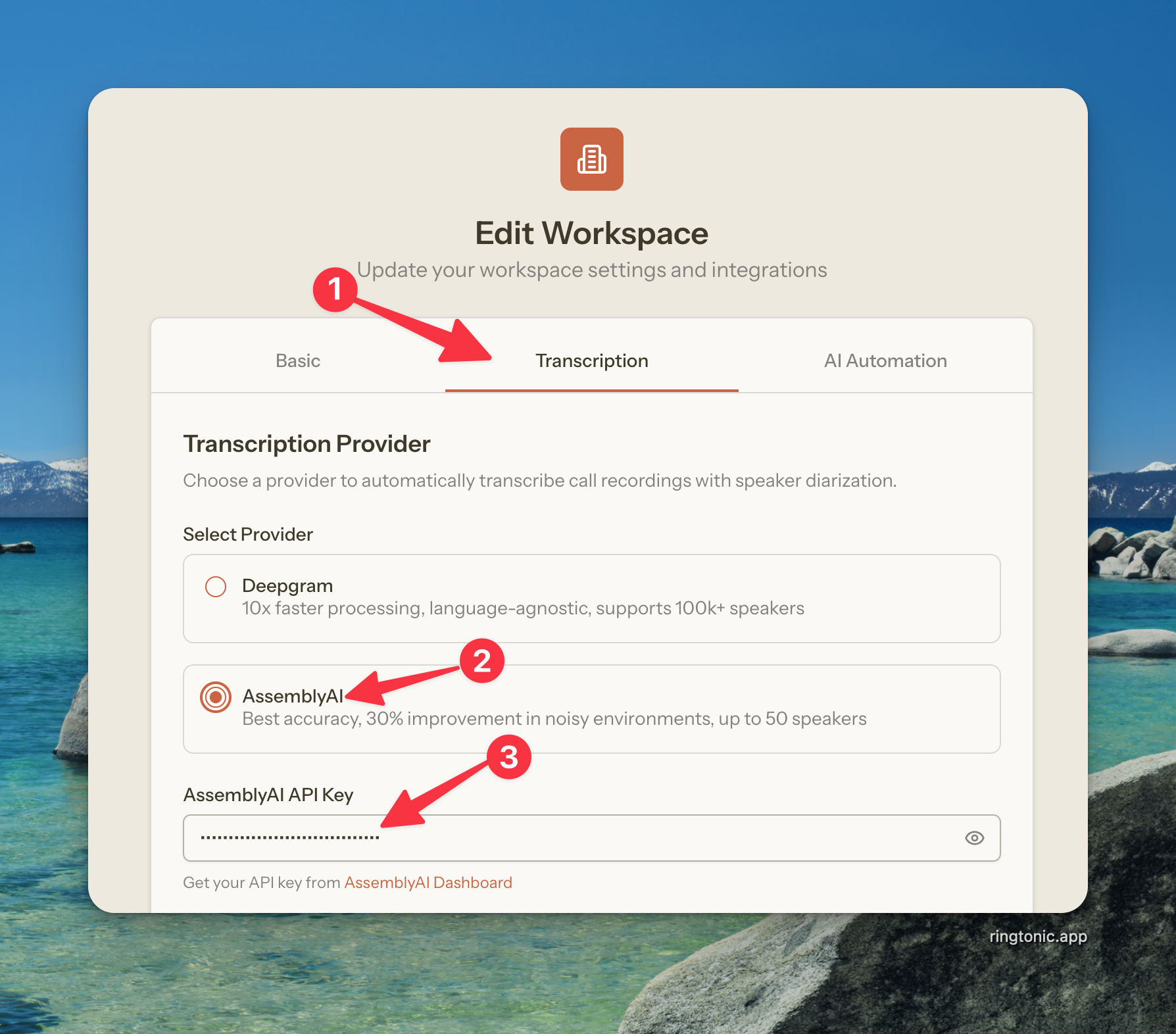
Step 3: Add AssemblyAI Credentials to Your Workspace

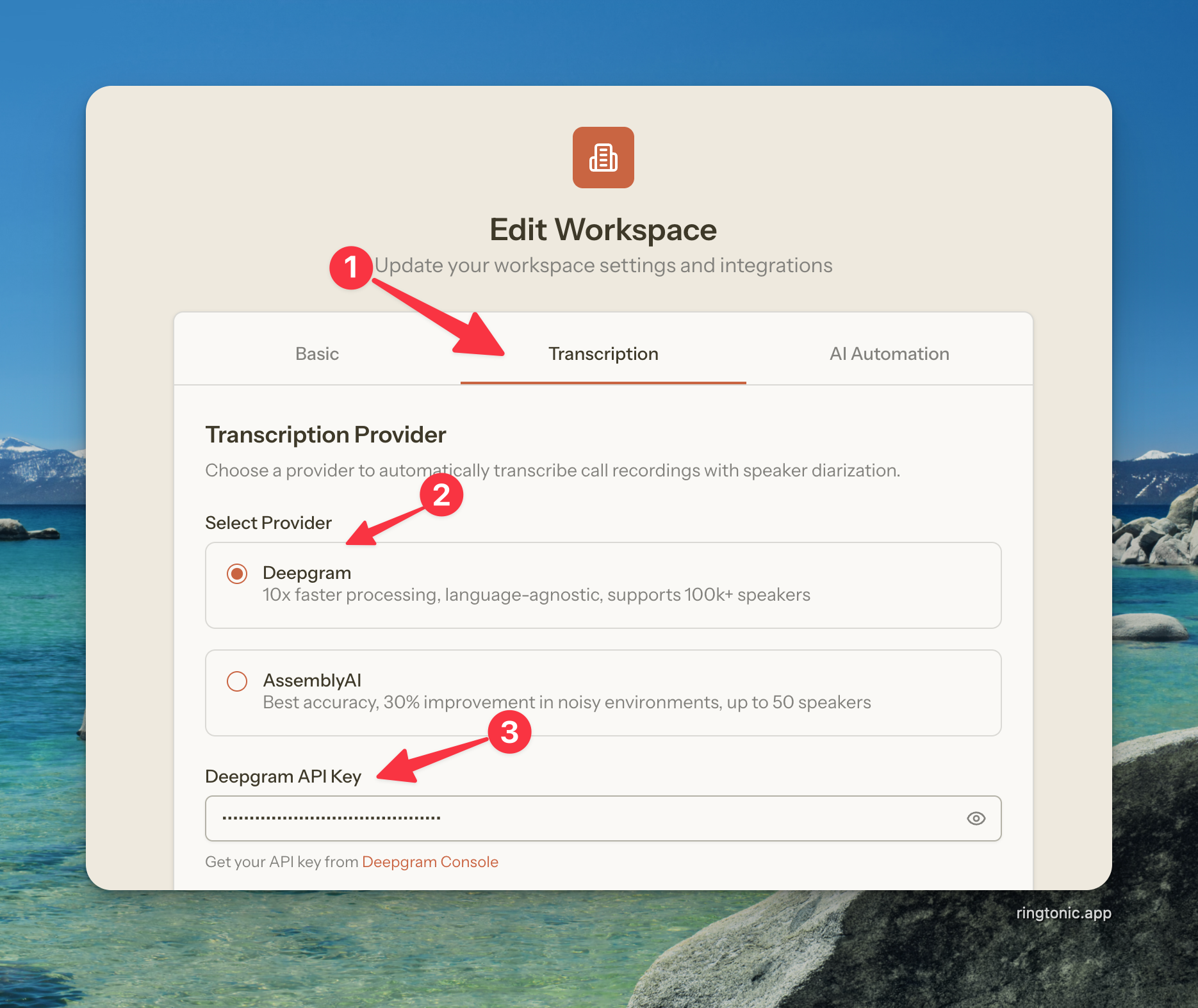
  1. In Ring Tonic, navigate to your workspace settings

  2. Go to the Transcription tab

  3. Select AssemblyAI as your transcription provider

  4. Paste your API key into the "AssemblyAI API Key" field

  5. Enable "Automatically transcribe call recordings" if you want transcriptions to run after every call

  6. Enable "Enable speaker diarization" to identify different speakers (Agent vs Customer)

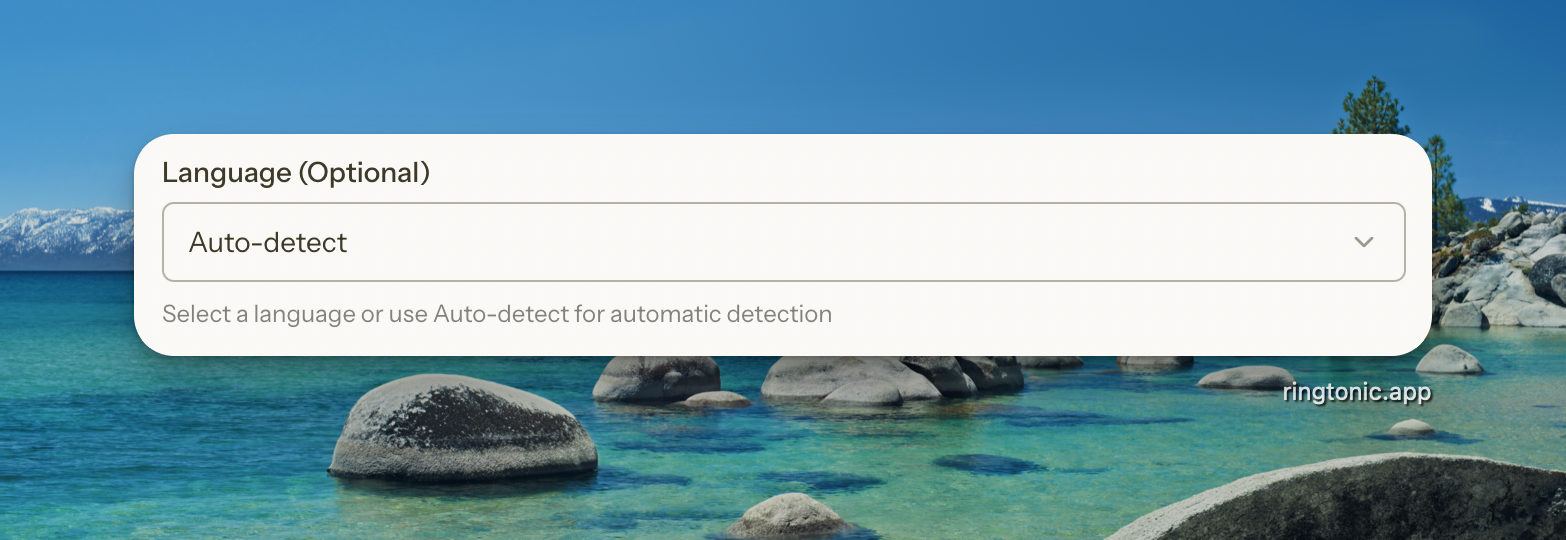
  7. Optionally select a language, or leave it on "Auto-detect" for automatic language detection

  8. Click "Save" or "Update Workspace"

Configure AssemblyAI in your workspace transcription settings
Understanding Transcription Settings

After choosing your provider and entering your API key, you'll need to configure a few important settings:

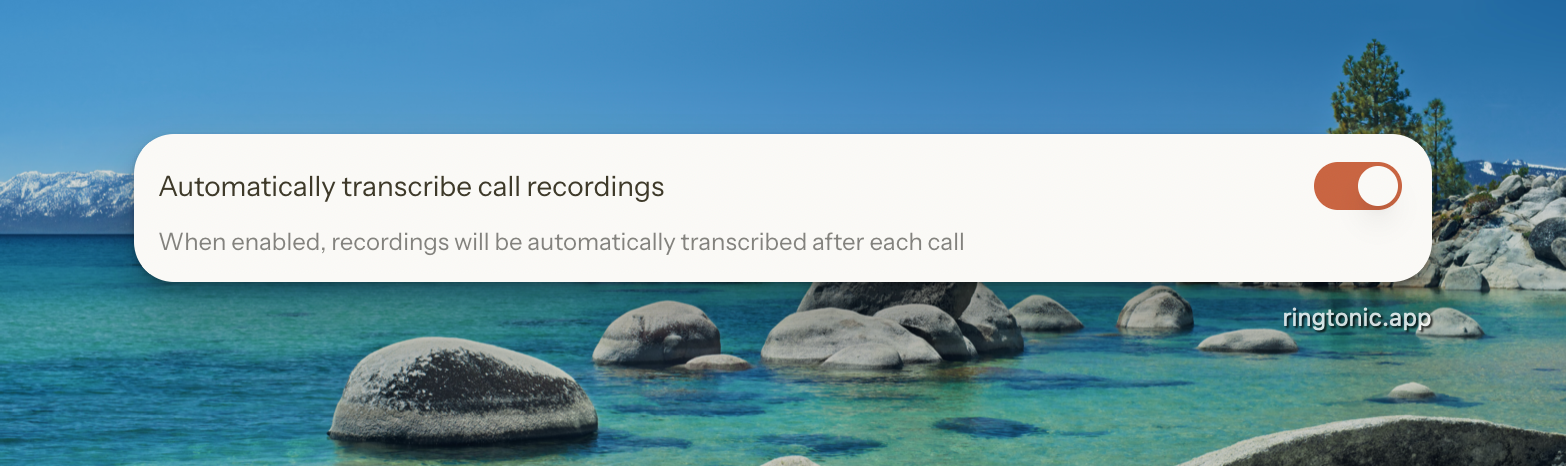
Automatically Transcribe Call Recordings
Automatically Transcribe Call Recordings

When enabled, Ring Tonic will automatically send each call recording to your chosen transcription provider as soon as the call ends. The transcription usually completes within a few minutes, and you'll be able to view the full text conversation in your call log.

If disabled, you'll need to manually trigger transcription for each call you want transcribed.

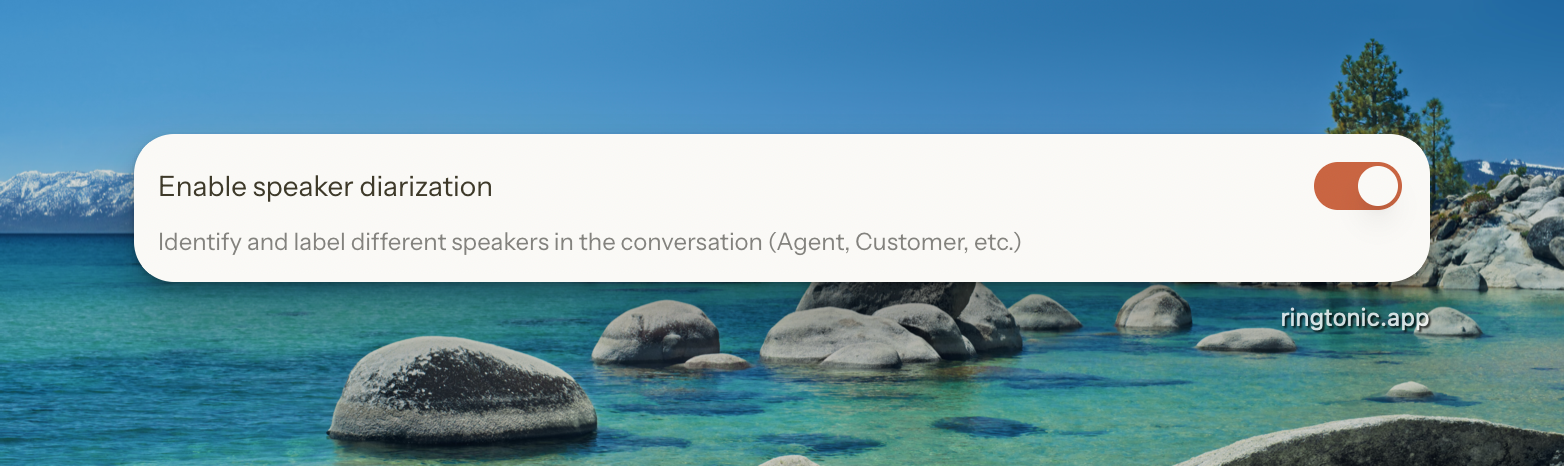
Enable Speaker Diarization

Speaker diarization is the process of identifying and labeling different speakers in the conversation.

Enable Speaker Diarization

When enabled, your transcription will show:

  • Agent: The person who answered or made the call (usually your team member)

  • Customer: The caller

  • Speaker C, D, E...: If more than two people participate in the call

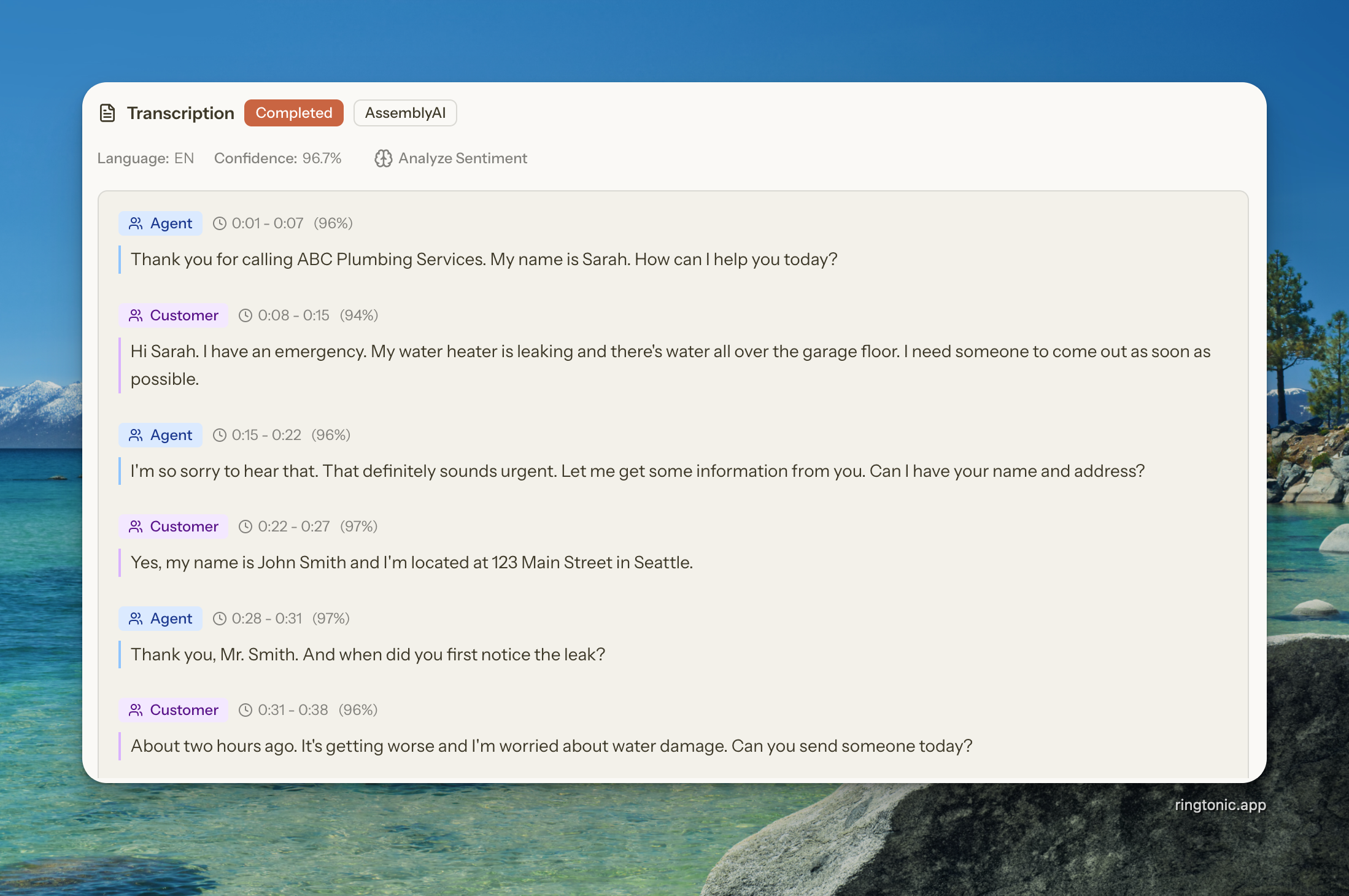
Example transcription with speaker diarization:

Agent: Thanks for calling ABC Plumbing, this is Sarah. How can I help you today?

Customer: Hi Sarah, I have a leaking pipe under my kitchen sink and it's getting worse.

Agent: I understand, that sounds urgent. Let me check our schedule for you.

Without speaker diarization, the entire conversation would appear as a single block of text, making it harder to follow.

Speaker diarization adds minimal cost to your transcription and significantly improves readability. We recommend keeping it enabled.

Language Selection

Both Deepgram and AssemblyAI support automatic language detection, which is the default setting. However, if you know your calls will always be in a specific language, selecting it manually can slightly improve accuracy and processing speed.

Ring Tonic supports:

  • Deepgram: 30+ languages including English, Spanish, French, German, Chinese, Japanese, and more

  • AssemblyAI: 100+ languages covering most global markets

Leave the language setting on "Auto-detect" unless you exclusively handle calls in a single language. The auto-detection is highly accurate and adapts to different accents and dialects.

Set up Google Natural Language API for Sentiment Analysis (Optional)

Sentiment analysis examines the emotional tone of your call transcriptions, helping you identify whether conversations were positive, negative, or neutral. This is incredibly valuable for:

  • Flagging potentially unhappy customers for follow-up

  • Identifying calls that might need manager review

  • Tracking overall customer satisfaction trends

  • Spotting training opportunities for your team

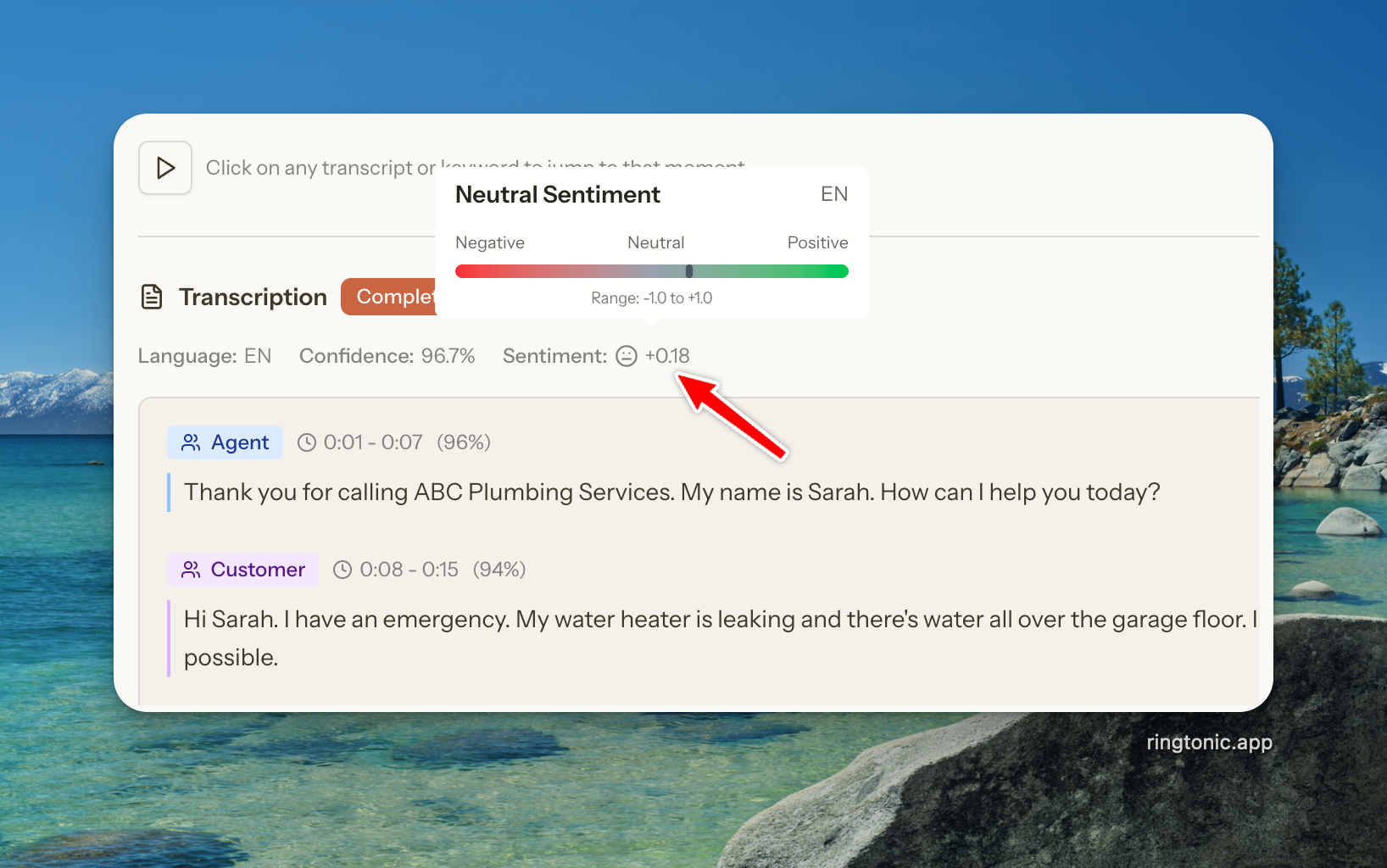
Ring Tonic uses Google's Natural Language API to analyze sentiment from your transcriptions. The API examines the entire conversation and returns a sentiment score ranging from -1.0 (very negative) to +1.0 (very positive).

How Sentiment Categories Work

Ring Tonic categorizes sentiment into three groups:

Sentiment Score
Category
Meaning

Greater than 0.25

Positive

Customer expressed satisfaction, enthusiasm, or approval

-0.25 to 0.25

Neutral

Factual conversation with balanced or mixed emotions

Less than -0.25

Negative

Customer expressed frustration, disappointment, or dissatisfaction

Step 1: Create a Google Cloud Account

  1. Sign in with your Google account (or create one if needed)

  2. Accept the terms of service

  3. You may need to set up billing, but Google offers $300 in free credits for new users

Step 2: Create a New Project

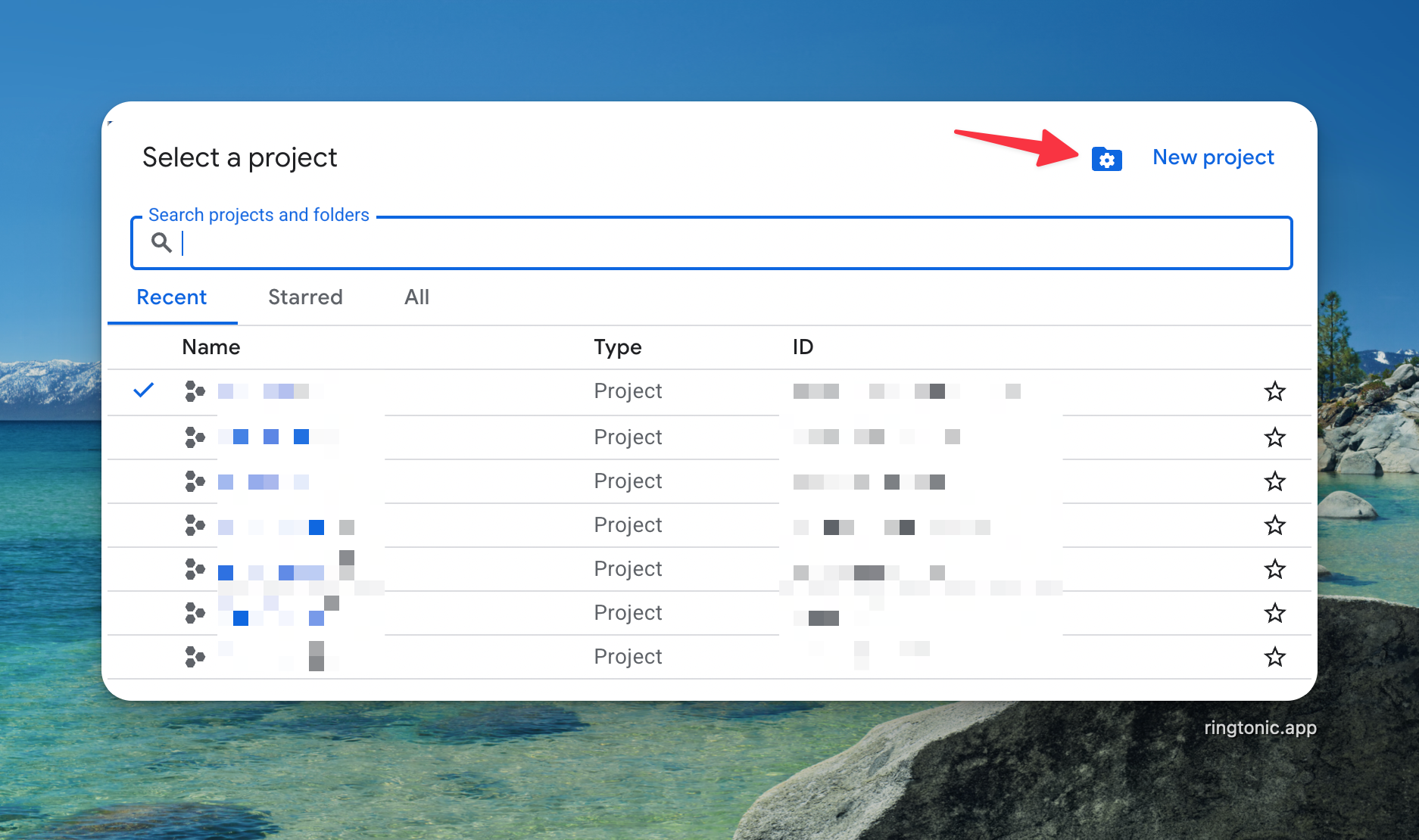
  1. In the Google Cloud Console, click the project dropdown at the top of the page

  2. Click "New Project"

  3. Enter a project name (e.g., "Ring Tonic Sentiment Analysis")

  4. Click "Create"

  5. Wait for the project to be created, then select it from the project dropdown

Create a new project in Google Cloud Console
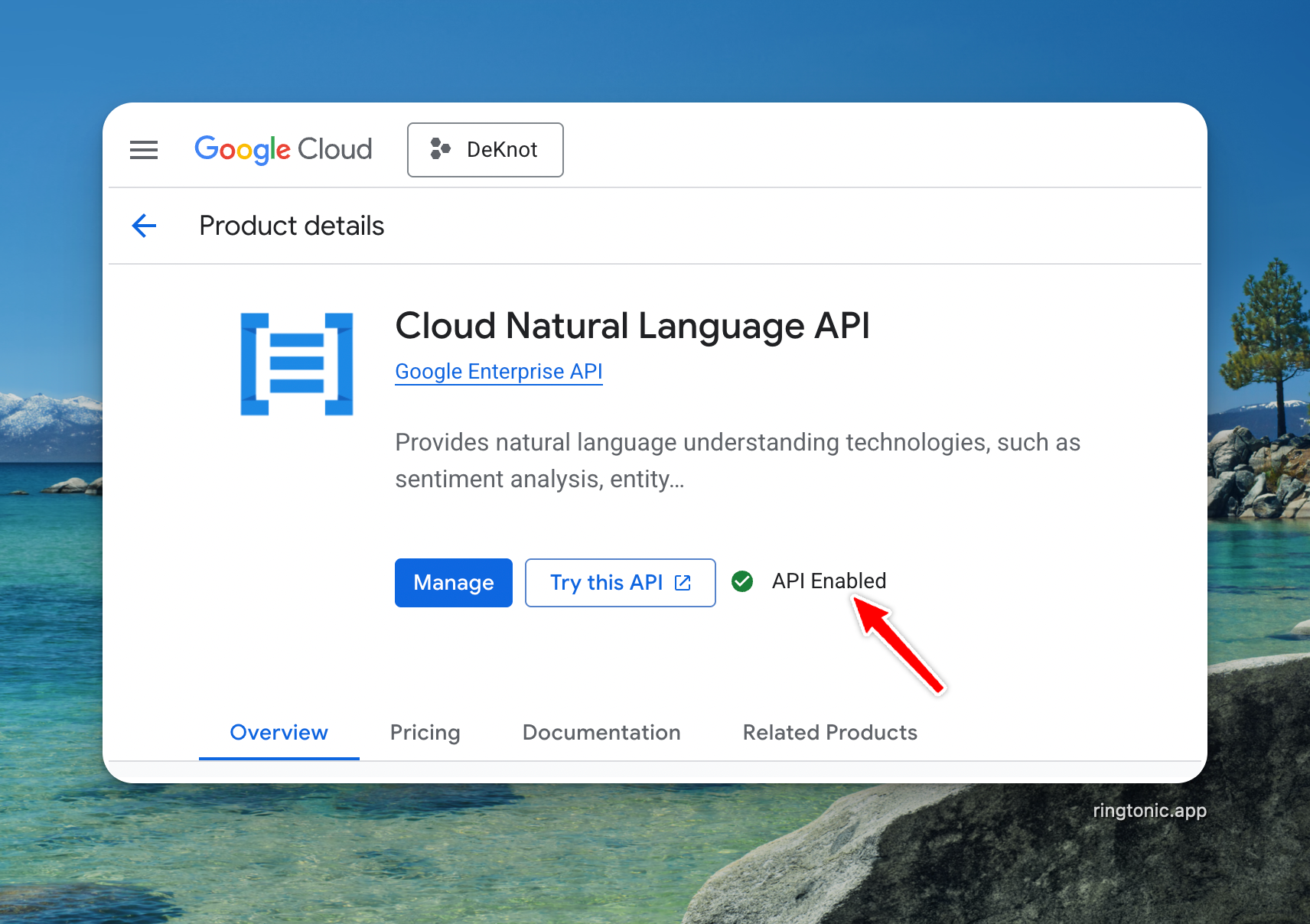
Step 3: Enable the Natural Language API

  1. In the left sidebar, navigate to "APIs & Services" > "Library"

  2. Search for "Cloud Natural Language API"

  3. Click on "Cloud Natural Language API" from the results

  4. Click the "Enable" button

  5. Wait for the API to be enabled (usually takes a few seconds)

Enable the Cloud Natural Language API
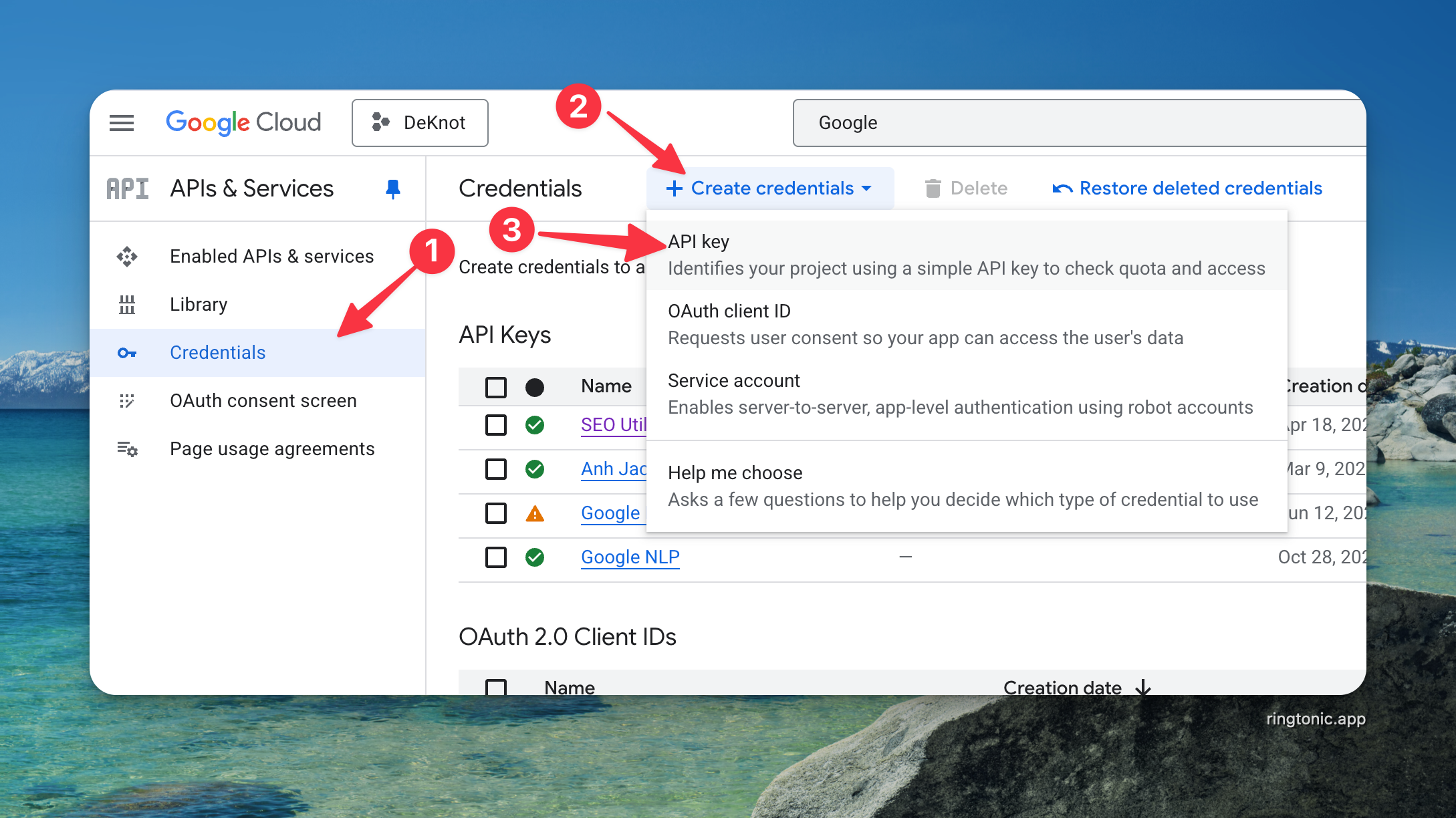
Step 4: Create an API Key

  1. Navigate to "APIs & Services" > "Credentials"

  2. Click "Create Credentials" at the top

  3. Select "API key" from the dropdown

  4. Your new API key will be displayed (it starts with "AIza...")

  5. Click "Copy" to copy the key

  6. Optional but recommended: Click "Restrict Key" and add API restrictions to limit the key to only the Natural Language API

Create a new API key for the Natural Language API
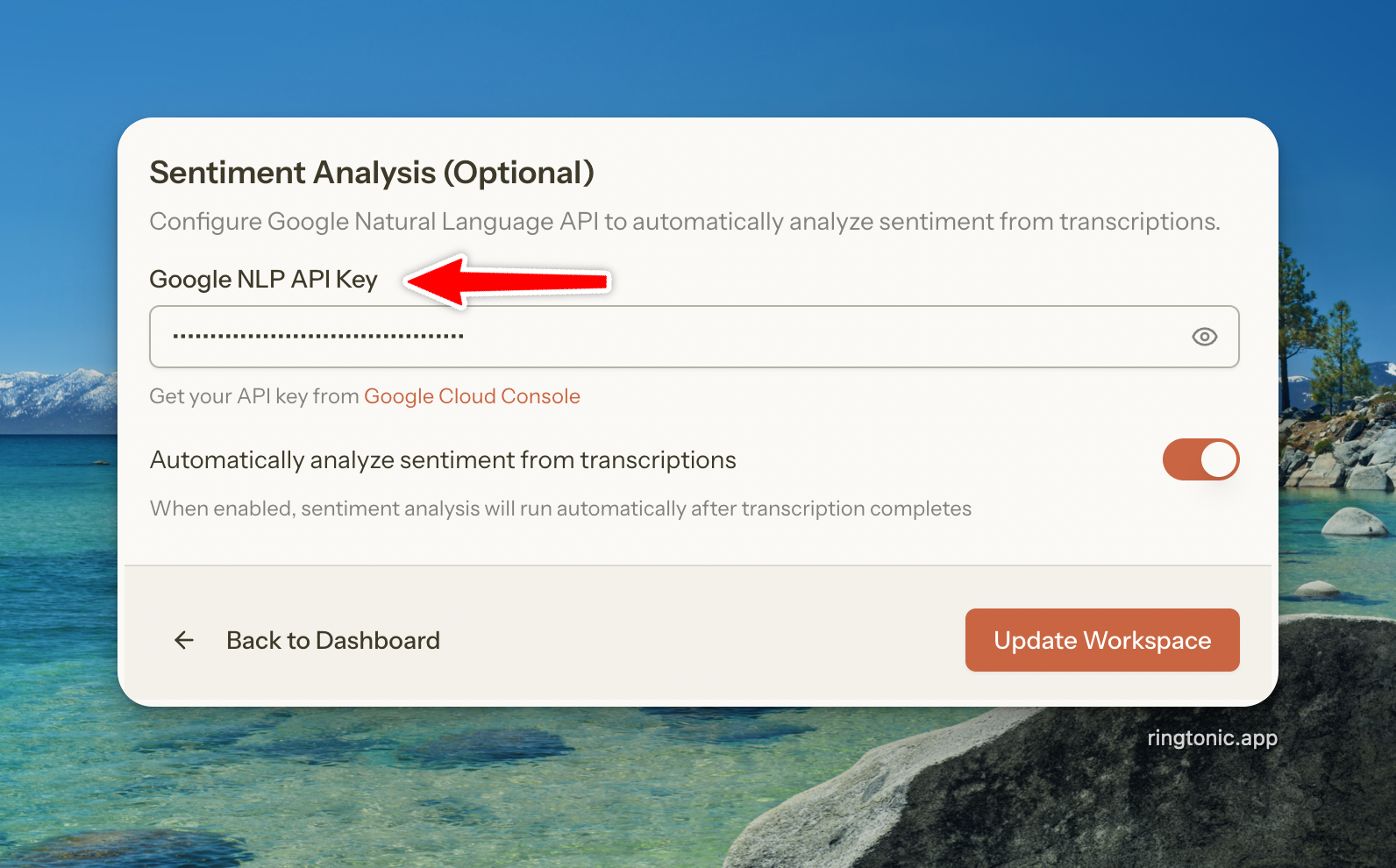
Step 5: Add Google NLP API Key to Your Workspace

  1. In Ring Tonic, navigate to your workspace settings

  2. Go to the Transcription tab

  3. Scroll down to the "Sentiment Analysis (Optional)" section

  4. Paste your API key into the "Google NLP API Key" field

  5. Enable "Automatically analyze sentiment from transcriptions"

  6. Click "Save" or "Update Workspace"

Configure Google NLP for sentiment analysis
Once configured, Ring Tonic will automatically analyze sentiment for every transcribed call and display the results in your call log.

Supported Languages for Sentiment Analysis

Google's Natural Language API supports sentiment analysis in the following languages:
  1. Arabic (ar)

  2. Chinese (Simplified) (zh)

  3. Chinese (Traditional) (zh-Hant)

  4. Dutch (nl)

  5. English (en)

  6. French (fr)

  7. German (de)

  8. Indonesian (id)

  9. Italian (it)

  10. Japanese (ja)

  11. Korean (ko)

  12. Portuguese (pt)

  13. Spanish (es)

  14. Thai (th)

  15. Turkish (tr)

  16. Vietnamese (vi)

If your transcription is in a language not supported for sentiment analysis, the sentiment will be marked as "Unsupported" in your call log. The transcription will still work normally.

3. Set up AI Automation with OpenAI

AI automation supercharges your call analytics by automatically extracting insights from every conversation. With OpenAI integration, Ring Tonic can identify important keywords, categorize calls, qualify leads, and even estimate deal values—all without manual review.

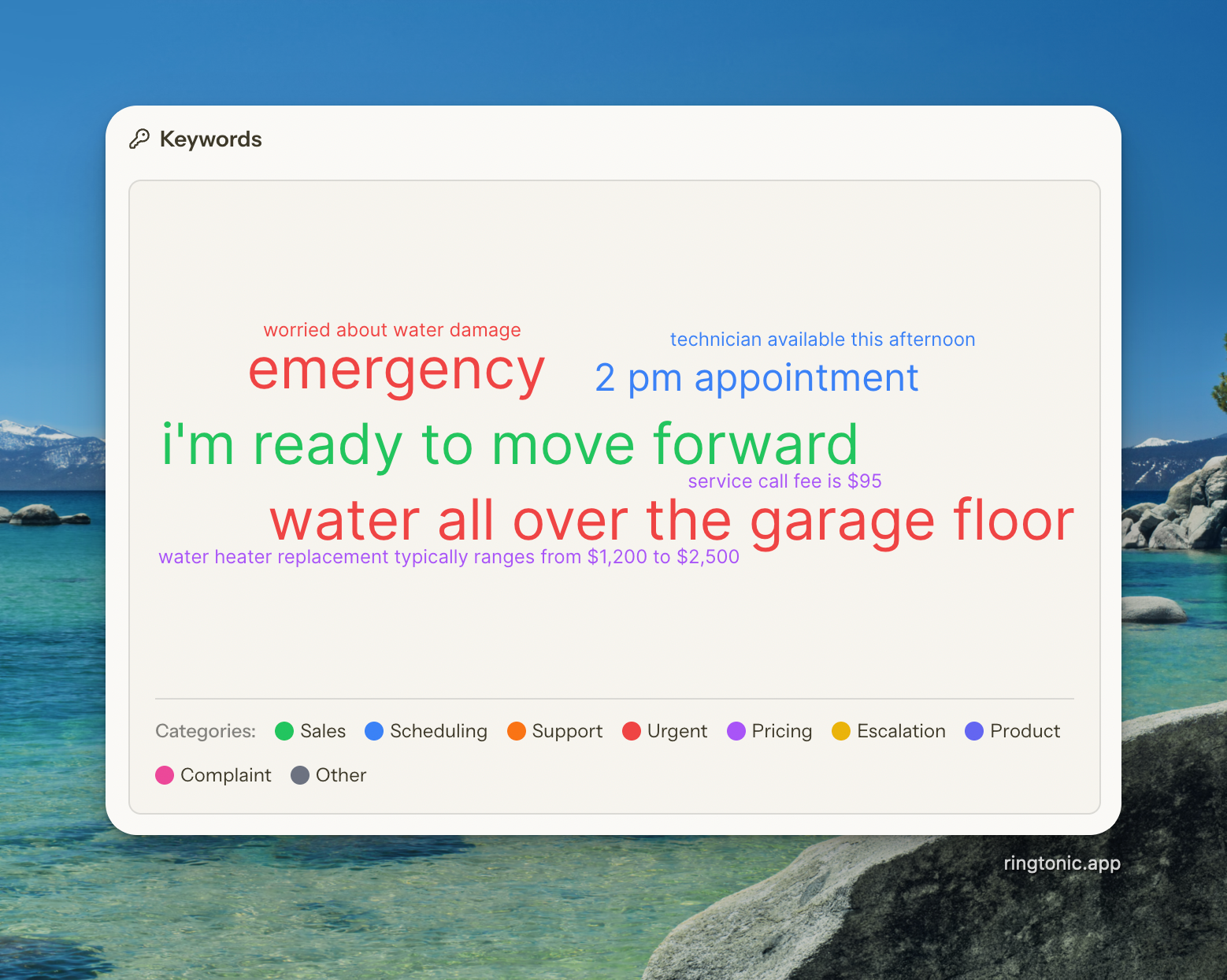
Keyword Spotting

This is incredibly powerful for:

  • Automatically identifying hot leads ready to buy

  • Spotting keywords that indicate urgency or specific needs

  • Auto-tagging calls for easy filtering ("Ready to Buy", "Needs Escalation", "Price Shopping")

  • Estimating potential revenue from each call

  • Training your team by highlighting what customers care about

Ring Tonic uses OpenAI's GPT models to analyze your call transcriptions and provide actionable intelligence on every conversation.

Important: AI automation requires transcription to be set up first. Make sure you've completed Section 2: Transcription before configuring AI features.

How to Set Up OpenAI

Step 1: Create an OpenAI Account

  1. Sign up with your email or Google account

  2. Verify your email address

  3. Complete the onboarding process

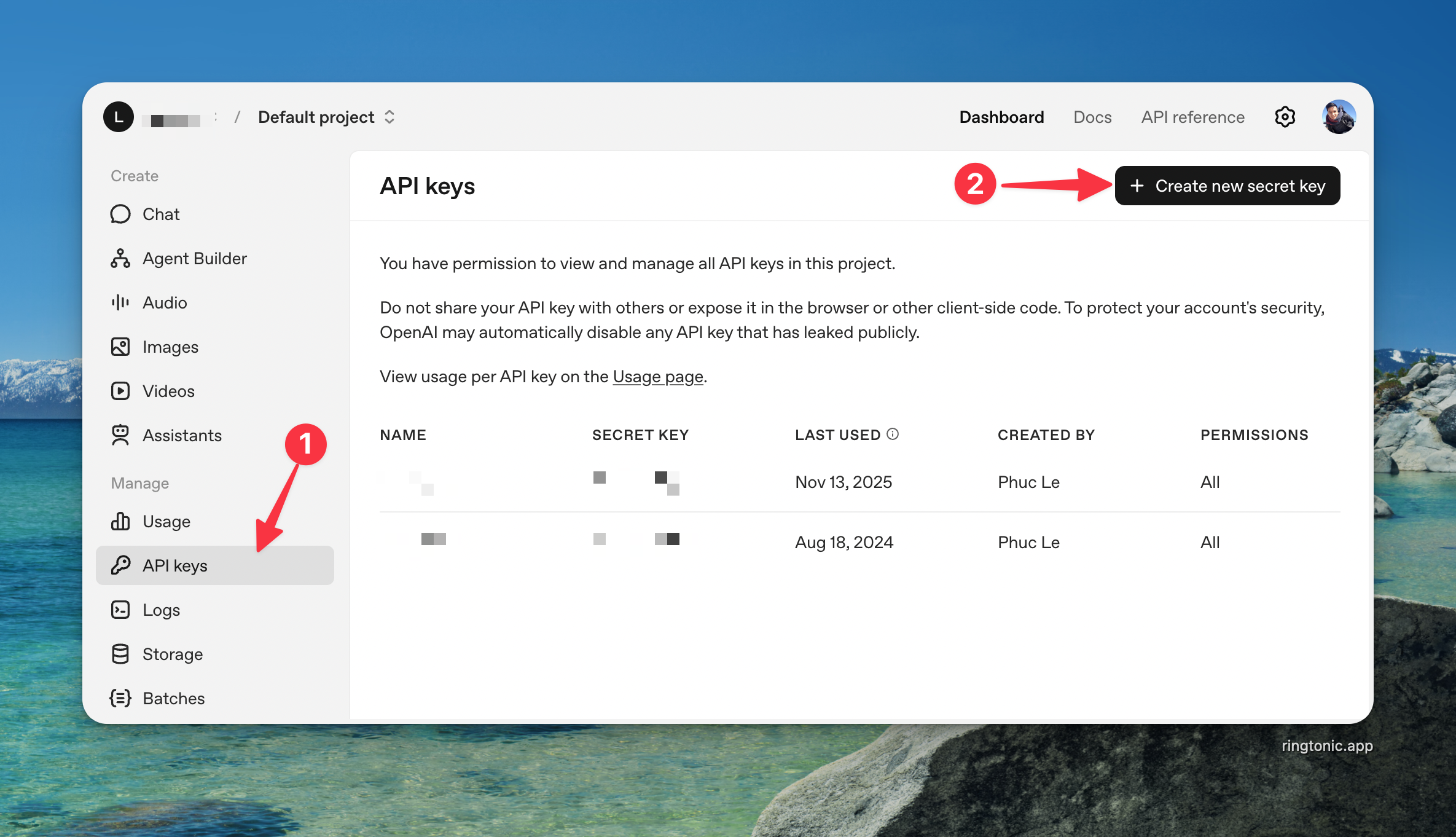
Step 2: Get Your OpenAI API Key

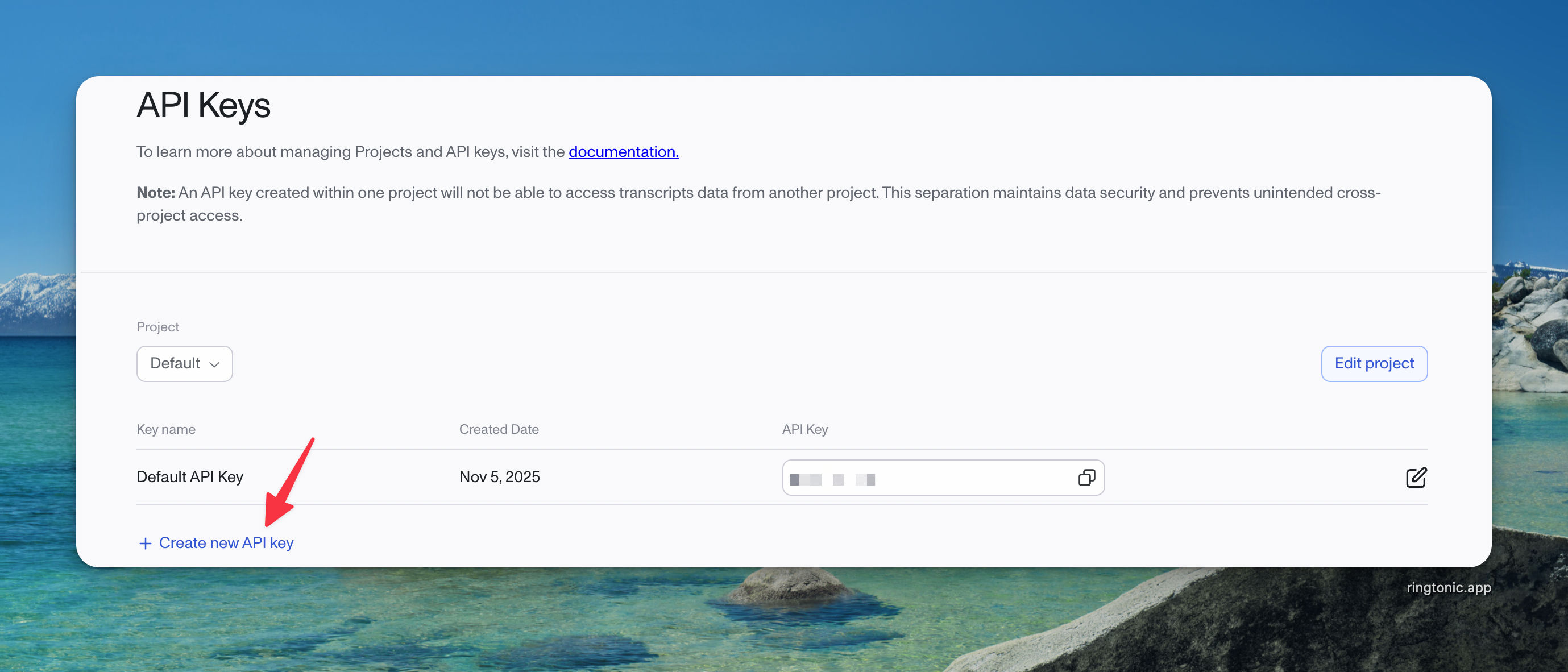
  1. After logging in, navigate to the API Keys page

  2. Click "Create new secret key"

  3. Give your key a name (e.g., "Ring Tonic Production")

  4. Optionally restrict permissions to only what's needed

  5. Click "Create secret key"

  6. Copy the API key immediately (it starts with "sk-" and you won't be able to see it again)

Create a new API key in the OpenAI Platform
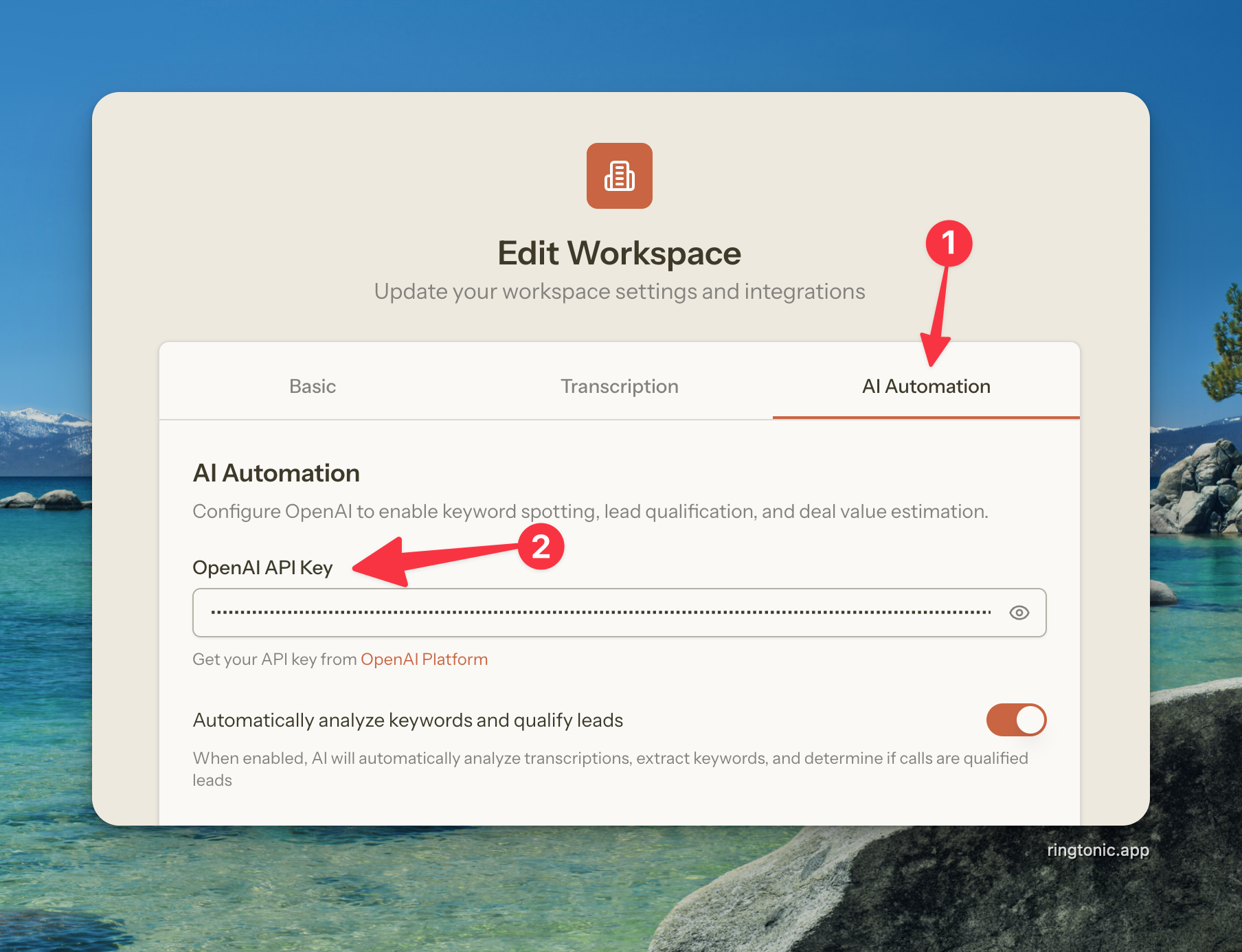
Step 3: Add OpenAI API Key to Your Workspace

  1. In Ring Tonic, navigate to your workspace settings

  2. Go to the AI Automation tab

  3. Paste your API key into the "OpenAI API Key" field

  4. Configure your AI automation settings (explained below)

  5. Click "Save" or "Update Workspace"

Configure OpenAI in your workspace AI automation settings

Automatically Analyze Keywords and Qualify Leads

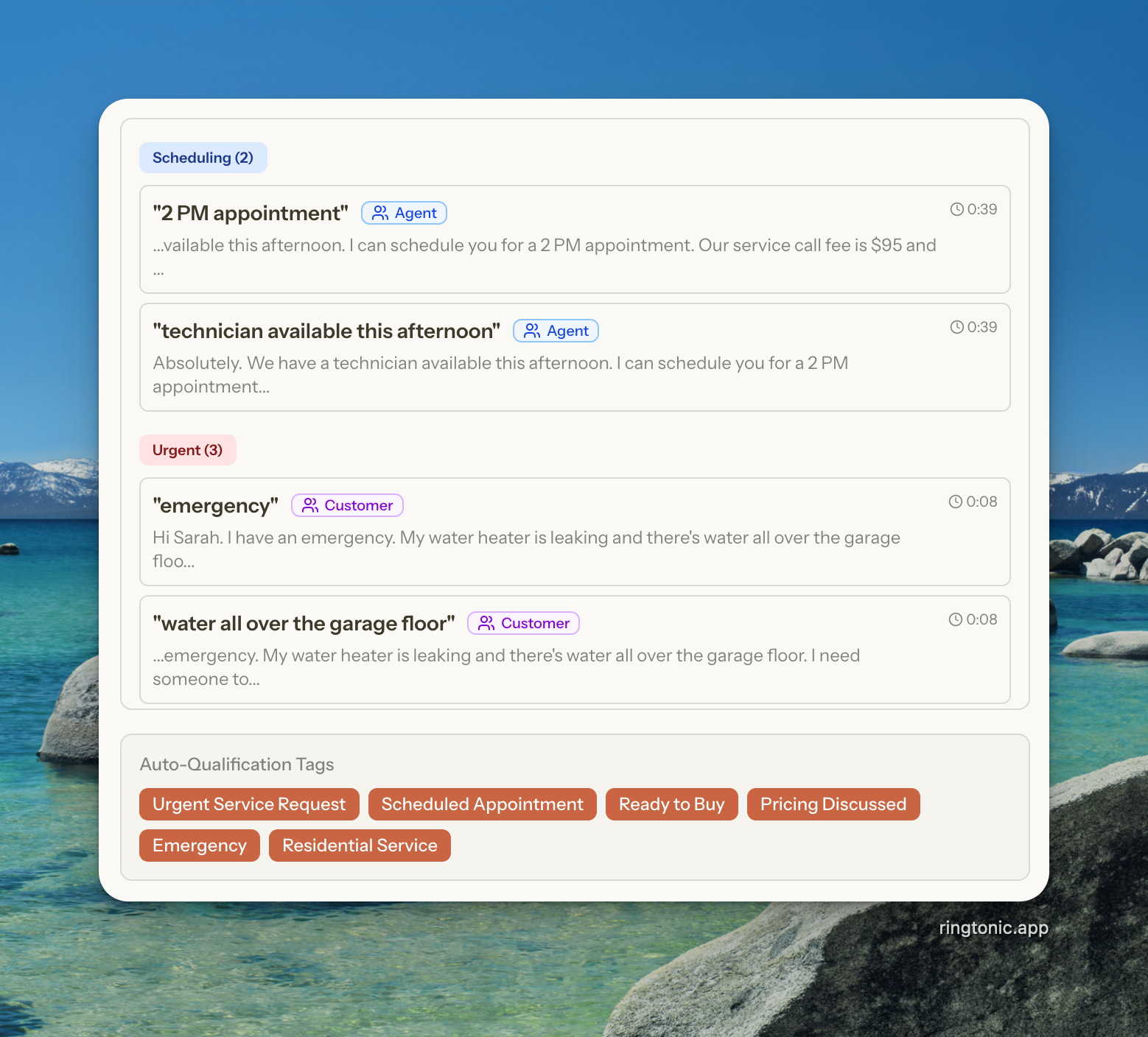
When enabled, Ring Tonic's AI will analyze every transcribed call to:

  1. Extract Important Keywords - Identifies meaningful words and phrases that indicate customer intent, needs, or concerns

  2. Categorize Each Keyword - Labels keywords by type (sales, scheduling, support, urgent, pricing, escalation, etc.)

  3. Identify the Speaker - Knows whether the Agent or Customer said each keyword

  4. Auto-Tag Calls - Applies tags like "Ready to Buy", "Needs Escalation", "Price Shopping", "Product Inquiry" for easy filtering

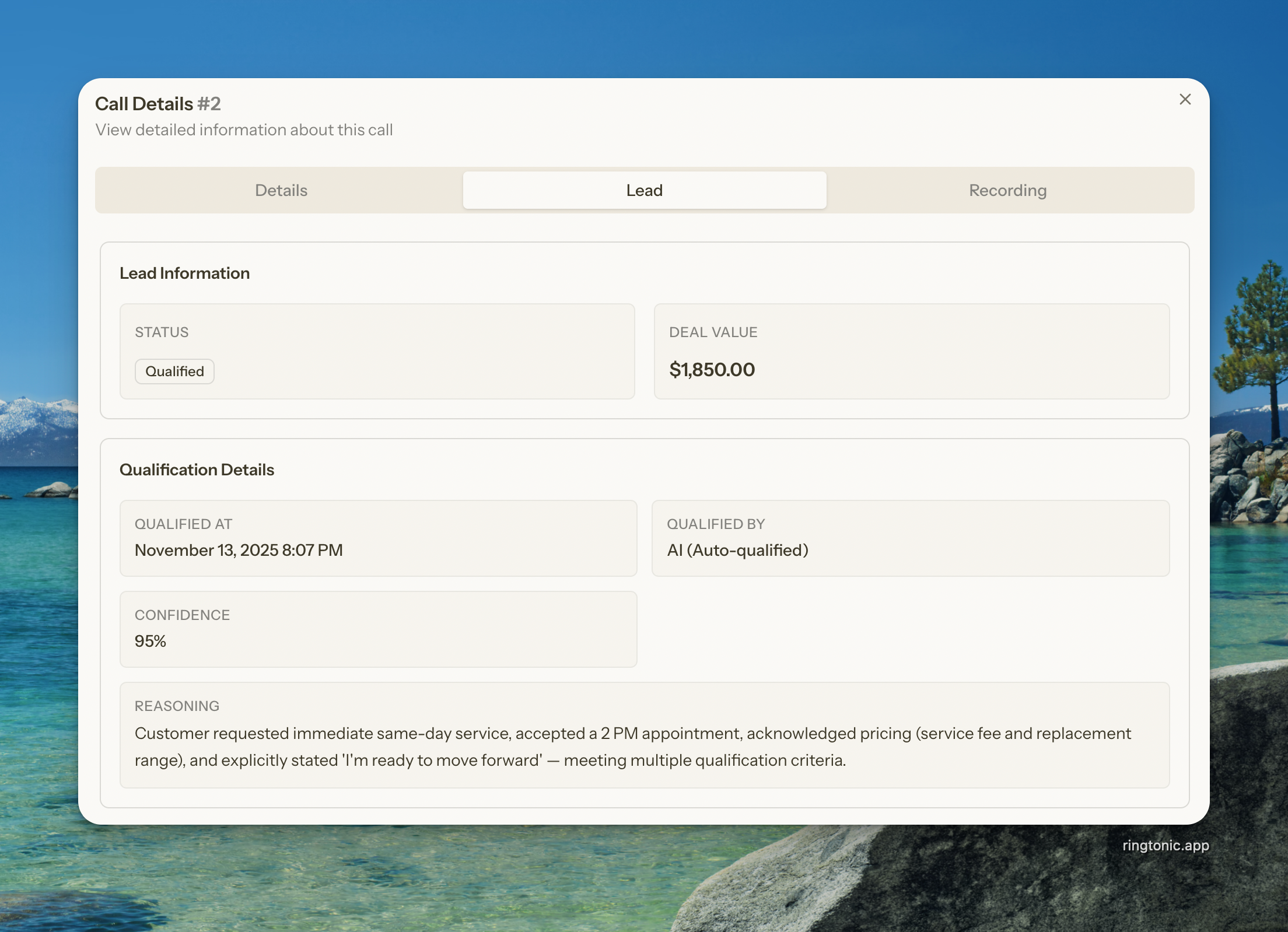
  5. Qualify Leads Automatically - Determines if the call represents a qualified lead based on your criteria

Auto-tagging and keyword spotting

Example: How It Works

Imagine a customer calls and says:

"Hi, I need someone to fix my water heater today. It's leaking everywhere and I'm worried about water damage. Can you give me a quote and come out this afternoon?"

The AI would extract keywords like:

  • "water heater" (category: product, importance: 8, speaker: Customer)

  • "today" (category: urgent, importance: 9, speaker: Customer)

  • "leaking" (category: support, importance: 7, speaker: Customer)

  • "quote" (category: pricing, importance: 9, speaker: Customer)

  • "this afternoon" (category: scheduling, importance: 10, speaker: Customer)

Auto-tags applied: "Ready to Buy", "Urgent", "Needs Quote"

Lead qualification: QUALIFIED (95% confidence) because the customer requested a quote, showed urgency, and wanted to schedule service.

Auto-qualify Leads

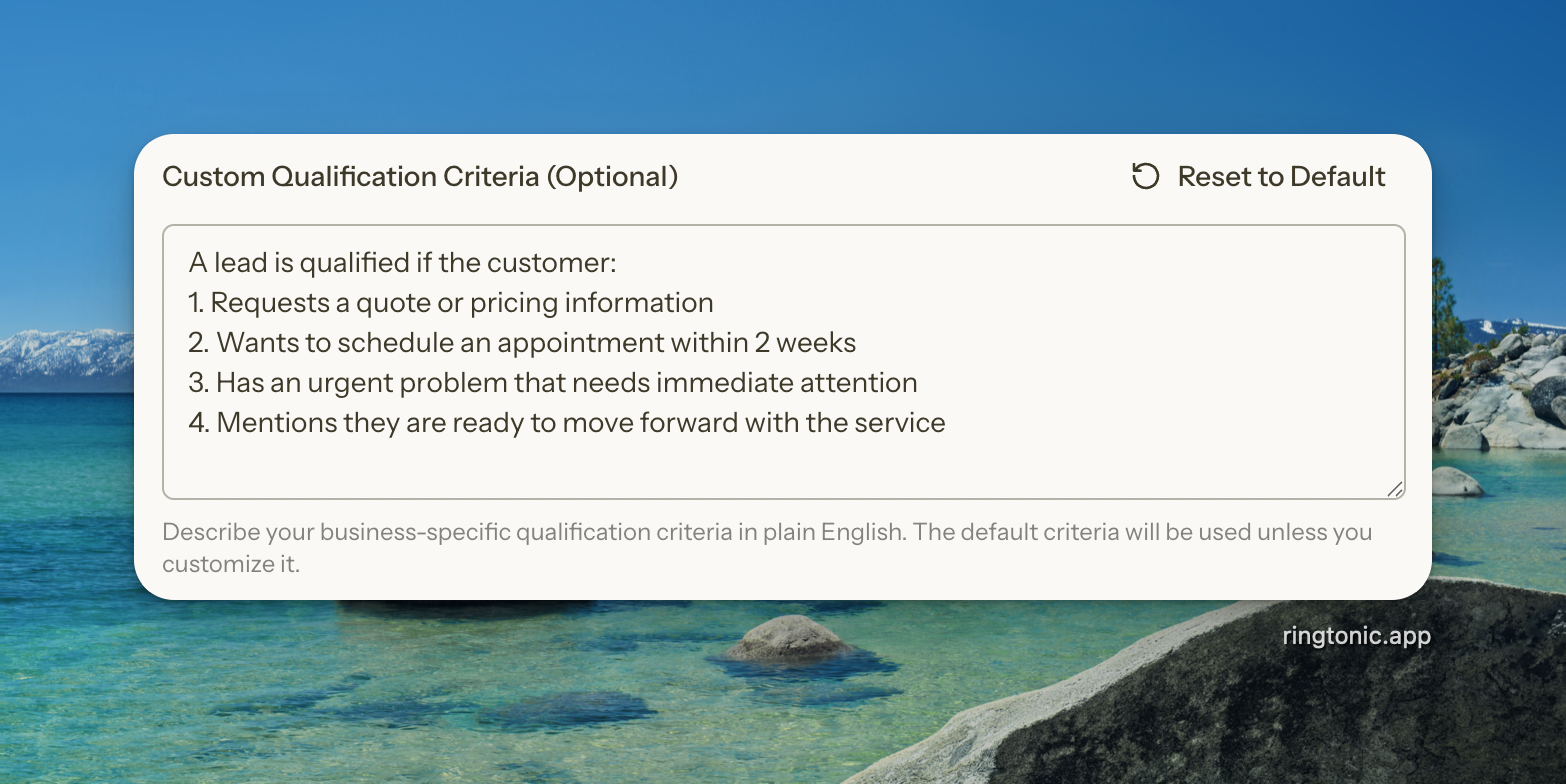
Custom Qualification Criteria (Optional)

Every business defines "qualified leads" differently. Ring Tonic provides sensible defaults, but you can customize the qualification criteria to match your specific business needs.

Default Qualification Criteria

Out of the box, Ring Tonic considers a call qualified if the customer:

  1. Requests a quote or pricing information

  2. Wants to schedule an appointment within 2 weeks

  3. Has an urgent problem that needs immediate attention

  4. Mentions they are ready to move forward with the service

Default Qualification Criteria

Customizing for Your Business

You can override the default criteria with your own business-specific guidelines. For example:

For a High-End Law Firm:

A lead is qualified if:
- Case value exceeds $50,000
- Client has immediate legal needs
- Decision-maker is on the call
- Case type matches our practice areas (corporate, real estate, litigation)

For a Roofing Company:

A lead is qualified if:
- Customer owns the property (not renters)
- Roof damage is current, not future planning
- Customer requests inspection or estimate
- Property is within our service area
- Customer has decision-making authority

For a SaaS Business:

A lead is qualified if:
- Company size is 50+ employees
- Customer discusses budget or pricing
- Decision-maker or influencer is on the call
- Timeline is within 3 months
- Specific use case mentioned that matches our product

The AI will incorporate your custom criteria when analyzing calls and determining qualification status.

Don't worry about making it perfect. The AI is smart enough to understand natural language guidelines. Write your criteria as if you're explaining it to a new team member.

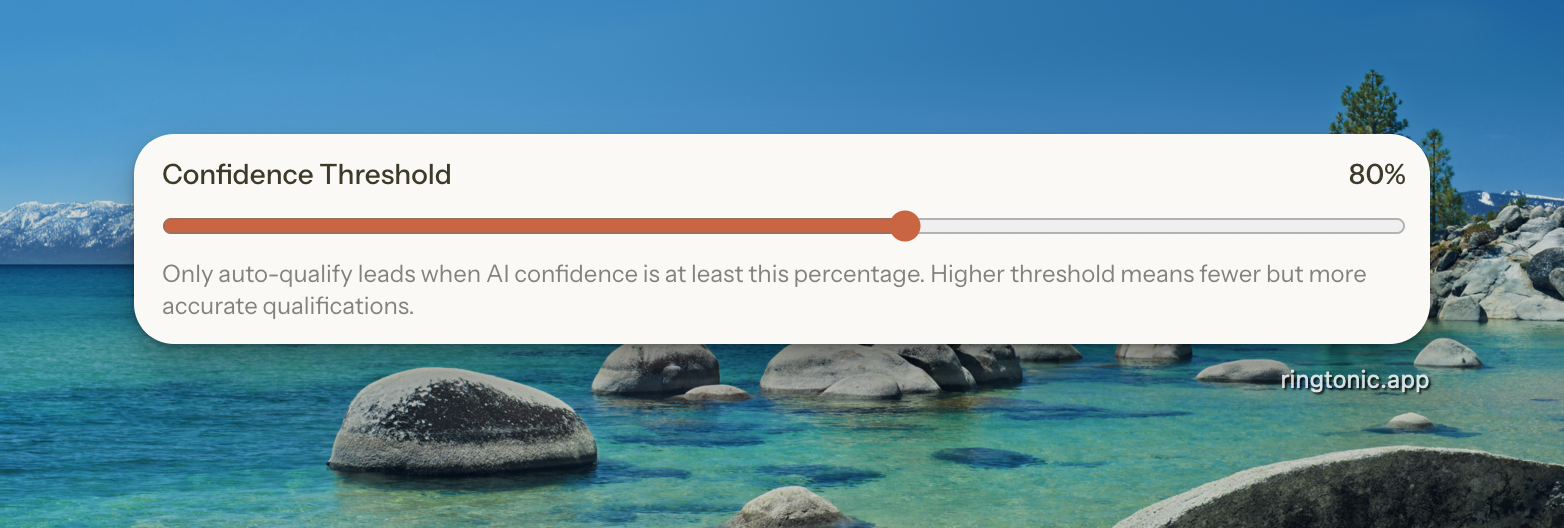
Confidence Threshold

The confidence threshold determines how certain the AI must be before automatically qualifying a lead. This is a crucial setting that balances quantity versus quality.

Confidence threshold field

How It Works

When the AI analyzes a call, it assigns a qualification confidence score from 0-100:

  • 90-100%: Very confident this is a qualified lead

  • 75-89%: Confident, but some uncertainty

  • 60-74%: Moderate confidence

  • Below 60%: Low confidence

Your workspace confidence threshold (default: 80%) acts as a filter. Only calls meeting or exceeding this threshold will be automatically marked as qualified.

Choosing Your Threshold

Threshold
Effect
Best For

50-65%

More leads auto-qualified, lower accuracy

High-volume businesses that manually review all leads anyway

70-80%

Balanced approach, good accuracy

Most businesses (recommended)

85-100%

Only very obvious qualified leads, highest accuracy

Businesses with limited sales resources, want to focus only on hot leads

Example Scenario

With an 80% threshold:

  • Call A: 95% confidence → Auto-qualified ✅

  • Call B: 82% confidence → Auto-qualified ✅

  • Call C: 75% confidence → Not auto-qualified (you can manually review) ❌

  • Call D: 60% confidence → Not auto-qualified ❌

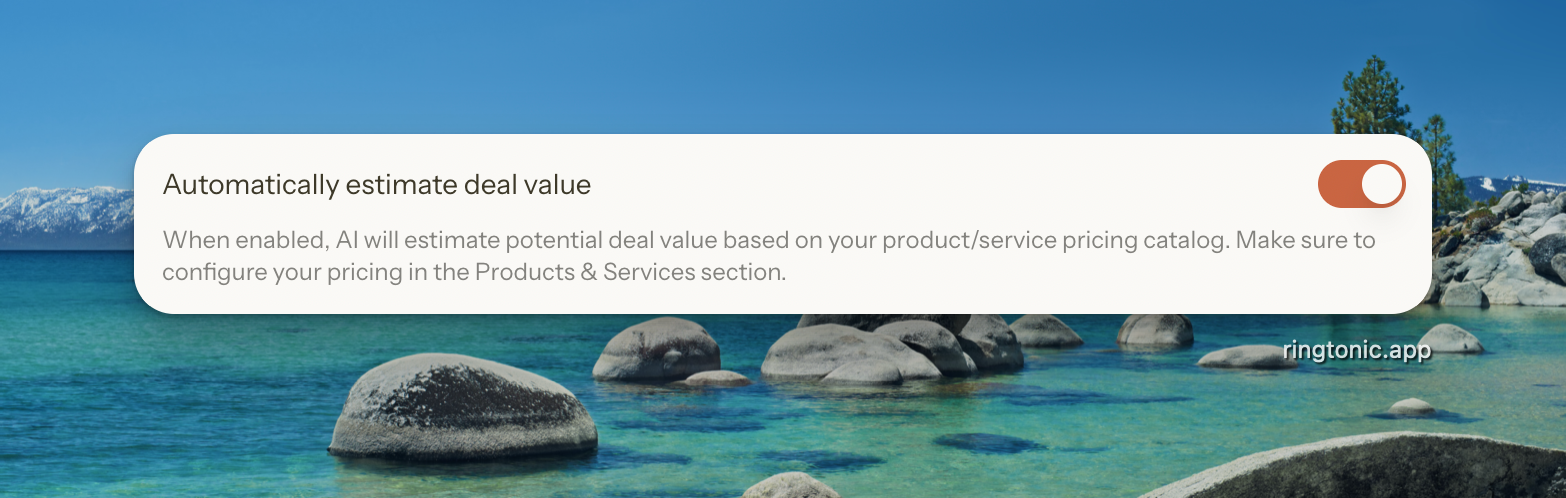
Automatically Estimate Deal Value

Deal value estimation helps you prioritize leads based on potential revenue. When enabled, Ring Tonic's AI analyzes customer conversations and automatically estimates the potential deal value using your Products & Services pricing catalog.

Automatically Estimate Deal Value field

How It Works

When a customer mentions specific products or services during a call, the AI:

  1. Matches their needs to items in your catalog

  2. Considers context (urgency, scope, complexity)

  3. Estimates a deal value within your pricing ranges

  4. Displays the estimate in your call log

Example: A customer calls about a broken water heater needing same-day replacement. The AI identifies "Water Heater Replacement" ($1,200-$3,500) plus "Emergency Service" ($150) from your catalog and estimates the deal at $1,500-$3,650.

Setting Up Deal Value Estimation

To use this feature:

  1. Enable the feature - Toggle "Automatically estimate deal value" in the AI Automation tab

  2. Optionally build your catalog - Add Products & Services with pricing ranges for more accurate estimates

How Deal Values Are Estimated:

With a Products & Services Catalog (Recommended):

  • AI matches customer needs to your catalog items

  • Estimates within your defined price ranges

  • More accurate and consistent estimations

Without a Catalog:

  • AI can still estimate if customers explicitly mention budgets or prices

  • Example: "I'm looking to spend around $5,000" → AI estimates $5,000

  • Less reliable as it depends on customers volunteering pricing information

See the complete Products & Services Guide for detailed instructions on building your catalog for best results.

Recommendation: Set up your Products & Services catalog for the most accurate deal value estimates. The AI works best when it has your actual pricing data to reference.

4. Configure Currency, Language & Branding, Timezone

Beyond the core integrations, your workspace has a few additional settings that control how Ring Tonic displays information and represents your brand.

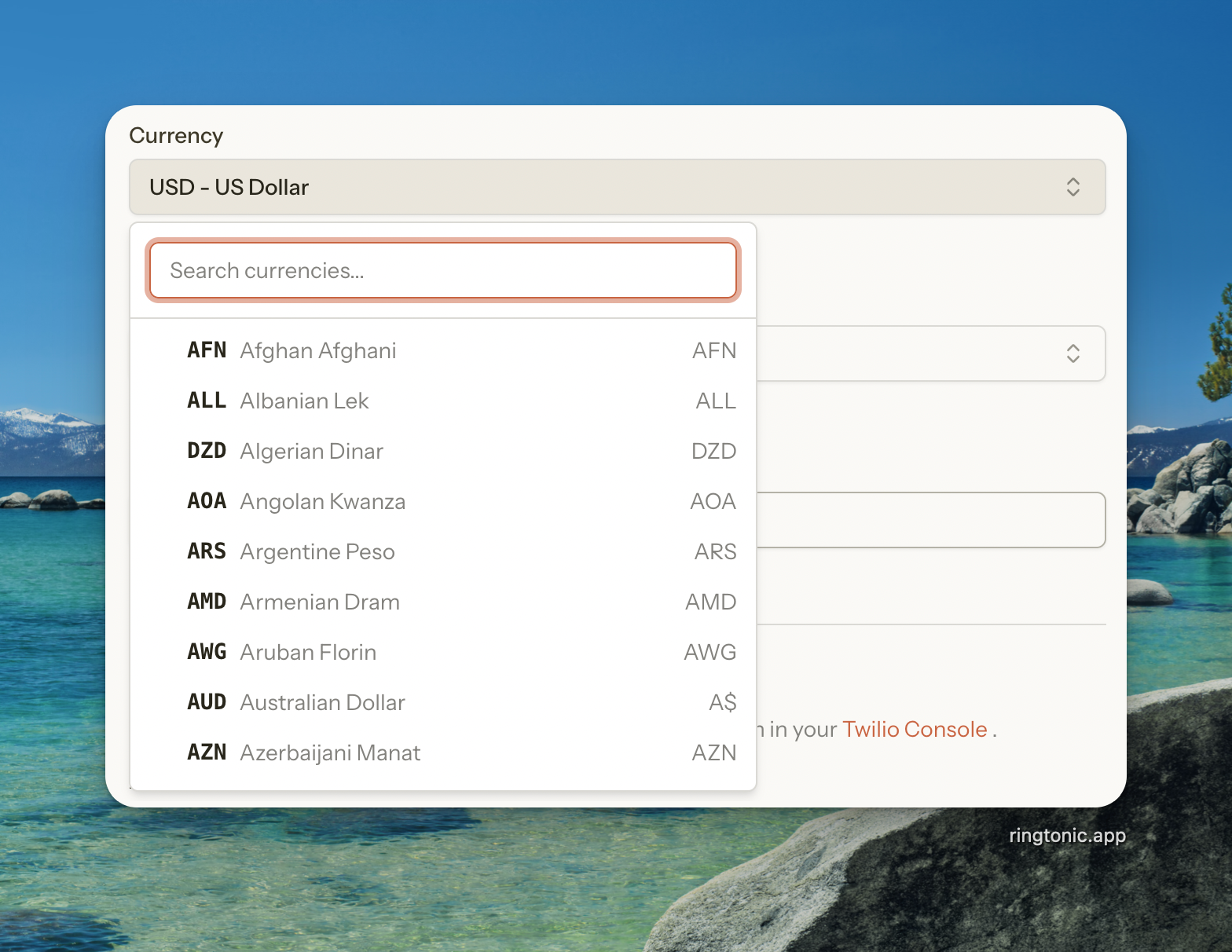
Currency

The currency setting determines how money values are displayed throughout Ring Tonic—in call logs, deal value estimates, pricing catalogs, and reports.

What It Affects:

  • Deal value estimates - Shows amounts in your chosen currency ($1,500 vs €1,500 vs ₫1,500,000)

  • Products & Services pricing - Your catalog displays in your currency

  • Reports and exports - All financial data formatted correctly

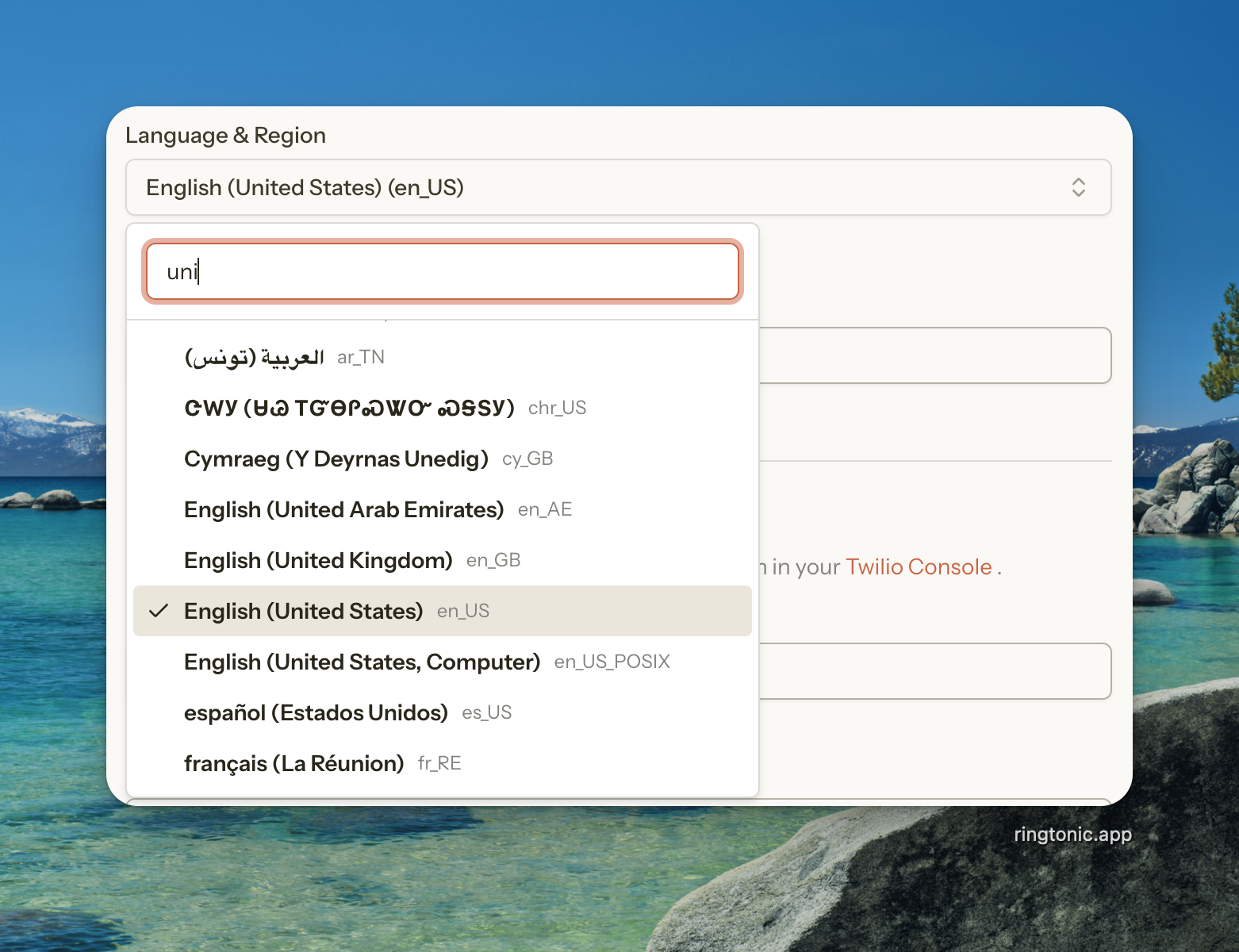
Language & Region (Locale)

The locale setting controls regional formatting preferences for dates, times, numbers, and currency display. It works together with your currency setting to ensure everything displays correctly for your region.

What It Affects:

  • Date and time formats - US format (MM/DD/YYYY, 12-hour) vs European (DD/MM/YYYY, 24-hour)

  • Number formatting - Decimal and thousands separators (1,500.00 vs 1.500,00)

  • Currency symbol position - Before ($1,500) or after (1.500€)

  • Day/month names - Language for calendar displays

  • First day of week - Sunday vs Monday in calendars

Currency + Locale Work Together: Your currency determines what currency to use (USD, EUR, etc.), while your locale determines how to format it. For example, if you choose USD currency with the de_DE locale, amounts will show as "1.500,00 $" using German formatting conventions.

Timezone

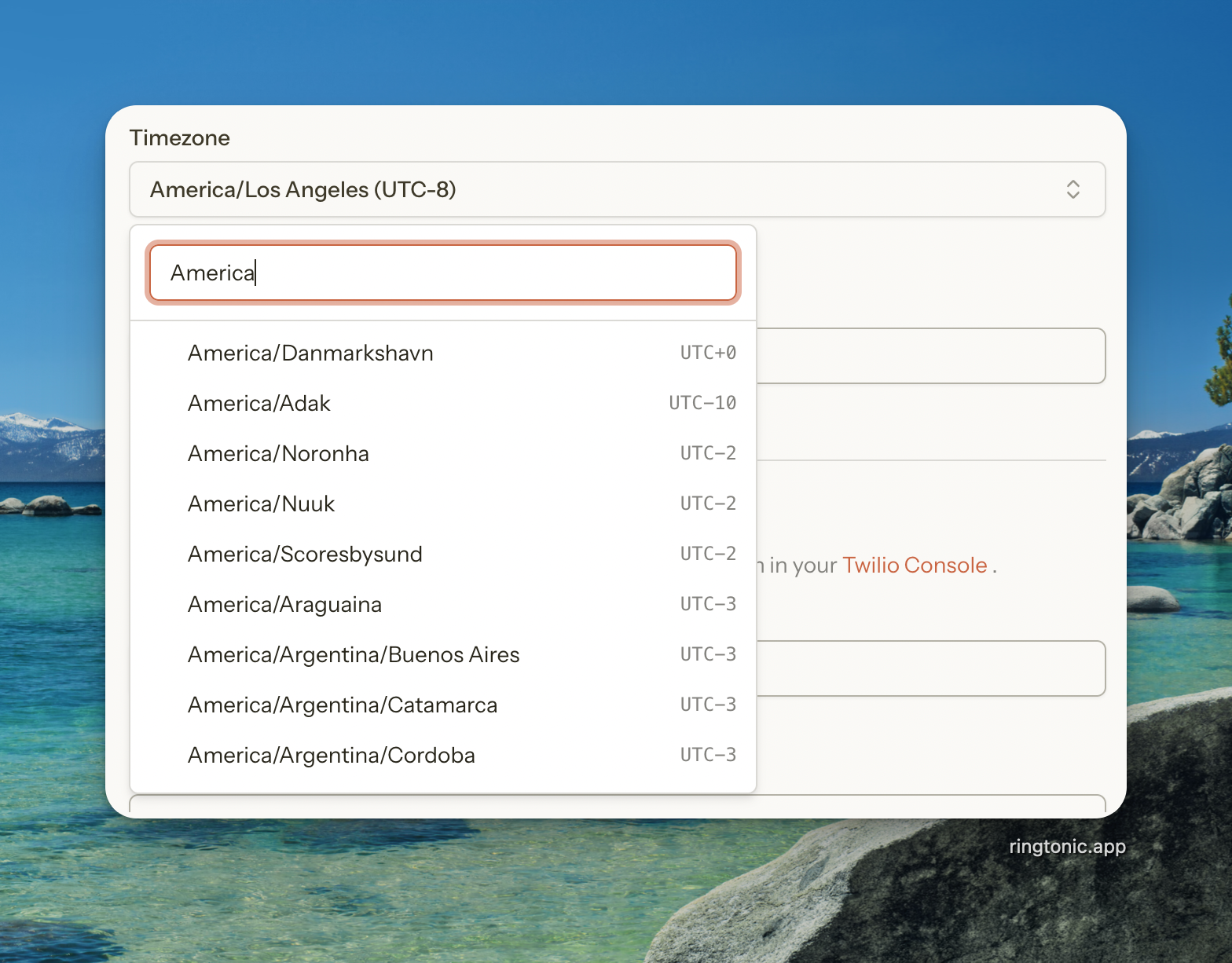
The timezone setting controls how dates and times are displayed throughout Ring Tonic—in call logs, analytics, date ranges, and reports. Choose the timezone where your business operates for accurate reporting aligned with your business hours.

Default: UTC

Agency Plan Users: If you're on the Agency plan, you can also invite team members to collaborate on your workspace.

Last updated