๐ฑBrowser Dialer
What is the Browser Dialer?
The Browser Dialer is a built-in softphone that lets agents make and receive calls directly from their web browser โ no external phone apps or hardware needed. It appears as a floating widget on your dashboard, giving agents one-click calling from contacts, recent calls, or a manual dial pad.

Agency Plan Required: The Browser Dialer is only available on the Agency plan. Indie plan users can upgrade to access this feature.
Requirements: The Browser Dialer requires Twilio credentials (Account SID + Auth Token) to be configured in your workspace, plus a separate Twilio API Key for secure browser-based calling.
Setting Up the Dialer
Setting up the Browser Dialer involves four steps: enabling the feature, creating a Twilio API Key, upgrading your Twilio account if still on the free trial, and importing phone numbers for outbound caller ID.
Step 1: Enable the Dialer
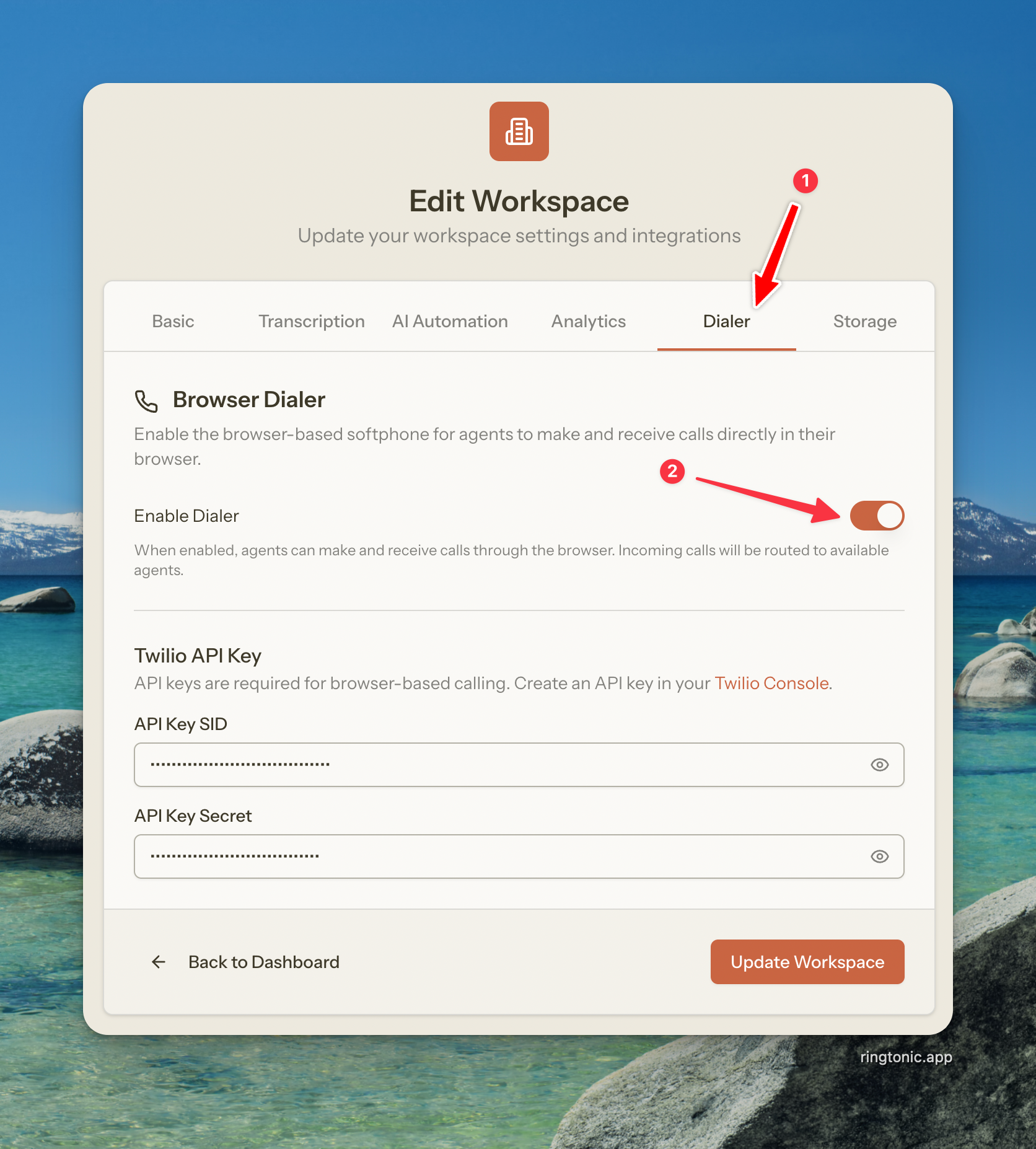
Go to your Workspace Settings
Click the Dialer tab
Toggle Enable Dialer to on
Click Update Workspace

Make sure your Twilio Account SID and Auth Token are already configured in the Basic tab. The dialer needs these to provision the necessary Twilio resources automatically.
When you save with the dialer enabled, Ring Tonic automatically creates a TwiML Application in your Twilio account. This is the bridge that connects browser calls to Twilio's network. If something goes wrong during provisioning, you'll see a warning message with instructions to verify your Twilio credentials.
Step 2: Create a Twilio API Key
The dialer uses Twilio API Keys (not your Account SID/Auth Token) to generate secure, short-lived tokens for browser calling. This is a Twilio security requirement.
How to Create an API Key:
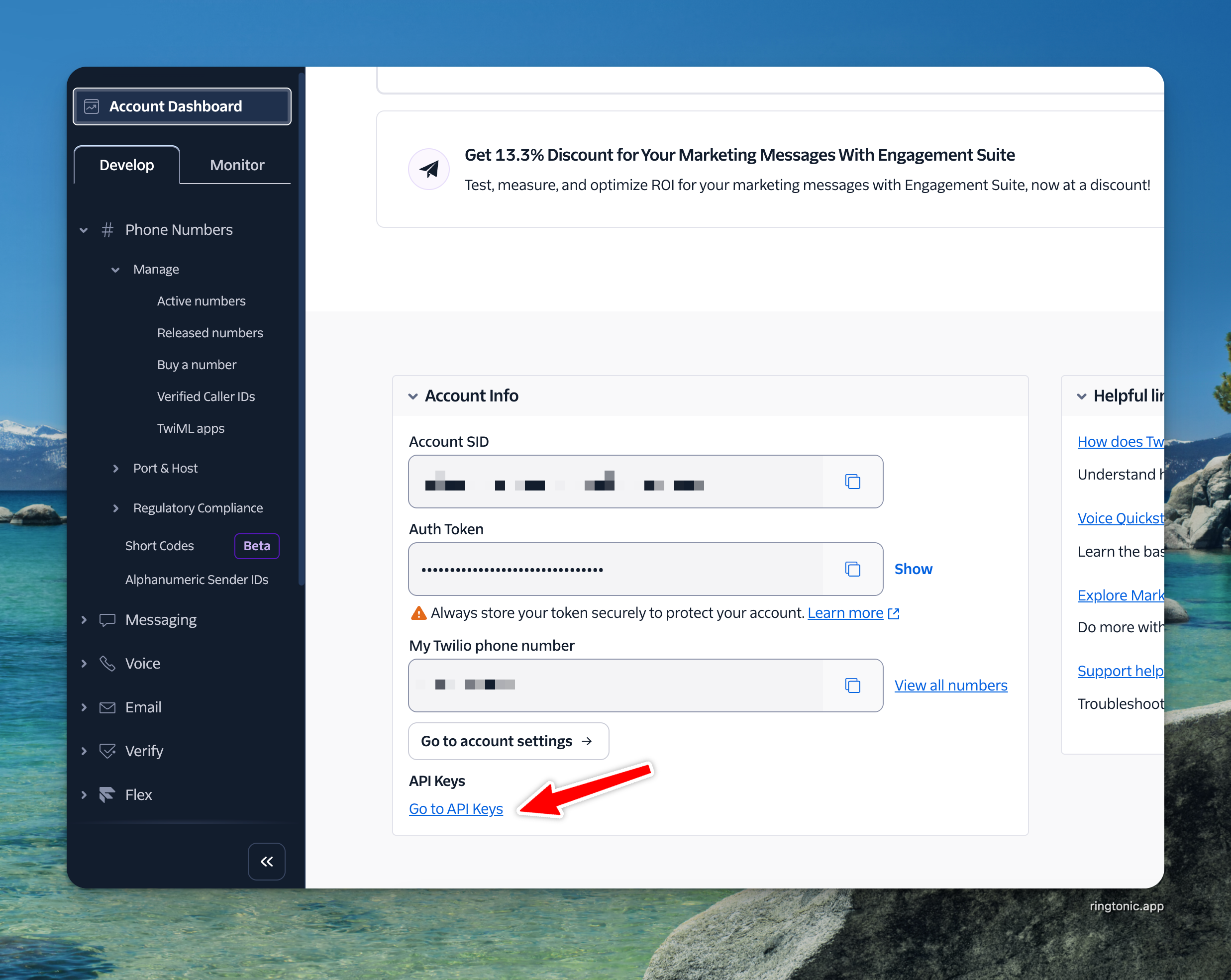
Log into your Twilio Console
Navigate to Account โ API keys & tokens
Click Create API Key
Give it a name (e.g., "Ring Tonic Dialer")
Leave the key type as Standard
Click Create API Key
Copy both the SID and Secret immediately โ the Secret is only shown once

Important: Copy the API Key Secret immediately after creation. Twilio only displays it once. If you lose it, you'll need to create a new API Key.
Add the API Key to Ring Tonic:
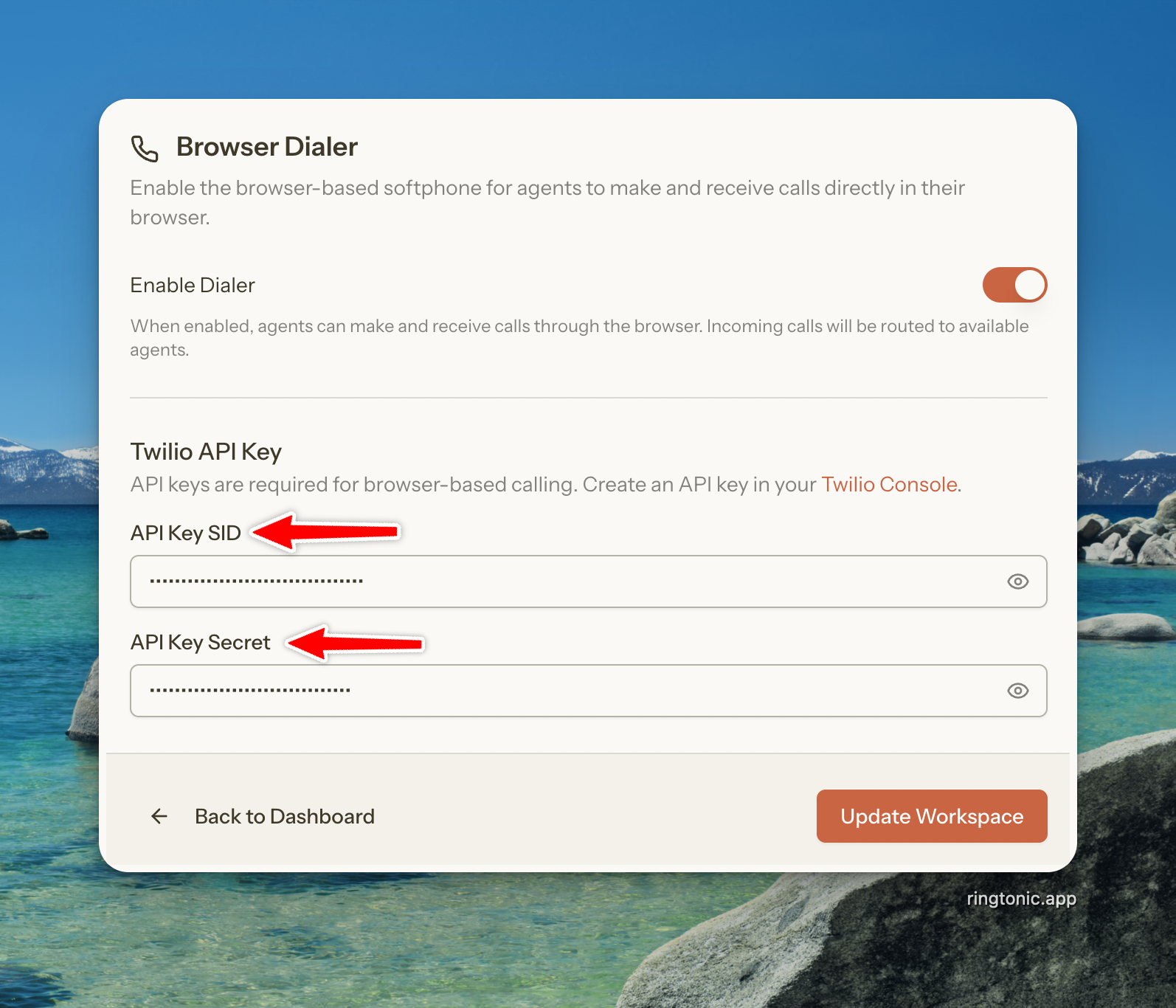
Go to Workspace Settings โ Dialer tab
Paste the API Key SID (starts with "SK") into the "API Key SID" field
Paste the API Key Secret into the "API Key Secret" field
Click Update Workspace

Once saved, the dialer widget will appear for all agents in your workspace. Each agent gets a unique, encrypted token that refreshes automatically every hour.
Step 3: Upgrade Your Twilio Account (If on Free Trial)
Critical: If your Twilio account is still on the free trial, outbound calls are severely limited. Trial accounts can only call verified phone numbers (numbers you've manually verified in Twilio), are limited to one Twilio number, and calls are capped at 10 minutes. You must upgrade to a paid Twilio account for the dialer to work properly.
To upgrade your Twilio account:
Log into your Twilio Console
Click the Upgrade button (or navigate to Billing โ Upgrade)
Add a payment method and fund your account
Once upgraded, all restrictions are removed โ you can call any phone number using any of your Twilio numbers as the caller ID
After upgrading, all your tracking numbers can be used for outbound calls to any destination, with no call duration limits.
Step 4: Set Up Phone Numbers for Outbound Calls
To make outbound calls, agents need at least one tracking number to use as the caller ID. These are the same phone numbers you manage in your Phone Numbers inventory.
Go to Phone Numbers
Make sure you have at least one number imported from Twilio
Numbers can be assigned to a campaign or unassigned โ both work for outbound dialing
Don't have phone numbers yet? See the Phone Numbers guide to learn how to import numbers from your Twilio account.
All tracking numbers in your workspace automatically appear in the dialer's caller ID dropdown. Agents can pick which number to show as the outbound caller ID.
Adding Agents
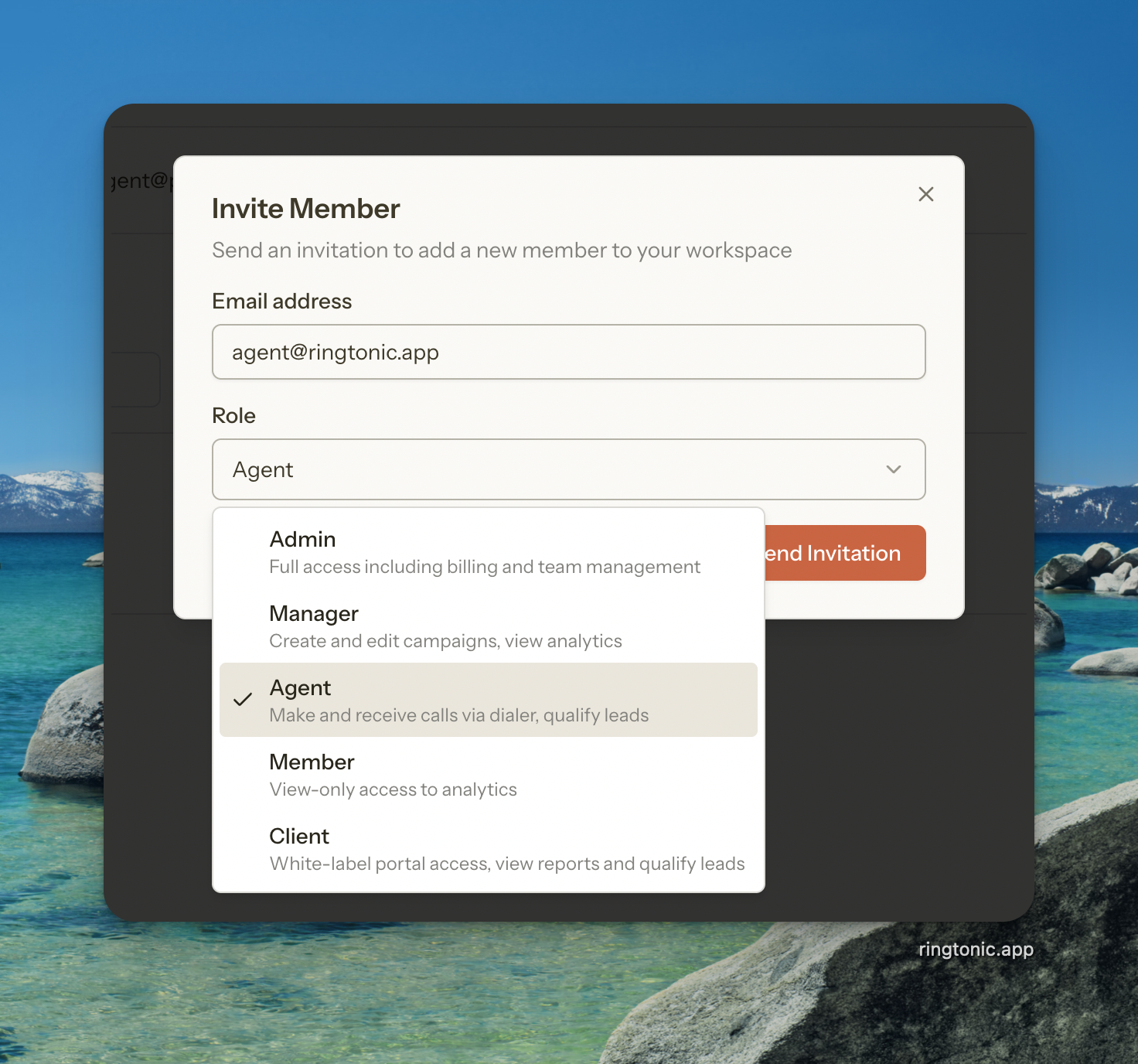
Only users with the Agent, Admin, or Owner role can access the dialer. When you invite team members, assign them the "Agent" role if they need to make and receive calls.
How to Add an Agent
Go to Workspace Members
Click Invite Member
Enter the person's email address
Select Agent as the role
Click Send Invitation

The invited person receives an email with a link to join your workspace. Once they accept and log in, the dialer widget automatically appears on their dashboard.
Existing members: If a team member already has the Manager or Member role and you want them to use the dialer, change their role to Agent from the members page. See Team Management for details.
What Agents Can Do
Make outbound calls
Yes
Yes
No
No
Receive inbound calls
Yes
Yes
No
No
View contacts
Yes
Yes
Depends
Depends
Edit contacts
Yes
Yes
Depends
No
View call logs
Yes
Yes
Depends
Depends
Qualify leads
Yes
Yes
No
No
Add call notes
Yes
Yes
No
No
Only agents and admins/owners receive incoming calls. Managers and Members never see the dialer widget, even if the dialer is enabled for the workspace.
Using the Dialer
Once set up, the dialer appears as a floating widget in the bottom-right corner of your screen. It has three main views: idle (with tabs), active call, and incoming call.
Agent Status
Before making or receiving calls, set your availability status using the dropdown in the dialer header:
Online
Green circle
Available โ you'll receive incoming calls
Away
Yellow circle
Temporarily unavailable โ calls are not routed to you
Do Not Disturb
Red circle
Manually set โ no incoming calls
In Call
Blue circle
Automatically set when on a call
Offline
Gray circle
Disconnected โ no calls

Auto-away: If you're inactive for 10 minutes, your status automatically changes to Away. It restores to Online when you interact with the page again.
Heartbeat: The dialer sends a heartbeat every 30 seconds to keep your session alive. If the heartbeat stops (e.g., you close your browser), you'll be marked as Offline after 2 minutes.
Making Outbound Calls
There are three ways to make an outbound call:
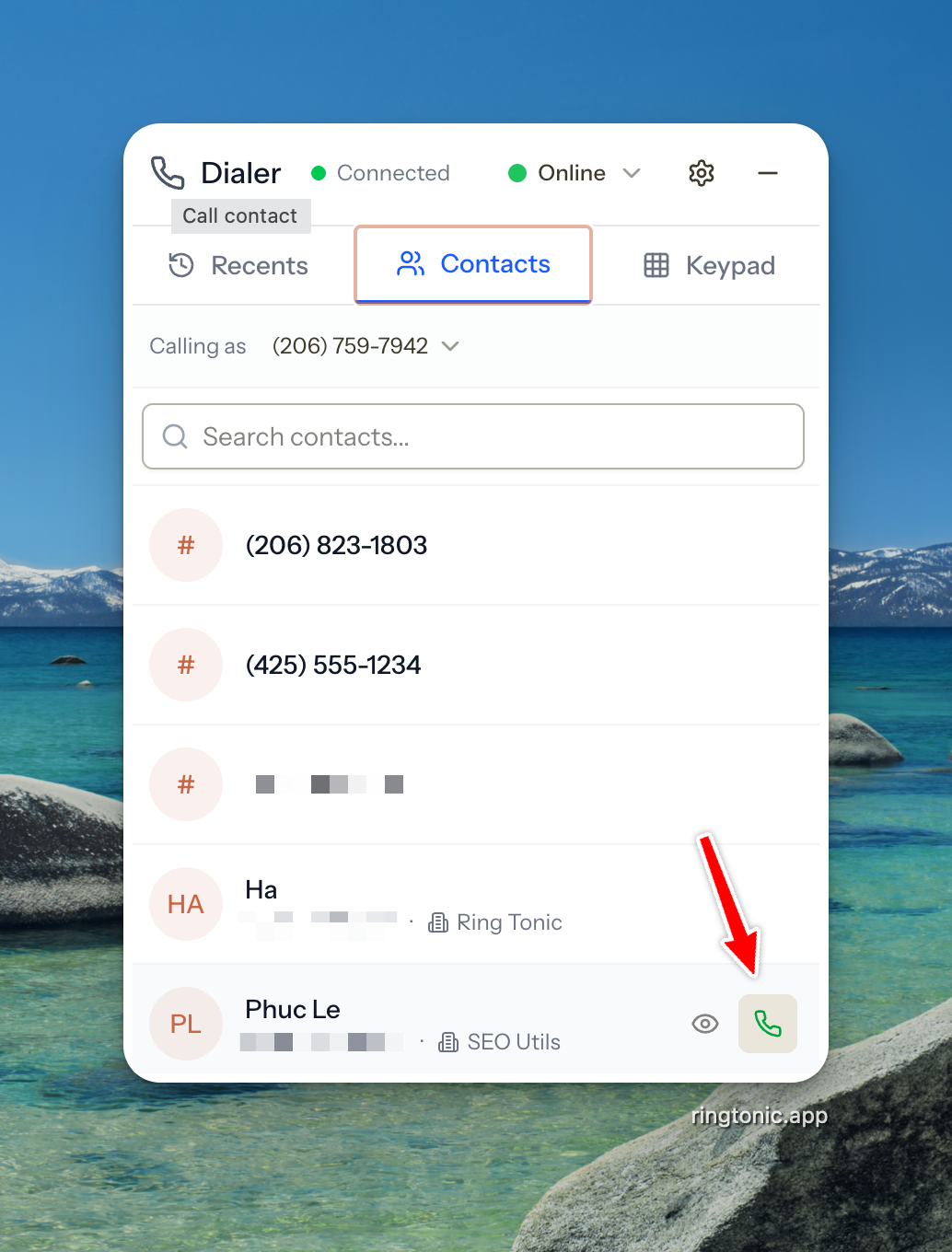
Dial from the Contacts tab
Open the dialer widget
Click the Contacts tab
Search for a contact by name or phone number
Click the phone icon next to the contact

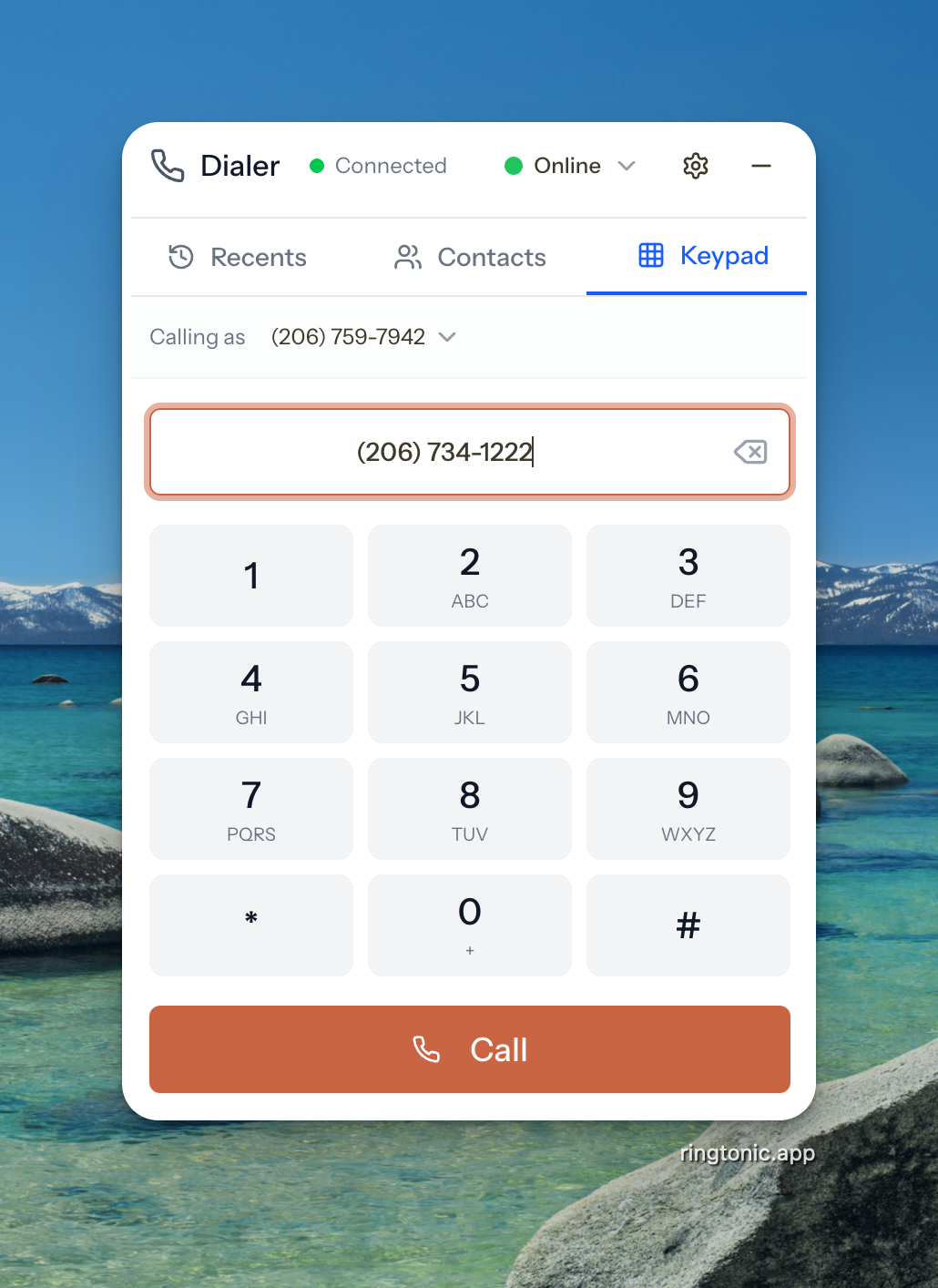
Dial a number manually
Open the dialer widget
Click the Keypad tab
Enter the phone number using the dial pad or type it directly
Click the call button (green phone icon)

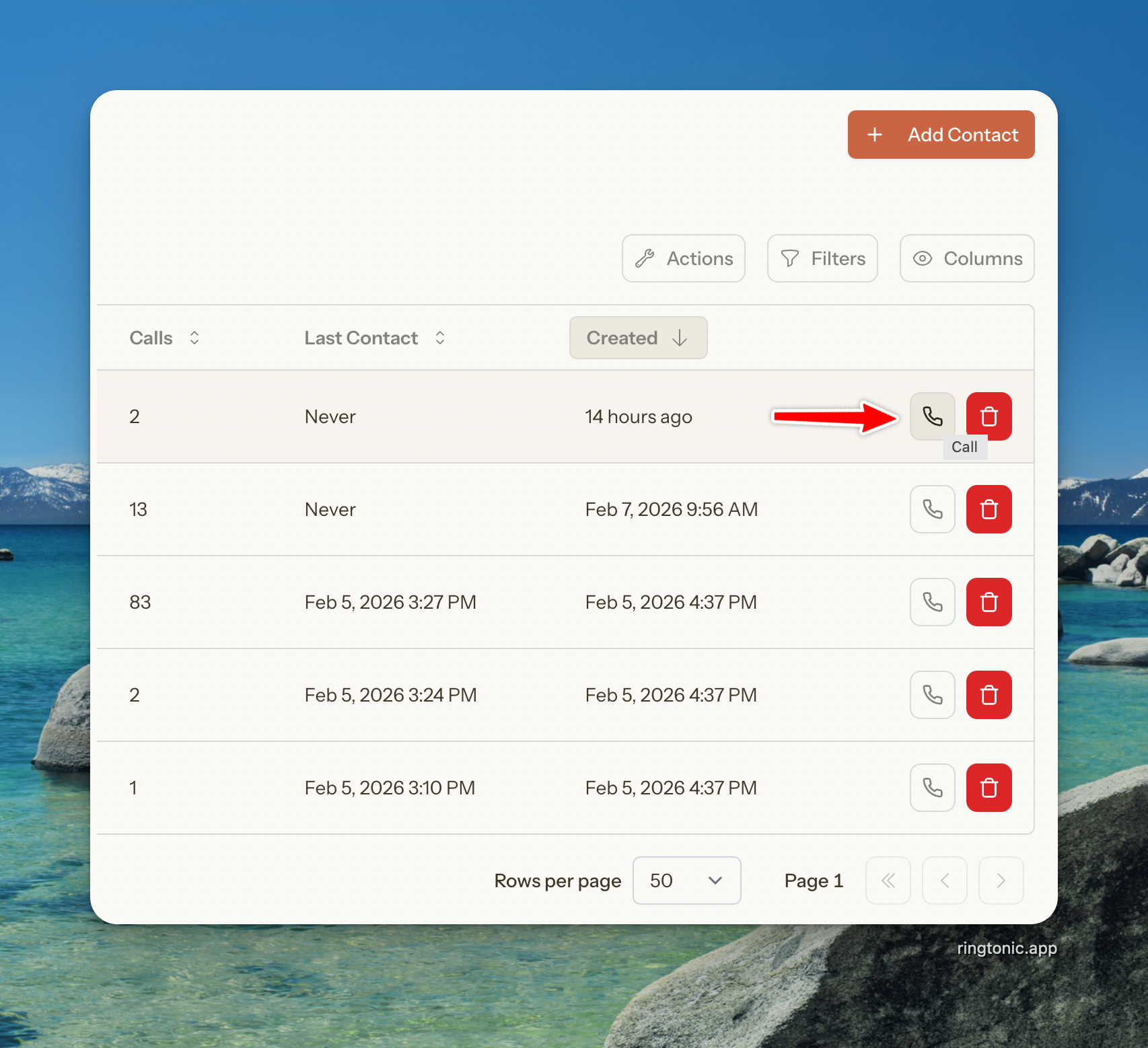
Dial from the Contacts page
Go to the Contacts page in the main navigation
Find the contact you want to call
Click the phone icon in the row actions
The dialer widget opens and initiates the call

Smart Caller ID Selection
When you dial a number, the dialer automatically selects the best caller ID (the "From" number) using smart logic:
Sticky sender: If you've called this contact before, the dialer uses the same tracking number from the last call. This ensures the contact sees a familiar number when you call back.
First available: If this is a new contact with no call history, the dialer uses the first tracking number in your workspace.
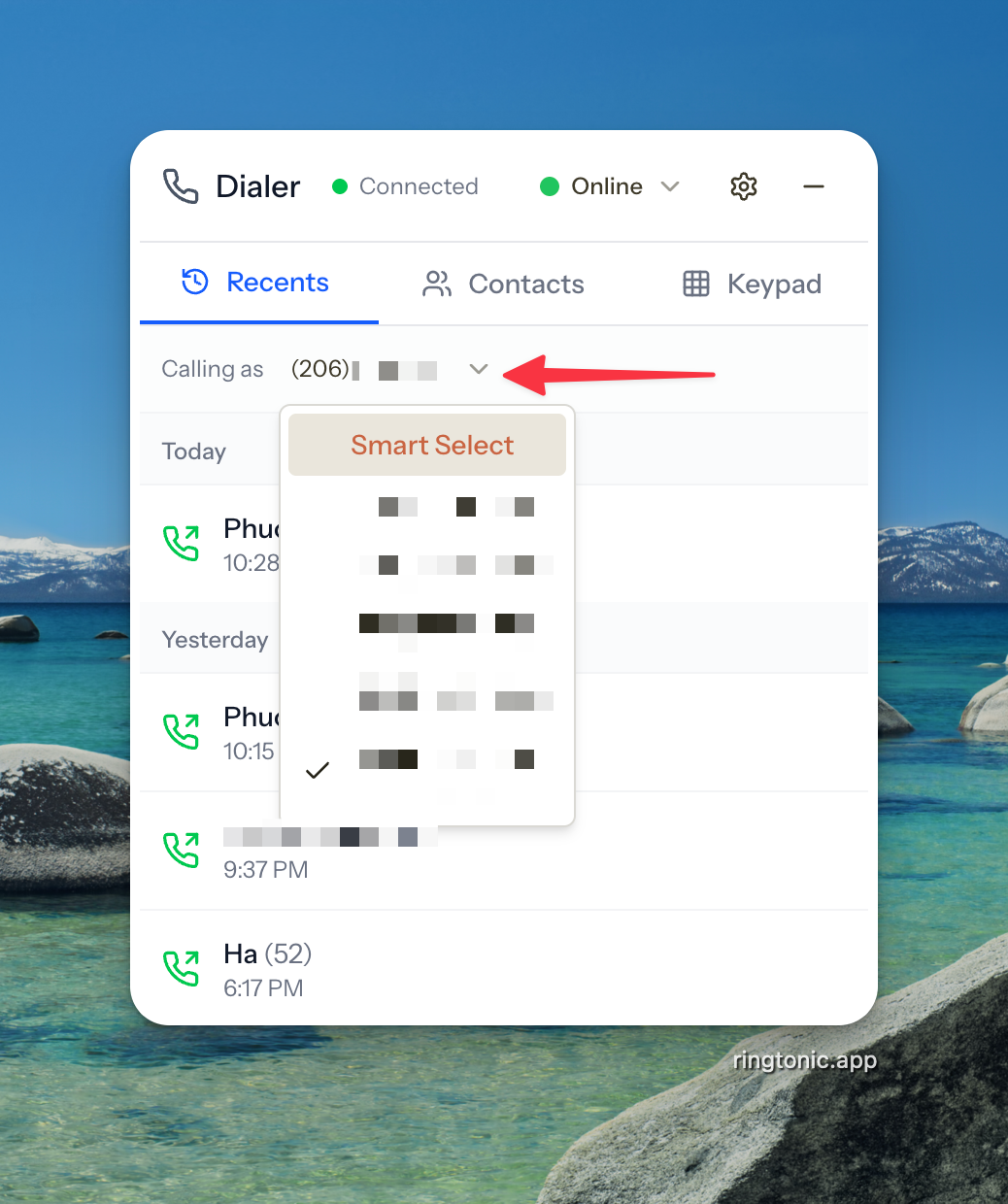
Manual override: You can also select a specific tracking number from the caller ID dropdown at the top of the dialer. Your selection is saved locally and used for all subsequent calls until you change it.

Best Practice: Let smart caller ID handle selection automatically. This keeps your outbound number consistent per contact, which improves answer rates since the contact recognizes the number.
During an Active Call
When a call connects, the dialer switches to the active call view:

Call controls:
Mute
Toggle your microphone on/off
Keypad
Open DTMF keypad for touch-tone input (e.g., navigating phone menus)
Hang Up
End the call
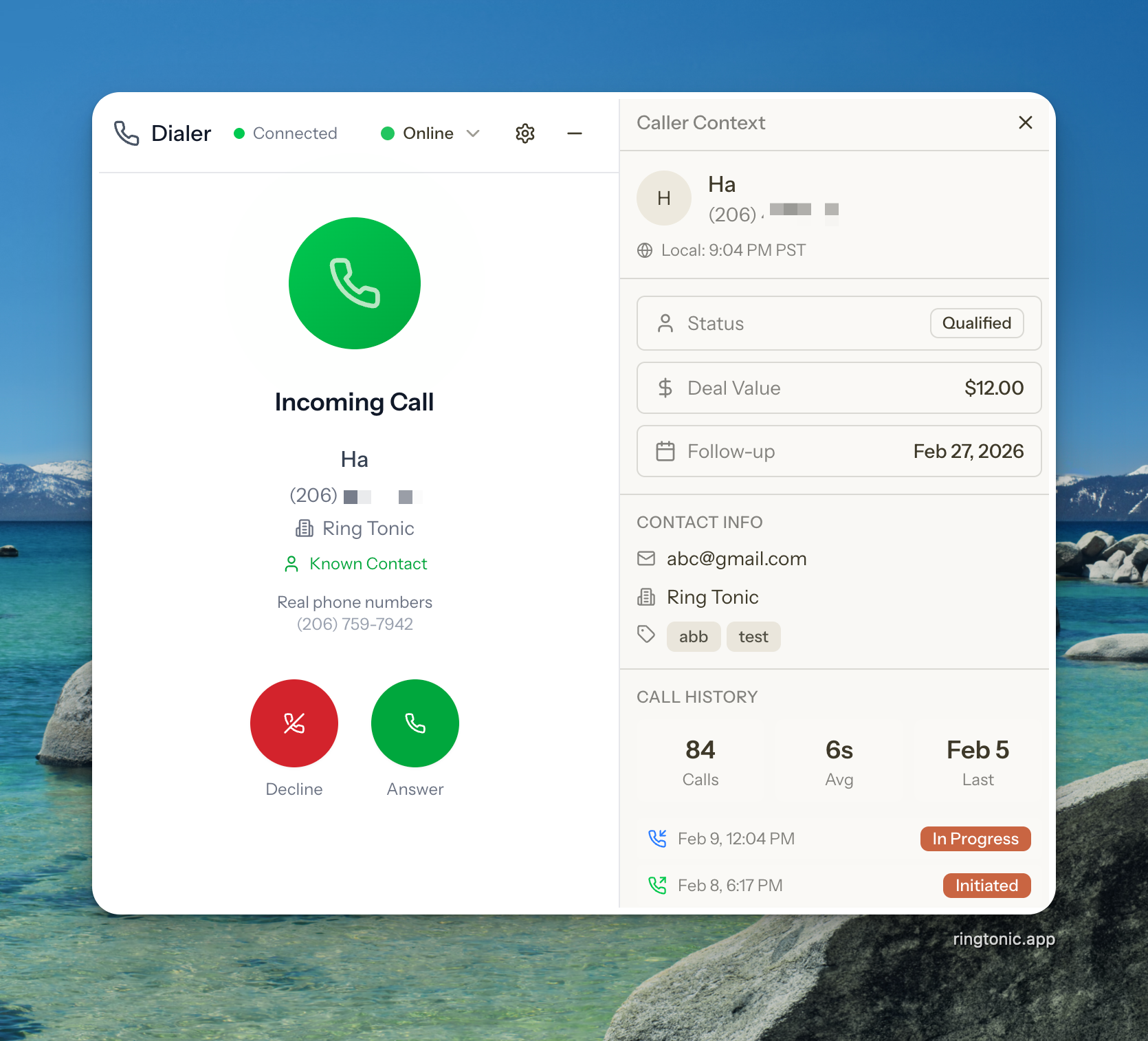
Context sidebar: When a call starts, a sidebar slides in from the left showing:
Contact name, email, company
Tags and lead status
Call statistics (total calls, last call date, average duration)
Deal value
Recent call history with this contact
This gives agents full context about who they're talking to without leaving the call.
Receiving Inbound Calls
When a customer calls one of your tracking numbers and you're Online, the dialer automatically expands and shows an incoming call notification:
The notification shows:
Caller's phone number (formatted)
Caller's name (if available from CNAM lookup or existing contact)
Tracking number called (which number the customer dialed)
Campaign name (if the tracking number is assigned to a campaign)
Answering:
Click Answer (green button) to pick up the call
Click Reject (red button) to decline
Multi-agent routing: All online agents in the workspace hear the ring simultaneously. The first agent to click Answer gets the call. Once answered, all other agents' ringing stops immediately.
Page refresh safe: If you refresh the page while a call is ringing, the incoming call notification persists and you can still answer it.
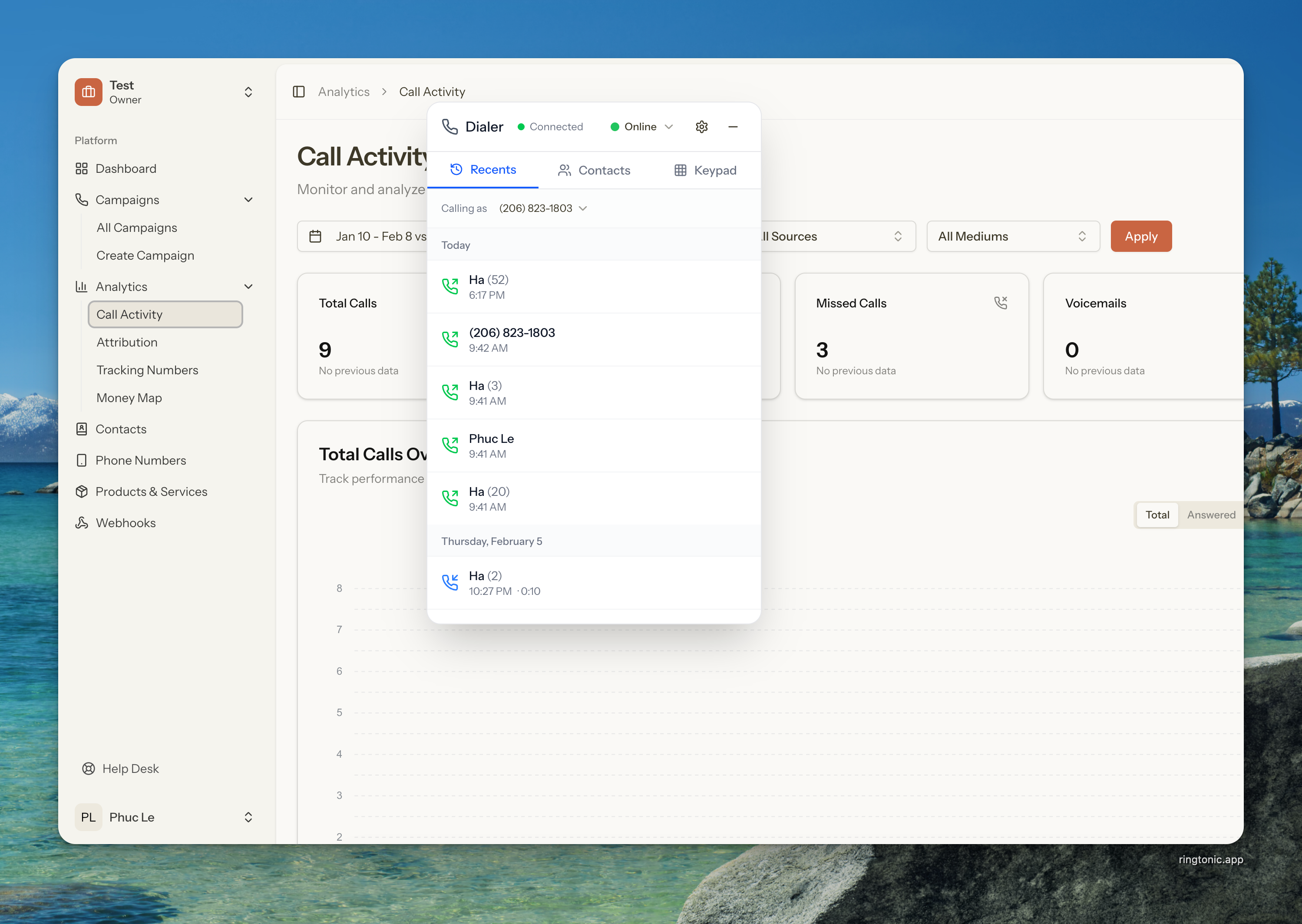
Recent Calls Tab
The Recents tab in the dialer shows your personal call history โ only calls you've made or answered. Each entry shows:
Contact name or phone number
Call direction (inbound/outbound icon)
Call duration
Time of the call
Click any entry to quickly redial that number.
Contacts & Auto-Creation
The dialer is deeply integrated with Ring Tonic's contact management system. Contacts are automatically created from calls so you never lose track of who called or who you called.
How Contacts Are Auto-Created
Every time a call happens, Ring Tonic checks if a contact already exists for that phone number in your workspace:
If a contact exists: The call is linked to that contact.
If no contact exists: A new contact is automatically created with the phone number, and the call is linked to it. The source is set to "call."
This happens for both inbound and outbound calls, so your contact list grows organically as you use the dialer.
No manual entry needed: You don't need to create a contact before making a call. Just dial the number and Ring Tonic handles the rest.
From Call to Contact: Lead Conversion
After a call, you can enrich the auto-created contact with business information:
Open the contact (from the Contacts page or from the dialer's context sidebar)
Add details like name, email, company, and notes
Update the lead status to track where they are in your pipeline:
New
Just created, not yet evaluated
Contacted
You've spoken with them
Qualified
Meets your qualification criteria
Disqualified
Does not meet your criteria
Set a deal value to track potential revenue
Add tags for categorization (e.g., "Hot Lead", "Follow Up", "Enterprise")
Set a next follow-up date to schedule your next action

AI automation: If you have OpenAI configured in your workspace, Ring Tonic can automatically analyze each call log โ qualifying leads, estimating deal values, extracting keywords, and tagging calls based on the conversation. These AI insights live on the call log, not the contact. The one exception is caller name detection, which updates the contact's name automatically. To sync a call's qualification status to the contact, manually qualify the call log within 24 hours and it will update the linked contact's lead status. See Setup Workspace for AI configuration.
Contacts vs. Call Logs: Understanding the Difference
Ring Tonic stores information in two places โ the Contact and individual Call Logs. This is intentional and important for accurate reporting. Think of it as "Master vs. Snapshot":
Contact = the current truth about a person ("John is a Qualified Lead worth $5,000 right now")
Call Log = a historical snapshot of a specific interaction ("On Feb 1st, Agent Mike qualified John and attributed $5,000 to this call")
This separation is what lets you answer questions like "How much revenue did Agent Mike generate last week?" โ something you can't answer from the Contact alone because the value may have changed since then.
Field-by-Field Breakdown
Deal Value
Total pipeline value for this person
Attribution โ the value generated by this specific call
Lead Status
The person's status right now
The outcome of that specific interaction
Notes
Contextual notes about the person (e.g., "Gatekeeper is Susan. Best time to call is 2 PM.")
Transactional notes about what happened on the call (e.g., "Customer asked for a refund")
Tags
Categorize the person (e.g., "VIP", "Enterprise")
Categorize the call (e.g., "Ready to Buy", "Needs Quote")
Why Lead Status Exists in Both Places
Consider this scenario:
Monday: Agent A calls John, marks the call as Qualified. The contact's status becomes Qualified.
Tuesday: Agent B calls John, realizes it was a mistake, marks the call as Junk. The contact's status becomes Junk.
Without the call log snapshot, Agent A's work on Monday would be invisible. The call log preserves that Agent A correctly qualified a lead โ even though the contact's status changed later. This is essential for fair performance reporting.
How Notes Work
Contact notes and call log notes serve different purposes and are displayed separately:
Contact notes appear pinned at the top of the contact sidebar โ these are persistent, contextual details about the person that every agent should see
Call log notes appear in the activity timeline alongside each call โ these describe what happened during that specific conversation
Best Practice: Use contact notes for information that's always relevant (preferences, best times to call, decision-maker details). Use call log notes for what happened during the call (requests made, issues raised, follow-up commitments).
Managing Contacts
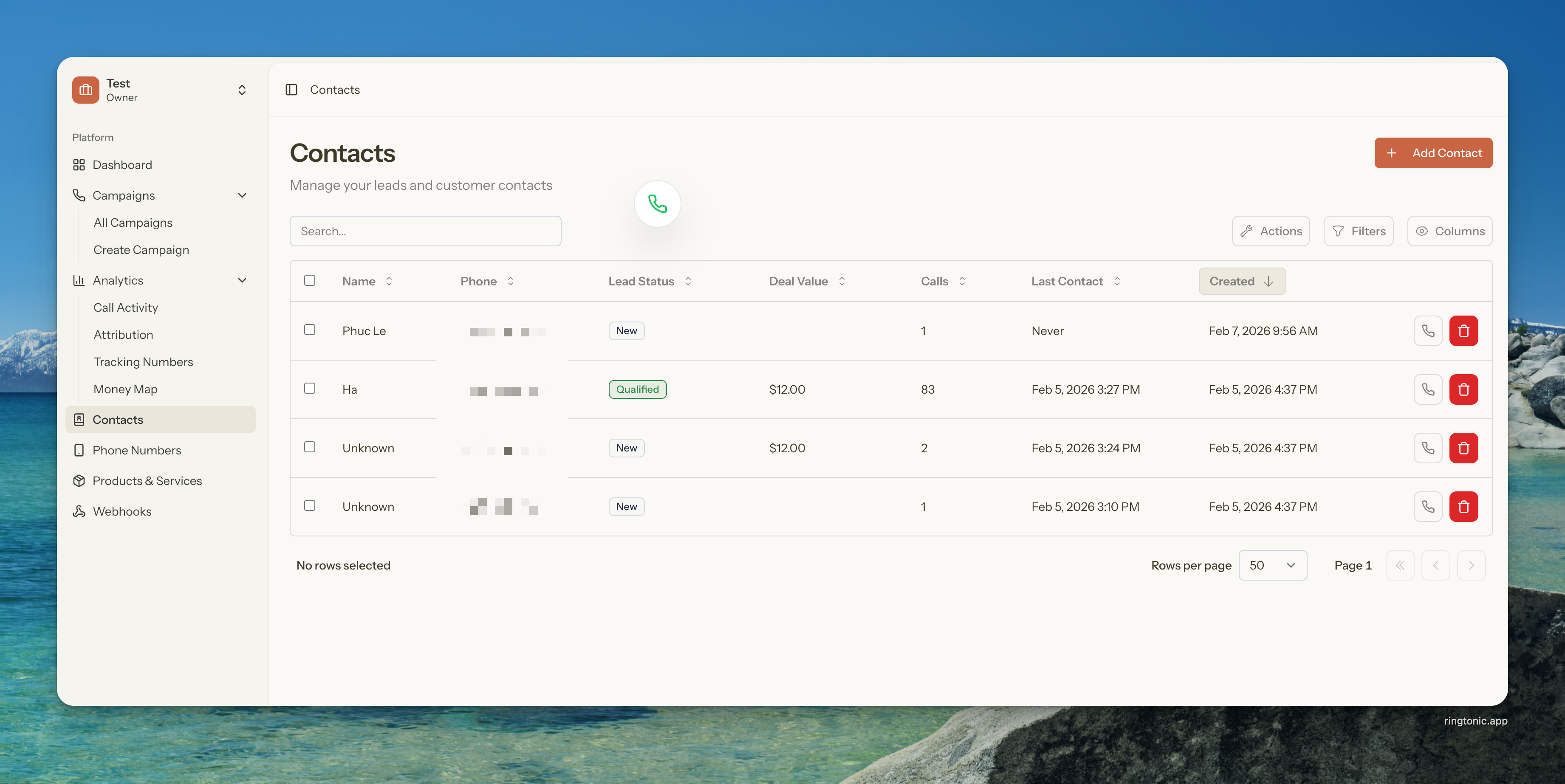
The Contacts page gives you a full view of all contacts in your workspace, whether auto-created from calls or manually added.
Viewing Contacts
Go to Contacts in the main navigation
Browse the table with columns for name, phone, company, lead status, deal value, call count, and last contact date
Use search to find contacts by name, phone, or email
Use sorting on any column to organize your list

Creating a Contact Manually
Go to Contacts
Click Add Contact
Enter at least a phone number (required)
Optionally fill in name, email, company, notes, lead status, and deal value
Click Create
Phone numbers are automatically normalized to E.164 format (e.g., +12125551234). You can enter them in any common format and Ring Tonic will handle the conversion.
Editing a Contact
Click on any contact row to open the Contact Detail Sheet
Click on any field to edit it inline (name, email, company, etc.)
Changes are saved automatically
The detail sheet also shows:
Recent calls with this contact (paginated)
Call statistics (total calls, last call, average duration)
Tags with autocomplete suggestions
Bulk Actions
Select multiple contacts using the checkboxes to perform bulk operations:
Add Tags
Apply one or more tags to selected contacts
Remove Tags
Remove specific tags from selected contacts
Update Lead Status
Change lead status for all selected contacts
Delete
Remove selected contacts from the workspace
How It All Fits Together
Here's the complete workflow from setup to daily use:
Set Up the Workspace
Enable the dialer, add your Twilio API Key, and ensure you have tracking numbers imported. This is a one-time setup.
Invite Your Agents
Invite team members with the Agent role. They'll see the dialer widget as soon as they log in.
Agents Go Online
Agents set their status to Online to start receiving inbound calls. The dialer connects to Twilio and listens for calls in real-time.
Make and Receive Calls
Agents dial from contacts, the keypad, or the contacts page. Inbound calls ring all online agents simultaneously โ first to answer gets the call.
Contacts Are Auto-Created
Every call automatically creates or links to a contact. Agents see full context (call history, lead status, tags) during the call via the context sidebar.
Qualify and Follow Up
After calls, agents update contact details, set lead status, add tags, and schedule follow-ups. If AI automation is configured, call logs are automatically qualified, tagged, and estimated with deal values โ agents can then review and sync those insights to the contact.
Troubleshooting
Dialer widget is not showing up
Possible causes:
Your role is not Agent, Admin, or Owner โ ask an admin to change your role
The dialer is not enabled โ go to Workspace Settings โ Dialer tab and enable it
Twilio credentials are missing โ check that Account SID and Auth Token are configured in the Basic tab
API Key is missing โ check that API Key SID and Secret are configured in the Dialer tab
"Dialer not ready" warning in workspace settings
Problem: Ring Tonic couldn't create the TwiML Application in your Twilio account.
Solution:
Verify your Account SID and Auth Token are correct in the Basic tab
Make sure your Twilio account is active (not suspended)
Save the workspace settings again โ Ring Tonic will retry provisioning
No audio during calls
Possible causes:
Browser microphone permission not granted โ click the lock icon in your browser's address bar and allow microphone access
Wrong audio device selected โ click the settings icon in the dialer to select the correct microphone and speaker
Browser audio blocked โ interact with the page (click anywhere) to unlock audio playback, especially on Safari/iOS
Incoming calls not ringing
Possible causes:
Your status is not Online โ change it to Online in the dialer status dropdown
Heartbeat timed out โ refresh the page to reconnect
Browser tab is in background โ some browsers throttle background tabs; keep Ring Tonic in a visible tab
Cannot make outbound calls
Possible causes:
No tracking numbers in the workspace โ import at least one number from Twilio
API Key not configured โ add your Twilio API Key SID and Secret in the Dialer tab
Phone number format invalid โ ensure you're entering a valid phone number with country code
Agent shows as Offline unexpectedly
Problem: The heartbeat connection was lost.
Solution:
Refresh the page โ the dialer will reconnect and restore your intended status
Check your internet connection
If the issue persists, your browser may be aggressively throttling background tabs โ keep Ring Tonic as your active tab
Call connected but no one can hear each other
Problem: WebRTC connection issue.
Solution:
Check that your firewall allows WebRTC traffic
Try a different browser (Chrome is recommended)
Disable VPN if active โ VPNs can interfere with real-time audio
Check the audio device settings in the dialer (gear icon)
Last updated