> For the complete documentation index, see [llms.txt](https://help.ringtonic.app/llms.txt). Markdown versions of documentation pages are available by appending `.md` to page URLs; this page is available as [Markdown](https://help.ringtonic.app/guides/products-and-services.md).
# Products & Services
### What are Products & Services?
The Products & Services catalog is your pricing menu that powers AI-driven deal value estimation. By maintaining a catalog of what you offer and how much it costs, Ring Tonic's AI can analyze customer calls and automatically estimate potential revenue for each lead.
### How It Works
When a customer calls and discusses specific needs, Ring Tonic will:
1. **Send the conversation to your AI provider** (via the transcription)
2. **Identifies mentioned products/services** from your catalog
3. **Understands the context** (repair vs replacement, urgency, scope)
4. **Estimates the deal value** based on your pricing ranges
5. **Displays the estimate** in your call log for quick prioritization
**Example:**
**Your Catalog:**
* Water Heater Repair: $150 - $400
* Water Heater Replacement: $1,200 - $3,500
* Emergency Service Call: $150
**Customer says:**
> "My 15-year-old water heater just died and I need a new one installed today. Can someone come out this afternoon?"
**AI estimates:** $1,500 - $3,650 (replacement + emergency service)
Now you know this is a high-value lead that needs immediate attention.
{% hint style="info" %}
**Requirements:** Deal value estimation requires:
1. "Automatically estimate deal value" field enabled in your workspace settings under AI Automation tab
2. Calls must be transcribed (transcription must be enabled)
3. Products & Services catalog is **optional** but highly recommended for accurate estimates
{% endhint %}
{% hint style="warning" %}
**Without a Catalog:** The AI can still estimate deal values if customers explicitly mention budgets or prices (e.g., "I have a $3,000 budget"). However, these estimates are less reliable and depend on customers volunteering pricing information. For best results, set up your Products & Services catalog.
{% endhint %}
### How to Add Products & Services
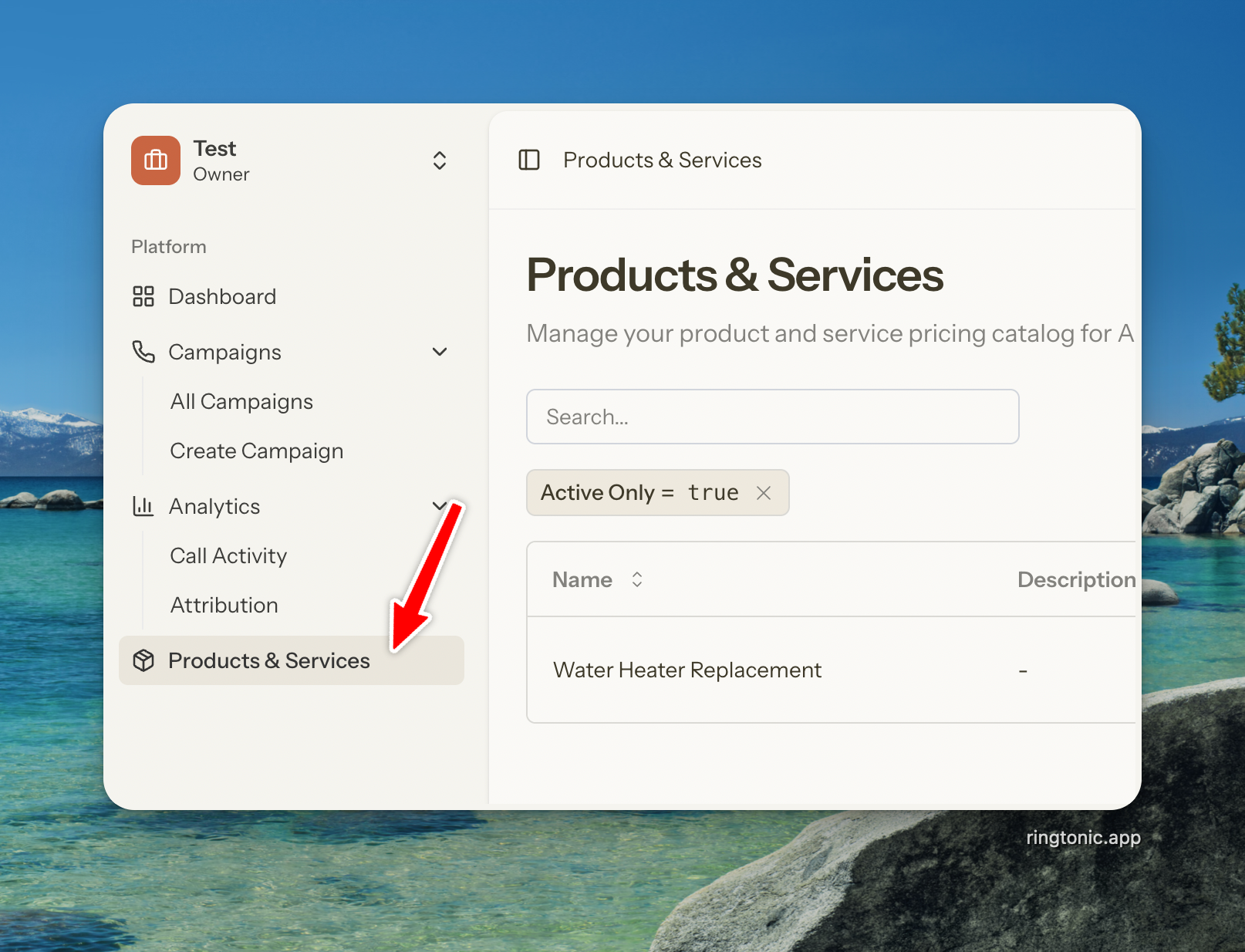
**Step 1: Navigate to Products & Services**
1. Click **Products & Services** in the left sidebar
2. Click the **Add Product/Service** button
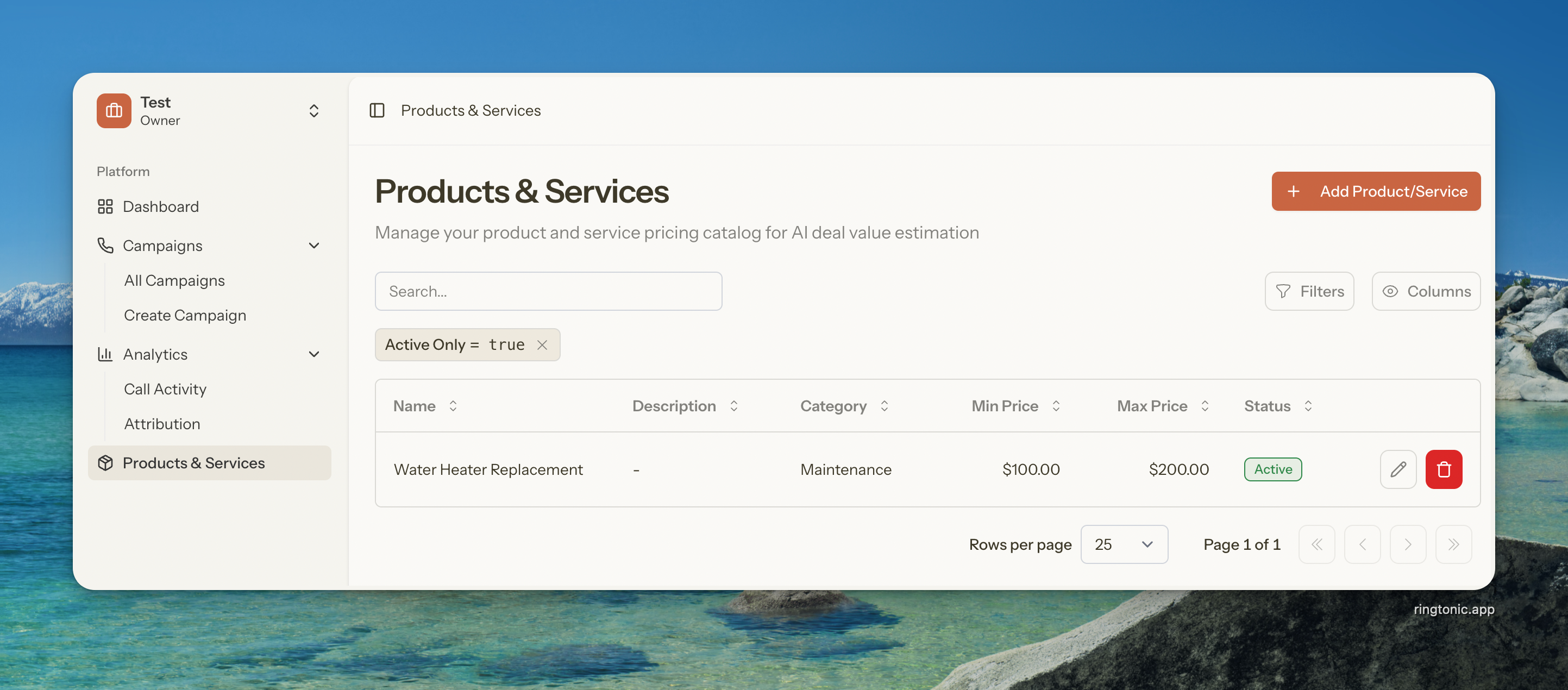
The Products & Services catalog page
**Step 2: Fill Out the Product/Service Details**
You'll need to provide the following information:
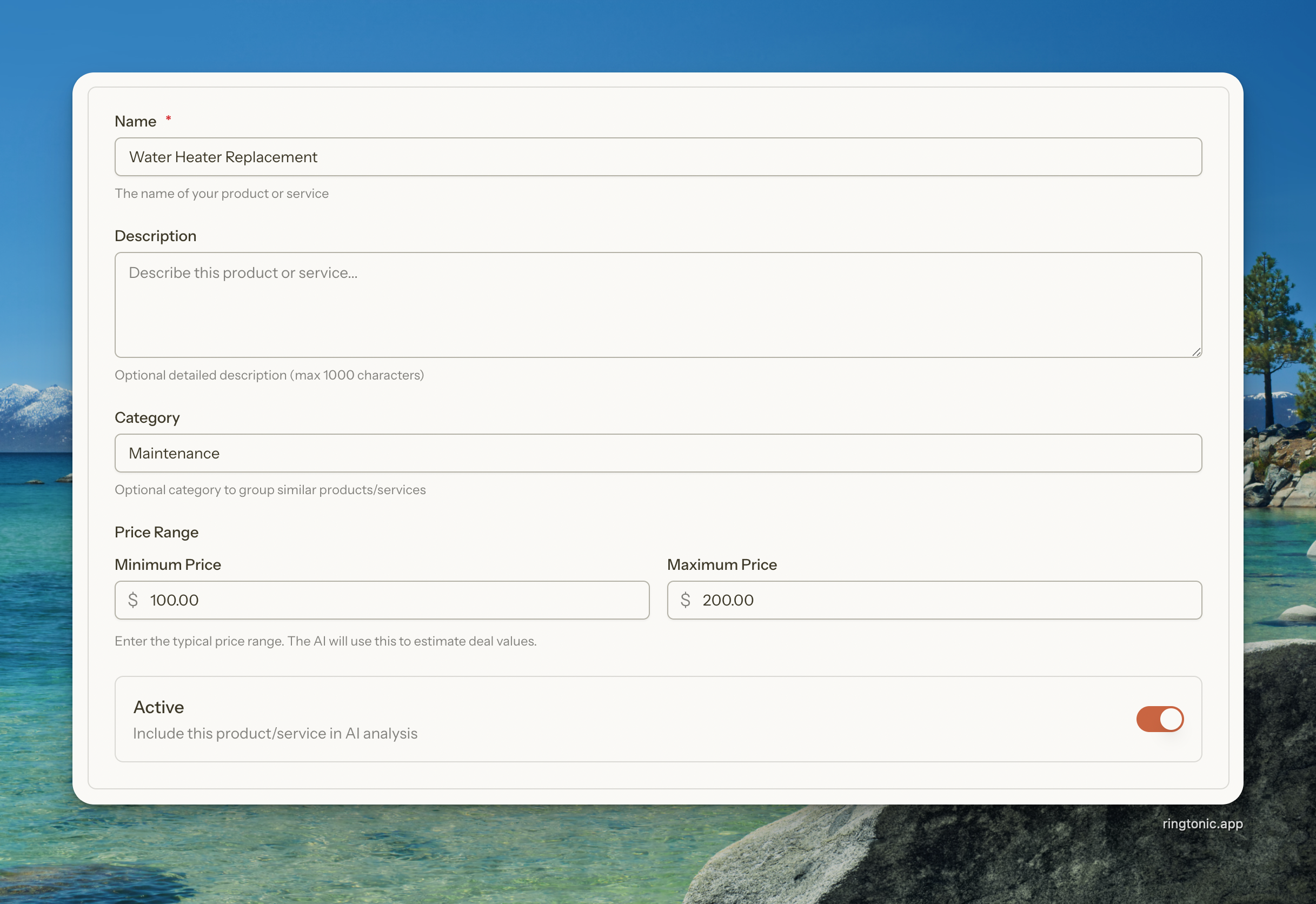
**Name (Required)**
The name of your product or service. Be specific and descriptive.
**Good Examples:**
* "Roof Inspection & Estimate"
* "Full Roof Replacement (Asphalt Shingles)"
* "Emergency Leak Repair"
* "Gutter Installation"
**Avoid:**
* "Service" (too vague)
* "Repair 1" (not descriptive)
* "Thing" (not helpful)
{% hint style="info" %}
Use names that customers would actually say during a phone call. The AI matches based on how people naturally speak.
{% endhint %}
**Description (Optional)**
Add details about what's included, typical duration, or any other relevant information. This helps the AI make more accurate estimations.
**Examples:**
* "Complete tear-off and replacement of existing roof, including underlayment, drip edge, and cleanup"
* "Emergency service call for urgent plumbing issues (24/7 availability)"
* "Comprehensive HVAC system inspection with written report"
**Category (Optional)**
Group related items together for easier organization. Common categories:
* Installation
* Repair
* Maintenance
* Consultation
* Emergency Service
* Inspection
* Upgrade
You can create your own categories that match your business structure.
Add a new product or service with pricing details
**Price Range (Required)**
Set minimum and maximum prices in your workspace currency. The AI uses this range to estimate deal values based on what the customer describes.
**Minimum Price:** The lowest price you'd typically charge for this service (best-case scenario, simple job)
**Maximum Price:** The highest price you'd typically charge (worst-case scenario, complex job)
**Examples:**
| Product/Service | Min Price | Max Price | Why the Range? |
| --------------------- | --------- | --------- | ------------------------------------ |
| Roof Repair | $500 | $3,000 | Small patch vs extensive damage |
| HVAC Installation | $3,500 | $12,000 | Single unit vs whole-house system |
| Plumbing Service Call | $150 | $800 | Simple fix vs major repair |
| Website Design | $2,000 | $15,000 | Landing page vs full e-commerce site |
{% hint style="success" %}
**Tip:** Use realistic ranges based on your actual past jobs. The AI is smart enough to estimate within the range based on job complexity mentioned in the call.
{% endhint %}
**Status (Optional)**
Toggle whether this product/service is active:
* **Active (default):** Included in AI deal value estimation
* **Inactive:** Excluded from estimation but kept in your catalog
Use inactive status for seasonal services or products you're phasing out.
**Step 3: Save Your Product/Service**
Click **Create Product/Service** (or **Update Product/Service** if editing)
You'll see a success message and return to the catalog page.
### When Deal Values Are (and Aren't) Estimated
**The AI WILL estimate a deal value when:**
**With a Products & Services Catalog:**
✅ Customer discusses specific products/services from your catalog
✅ Customer mentions needs that clearly match your offerings
✅ Customer asks for quotes, pricing, or estimates
✅ Conversation includes enough context to make an educated guess
**Without a Products & Services Catalog:**
✅ Customer explicitly mentions budget amounts (e.g., "I have $5,000 to spend")
✅ Customer states how much they're willing to pay
✅ Customer references specific dollar amounts for their project
**The AI WON'T estimate a deal value when:**
❌ Call is too general ("just gathering information")
❌ Customer doesn't mention specific services OR pricing/budget
❌ Wrong number or misdirected call
❌ Complaint call without service discussion
❌ No Products & Services catalog AND customer doesn't mention prices/budget
❌ Transcription quality is too poor to analyze
{% hint style="success" %}
**Best Practice:** While the AI can work without a catalog, you'll get far more accurate and consistent deal value estimates by maintaining a Products & Services catalog. The catalog allows the AI to estimate based on your actual pricing structure, even when customers don't mention specific dollar amounts.
{% endhint %}
### Enabling Deal Value Estimation
To activate automatic deal value estimation:
1. Navigate to **Workspace Settings**
2. Go to the **AI Automation** tab
3. Make sure you have an AI provider (OpenAI, Anthropic, or Google) key configured
4. Find "Automatically estimate deal value"
5. Toggle the switch to enable it
6. Click **Save** or **Update Workspace**
Once enabled, the AI will automatically estimate values for all new transcribed calls where customers discuss your products or services.
See the [AI Automation Setup Guide](https://help.ringtonic.app/guides/pages/crg7tMxXMDacQLAiSpgl#id-4.-set-up-ai-automation) for complete details on enabling AI features.
{% hint style="success" %}
**What's Next?** After setting up your Products & Services catalog and enabling AI automation, Ring Tonic will automatically estimate deal values for every qualified call. Use these estimates to prioritize follow-ups, forecast revenue, and close more high-value deals.
{% endhint %}