📊Analytics
Ring Tonic provides powerful analytics to help you understand your call tracking performance and marketing ROI. Get a true bird-eye view of all your calls across every campaign, making it super easy for lead-gen teams to quickly see which areas are generating the most calls and which ones are underperforming.
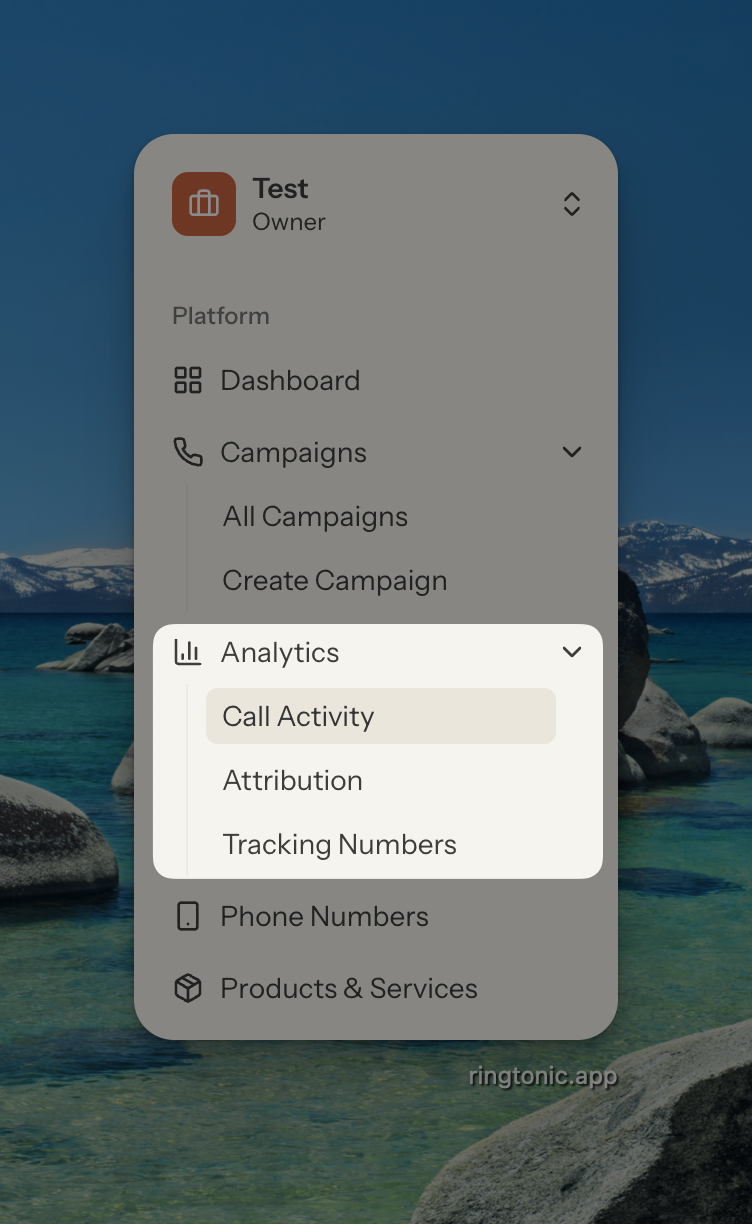
The platform offers three comprehensive analytics reports:
Call Activity: Monitor call performance over time with detailed metrics on answered calls, missed calls, and call duration
Attribution: Track which marketing sources drive the most qualified leads and revenue, with full ROI analysis
Tracking Number Performance: Track call volume across all active numbers with filters for custom date ranges, Yesterday, Last 7 Days, Last 30 Days, and more

1. Call Activity Analytics
Call Activity helps you monitor and analyze call performance across all your campaigns. This report shows you when calls are coming in, how many are answered vs missed, and how long calls typically last.

What You'll See
Key Metrics (Top Cards):
Total Calls - Total number of calls received in the selected period
Answered Calls - Number of calls that were answered by your team
Missed Calls - Number of calls that went unanswered (important to monitor!)
Avg Duration - Average length of answered calls
If comparison mode is enabled, you'll see percentage changes comparing your current period to the comparison period. Green indicates improvement, red indicates decline.
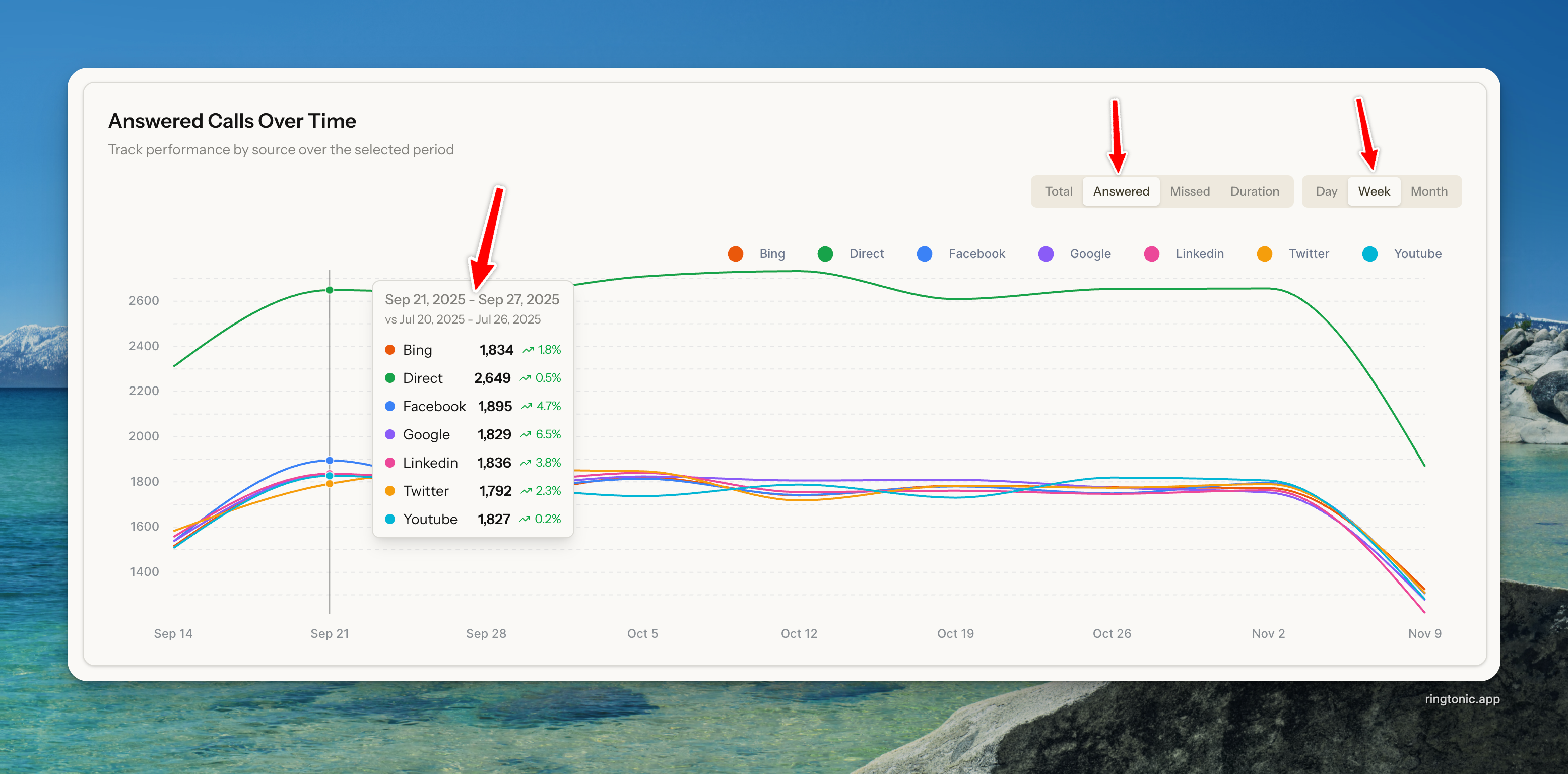
Performance Chart:
The chart visualizes your call data over time. You can customize the view:
Metric Selection: Choose which metric to display (Total Calls, Answered Calls, Missed Calls, or Avg Duration)
Time Grouping: Group data by Day, Week, or Month
Comparison: When enabled, overlay comparison period data to spot trends

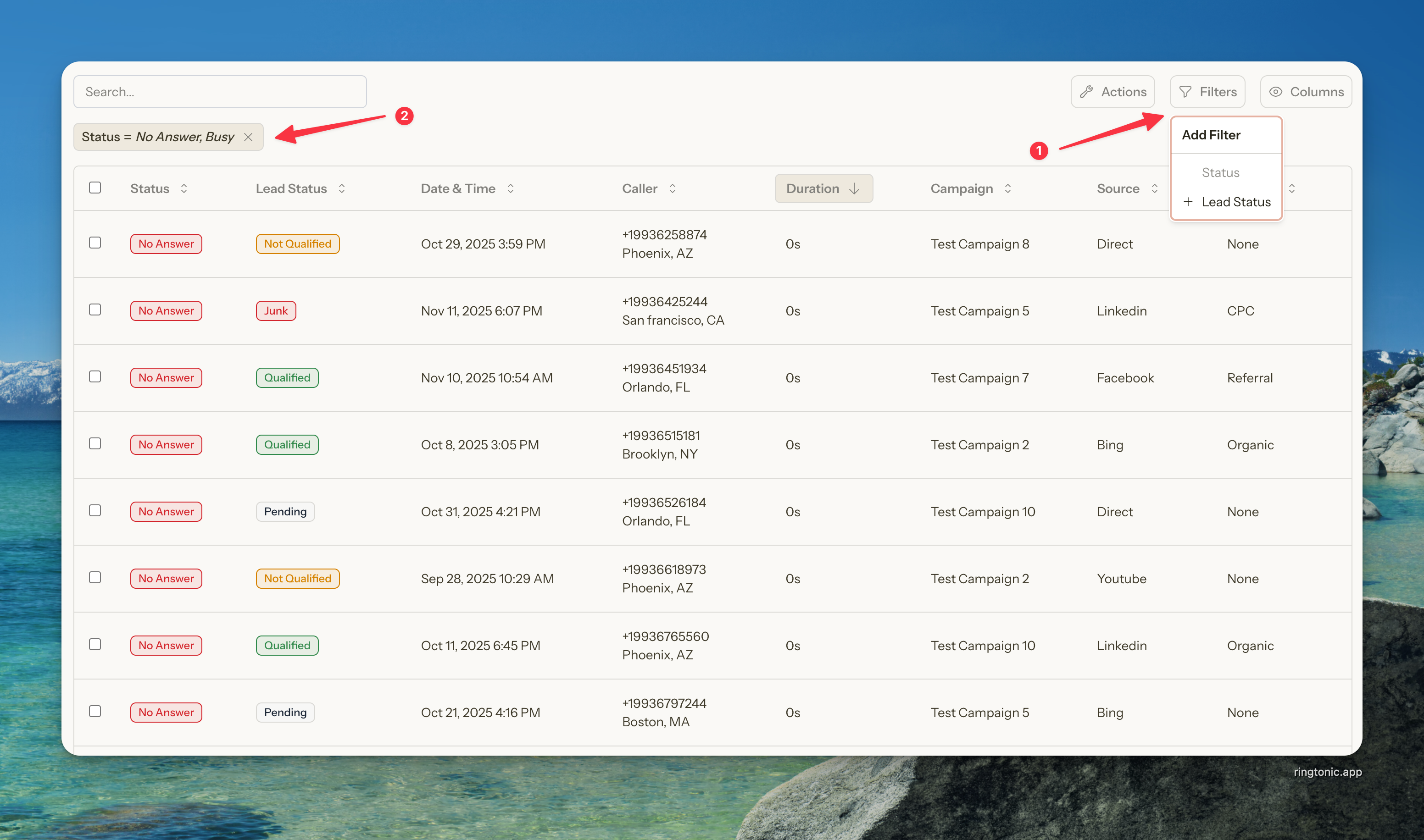
Call Logs Table:
Below the chart, you'll see a detailed table of all calls with:
Call date and time
Campaign name
Caller phone number
Call duration
Call status (Answered/Missed)
Traffic source and medium (for DNI campaigns)
AI qualification status (if enabled)
Call recording (if enabled)

How to Use Call Activity
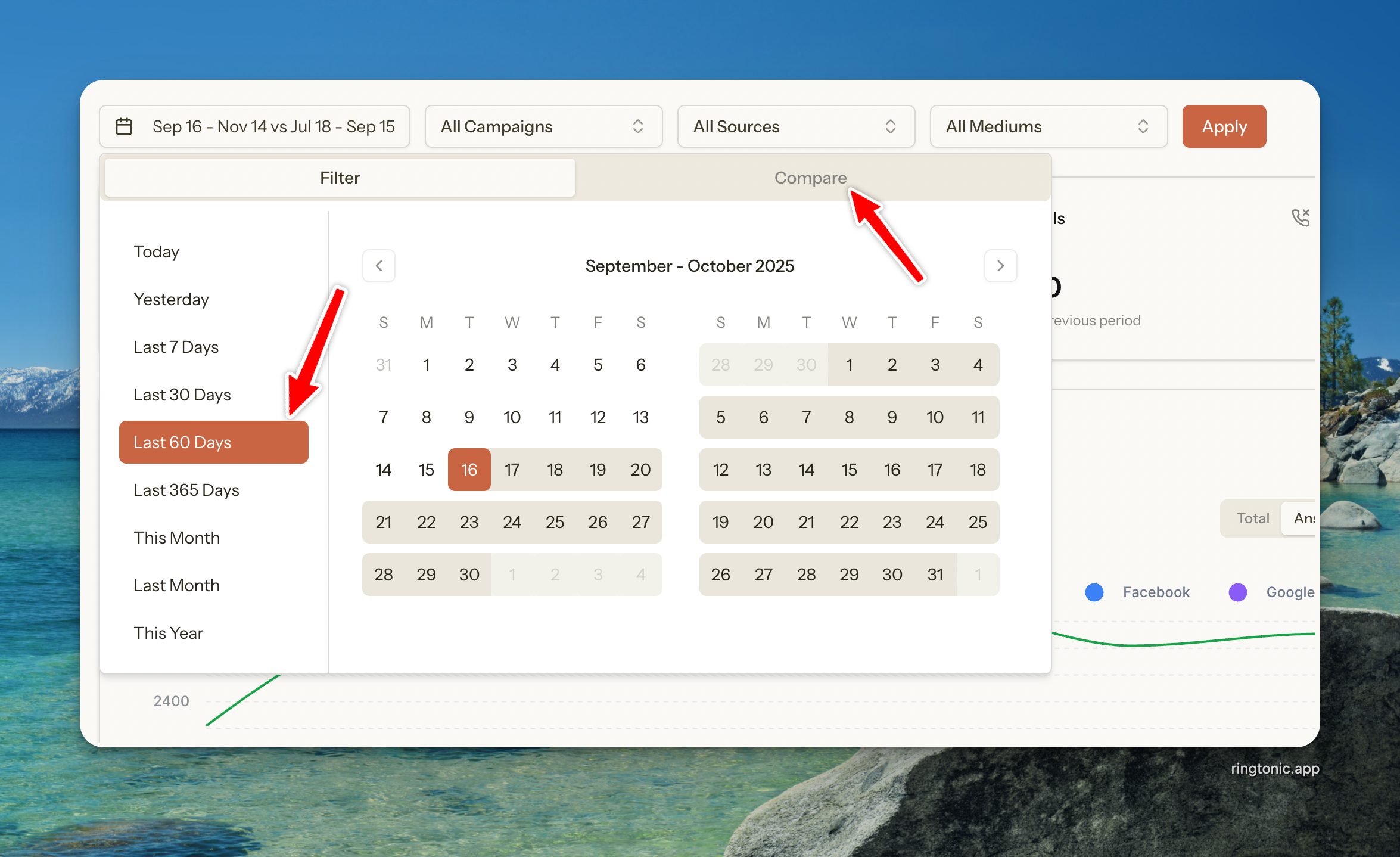
Step 1: Select Your Date Range
Click the date range selector at the top
Choose a preset (Last 7 Days, Last 30 Days, Last 60 Days) or select custom dates
Optionally enable comparison mode to compare against a previous period
Date range limits depend on your subscription plan:
Indie Plan: Up to 180 days
Agency Plan: Up to 365 days

Step 2: Apply Filters (Optional)
Filter your data to focus on specific segments:
Campaigns: Select specific campaigns to analyze
Sources: Filter by traffic source (Google, Facebook, Direct, etc.)
Mediums: Filter by medium (organic, cpc, referral, etc.)
Click Apply to refresh the data with your filters.

Step 3: Analyze the Data
Use the metrics and charts to identify:
Peak call times and days
Missed call patterns (opportunities to improve coverage)
Campaign performance trends
Call duration insights (longer calls might indicate higher engagement)
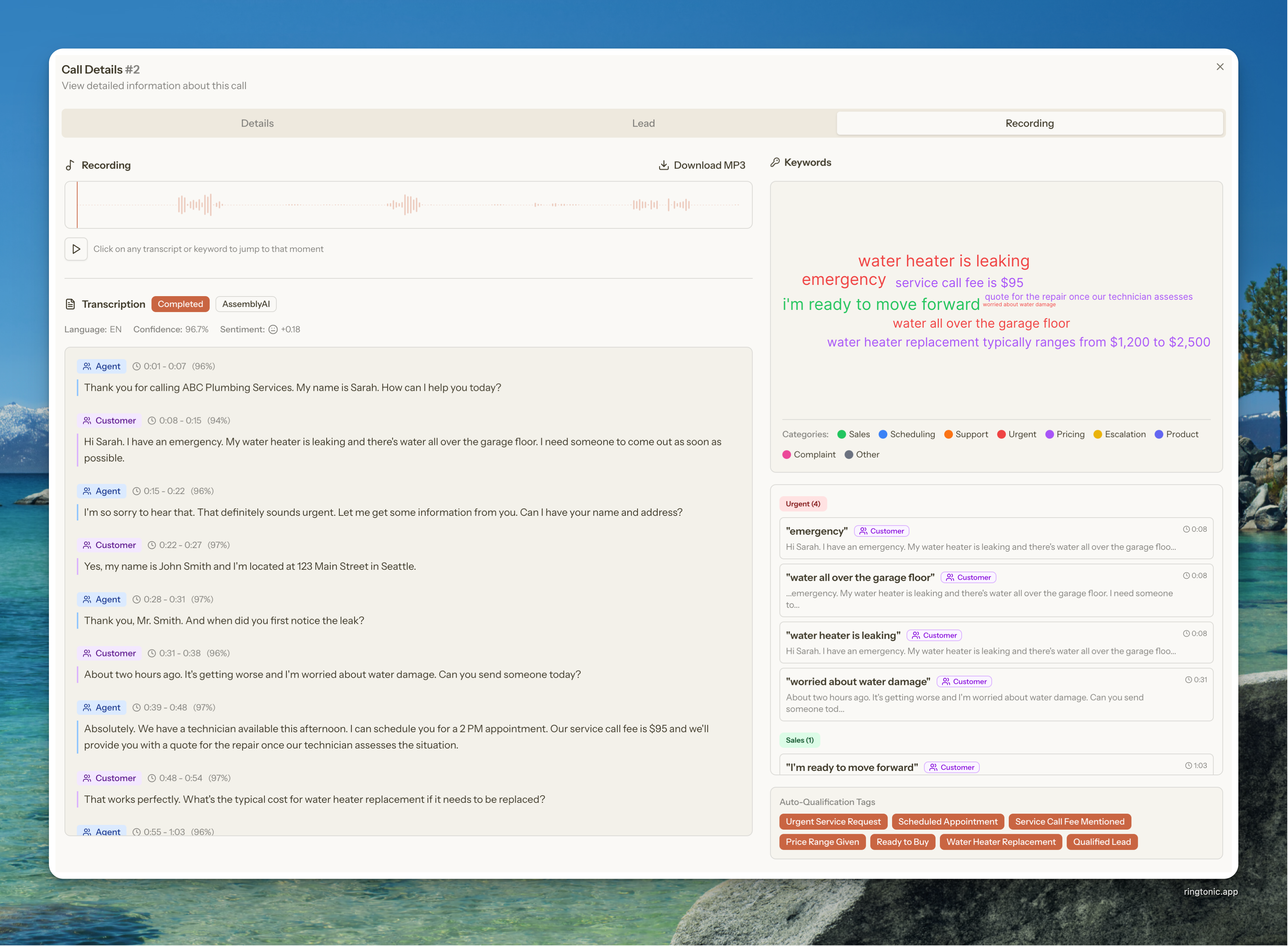
Step 4: Review Call Details
Click on any call in the table to see:
Full call transcription
Sentiment analysis scores
Detected keywords
AI qualification status
Deal value estimate
Call recording playback

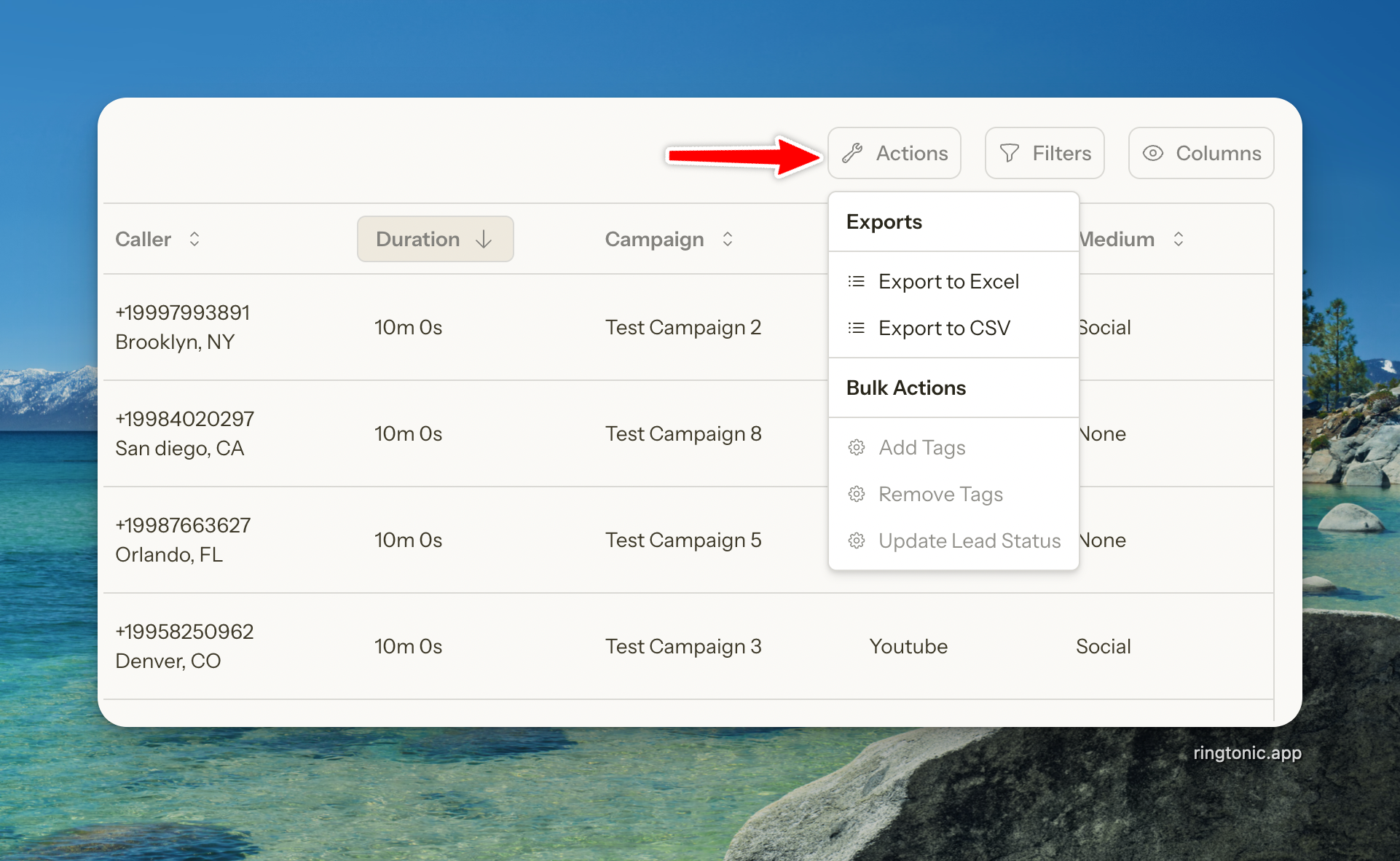
Step 5: Export Call Logs
Need to analyze your call data in Excel or share with your team?
Click the Export button at the top right of the call logs table
Choose your preferred format:
Export to Excel - Full formatting with .xlsx format
Export to CSV - Plain text format for importing to other tools

2. Attribution Analytics
Attribution shows you which marketing sources drive the most valuable calls and highest ROI. This report is essential for understanding where to invest your marketing budget.

What You'll See
Key Metrics (Top Cards):
Total Calls - Total number of calls received
Qualified Leads - Number of calls qualified as leads by AI (requires AI automation)
Conversion Rate - Percentage of calls that became qualified leads
Top Source - Traffic source driving the most calls
Avg Deal Value - Average estimated deal value across qualified calls (requires AI automation)
Source Performance Table:
The table breaks down performance by traffic source with these columns:
Source - Traffic source (Google, Facebook, Direct, etc.)
Calls - Total calls from this source
Qualified - Qualified leads from this source
Conv. Rate - Conversion rate (Qualified ÷ Calls)
Avg Duration - Average call length
Cost - Total marketing cost for this source
Revenue - Total estimated revenue from qualified calls
Cost/Call - Average cost per call (Cost ÷ Calls)
ROI - Return on investment percentage

Attribution Chart:
Visualizes the distribution of calls, qualified leads, and revenue across your traffic sources over time.

How to Use Attribution Analytics
Step 1: Select Your Date Range
Click the date range selector
Choose your analysis period
Enable comparison mode to see how performance changed over time
Step 2: Apply Filters
Focus on specific segments:
Campaigns: Analyze specific campaign performance
Sources: Compare different traffic sources
Mediums: Break down by marketing medium
Step 3: Analyze Source Performance
Use the table to identify:
Highest ROI sources: Where you're getting the best return
Low conversion sources: Traffic sources that aren't converting
Cost efficiency: Sources with the lowest cost per call
Revenue drivers: Which sources bring the highest value deals
Best Practice: Focus your budget on sources with high ROI and qualified lead conversion. Consider pausing or optimizing low-performing sources.
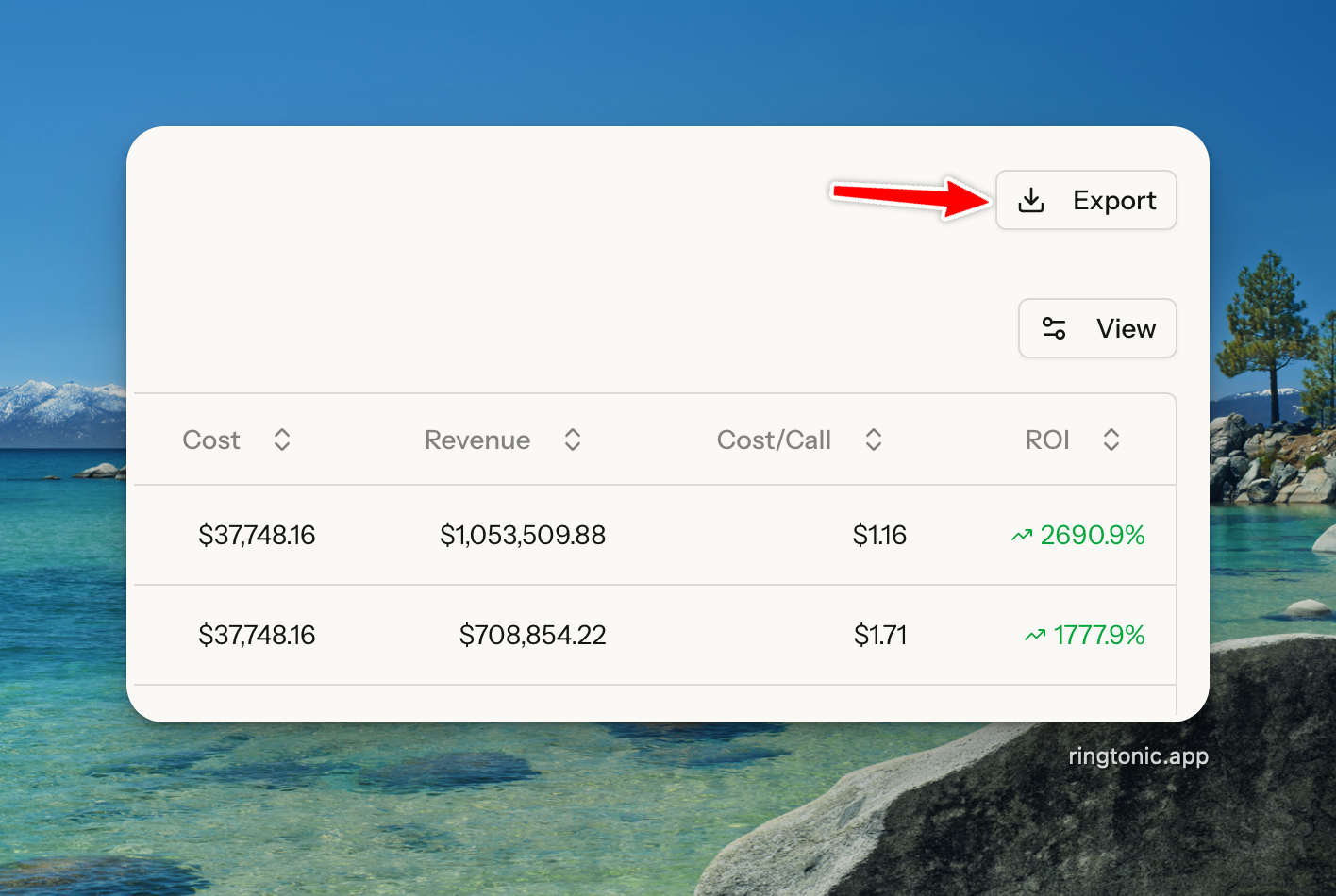
Step 4: Export Your Data
Need to analyze data further or share with your team?
Click Export button at the top right of the Source Performance table
Downloads an Excel file with all source performance data
Includes all visible columns and respects your current filters

Understanding Marketing Costs & Revenue
To get accurate ROI calculations in Attribution analytics, you need to track marketing costs and revenue.
How Ring Tonic Calculates ROI
Cost Data: Ring Tonic integrates with your marketing platforms to automatically pull cost data. If not integrated, you can manually track costs by associating UTM parameters with budget amounts.
Revenue Data: When AI automation is enabled with deal value estimation:
AI analyzes call transcriptions
Estimates deal value based on conversation content
Sums qualified call values to calculate total revenue
Calculates ROI:
(Revenue - Cost) / Cost × 100
Important: AI deal value estimation requires:
OpenAI API key configured in workspace settings
Auto estimate deal value enabled
Optionally, a Products & Services catalog for more accurate estimates
Example ROI Calculation:
Google Ads Campaign:
- Cost: $1,000
- Calls: 50
- Qualified Calls: 15
- Total Revenue: $7,500 (sum of estimated deal values)
- ROI: ($7,500 - $1,000) / $1,000 × 100 = 650%3. Tracking Number Performance
Tracking Number Performance helps you monitor call activity across all your active phone numbers. This report identifies which numbers are performing well, which have high missed call rates, and which aren't receiving any calls at all.

What You'll See
Key Metrics (Top Cards):
Total Inbound - Total calls received across all tracking numbers in the selected period
Answered - Number of calls that were successfully answered
Missed - Number of calls that went unanswered (no answer or busy)
Zero-Call Lines - Number of active tracking numbers that received zero calls
Zero-Call Lines indicate tracking numbers that are active but not receiving any calls. Common causes include:
Low Website Traffic (DNI): There aren't enough visitors to rotate through your entire number pool, so some numbers are never displayed.
Script Installation Issue (DNI): The tracking code isn't installed correctly, so numbers aren't swapping at all.
Pending Launch (Static): Marketing materials (like flyers or billboards) haven't been distributed yet.
Ad Issues: The ad campaign driving traffic to the number is paused or disapproved.
Tracking Number Performance Table:
The table shows detailed metrics for each active tracking number:
Friendly Name - Custom label (editable inline by clicking the pencil icon)
Number - The phone number (formatted for readability)
Campaign - Which campaign the number is assigned to (clickable link)
Type - Campaign type (DNI or Static)
Calls - Total calls received by this number
Missed - Missed calls for this number (highlighted if above threshold)
Avg Duration - Average call length for answered calls
Trend - Period-over-period percentage change (e.g., 📈 +15%)

Understanding the Visual Indicators
Zero-Call Numbers:
Numbers with zero calls are highlighted with a red background, making them easy to spot. These require immediate attention to understand why they're not receiving calls.
Pro Tip: Sort the table by "Missed" to quickly identify numbers with the highest missed call rates. These are opportunities to improve your answer rate and capture more leads.
Common Use Cases
DNI Campaign Monitoring:
For DNI campaigns with number pools:
Verify the script is working (numbers should show activity)
Identify if pool size is too large (many numbers with 0 calls despite healthy traffic)
Ensure all active numbers are rotating correctly
Static Campaign Health Check:
For static campaigns:
Confirm the single tracking number is receiving calls
Monitor missed call rate to ensure good coverage
Track performance after launching new marketing materials
High Missed Call Rates:
Numbers with a missed call rate above your workspace threshold (default: 5%) show a warning indicator:
Review your forwarding configuration
Check if your business number has adequate coverage during peak hours
Consider implementing call routing rules or backup numbers
Review the call logs to understand when missed calls occur most
Critical: High missed call rates mean you're losing potential leads. Every missed call is a lost opportunity. Use this report to identify and fix coverage gaps quickly.
Number Pool Optimization:
Use this report to optimize your number pools:
Too many zero-call numbers? Your pool might be too large for your current traffic volume.
All numbers heavily used? Your pool might be too small, risking visitor collisions.
High missed rates across all numbers? Likely a forwarding destination or staffing coverage issue.
Marketing Material Verification:
After distributing new marketing materials:
Check that the tracking number shows activity within expected timeframe
Zero calls after launch indicates potential issue with materials or distribution
Compare performance across different campaigns/materials
Comparison Mode
All analytic reports support comparison mode to help you track performance over time.
How to Use Comparison Mode
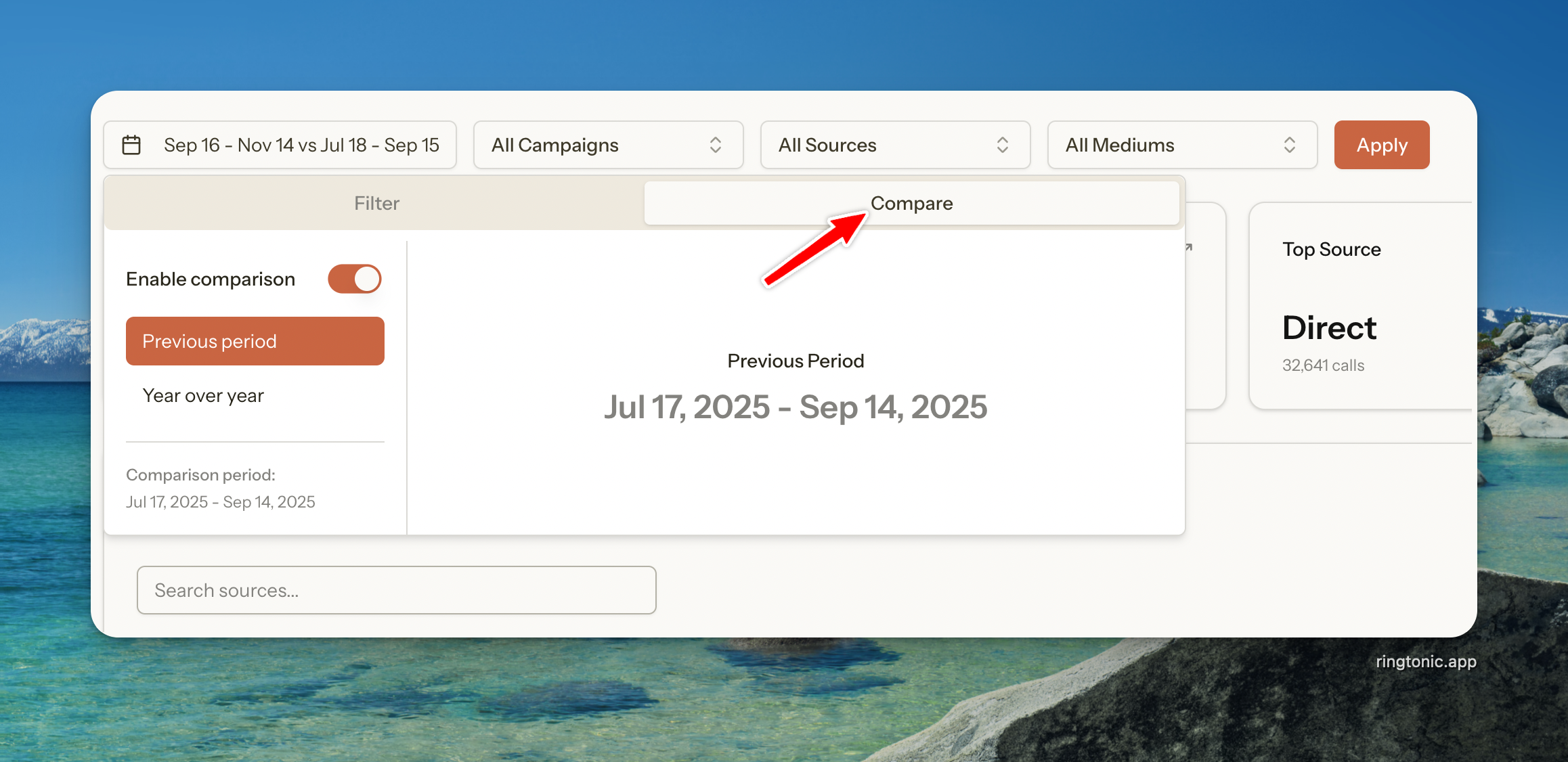
Step 1: Enable Comparison
Click the date range selector
Toggle Compare switch
Select your comparison period
Step 2: View Comparison Data
Metric Cards: Show percentage changes with colored indicators (green = improvement, red = decline)
Charts: Overlay comparison period data as a lighter line
Tables: Some tables show period-over-period changes

Common Comparison Scenarios:
Previous Period: Compare your selected date range to the immediately preceding period of equal length
Year over Year: Compare your selected date range to the same period last year
Use comparison mode to:
Identify seasonal trends
Measure campaign impact
Track improvement over time
Spot performance issues early
Best Practices
Here are some tips to get the most value from Ring Tonic analytics:
Daily Monitoring
Check Call Activity daily to:
Monitor missed calls (respond quickly to improve conversion)
Identify peak call times (ensure adequate staffing)
Track campaign performance in real-time
Weekly Analysis
Review Attribution weekly to:
Identify top performing sources
Calculate ROI for each marketing channel
Adjust budget allocation based on performance
Export data for team meetings
Monthly Reporting
Use comparison mode monthly to:
Track month-over-month growth
Identify seasonal patterns
Measure impact of marketing changes
Report to stakeholders with data exports
Campaign Optimization
Optimize campaigns by:
Pausing low-converting sources
Increasing budget on high-ROI sources
Testing different messaging for low-qualified sources
Adjusting coverage hours based on peak call times
Last updated