📞Phone Numbers

What are Phone Numbers?

Phone numbers in Ring Tonic are your inventory of tracking numbers that can be assigned to campaigns. Think of them as a pool of resources that you manage centrally and allocate to different marketing initiatives.

All phone numbers in Ring Tonic are actual Twilio phone numbers. Ring Tonic manages the webhook configuration and routing automatically based on campaign assignments.


Understanding Phone Number Status

Phone numbers in your inventory can be in one of two states:

  • Assigned: Currently linked to a campaign and actively tracking calls

  • Unassigned: Available in your inventory but not linked to any campaign


Managing Your Phone Numbers

Viewing Your Inventory

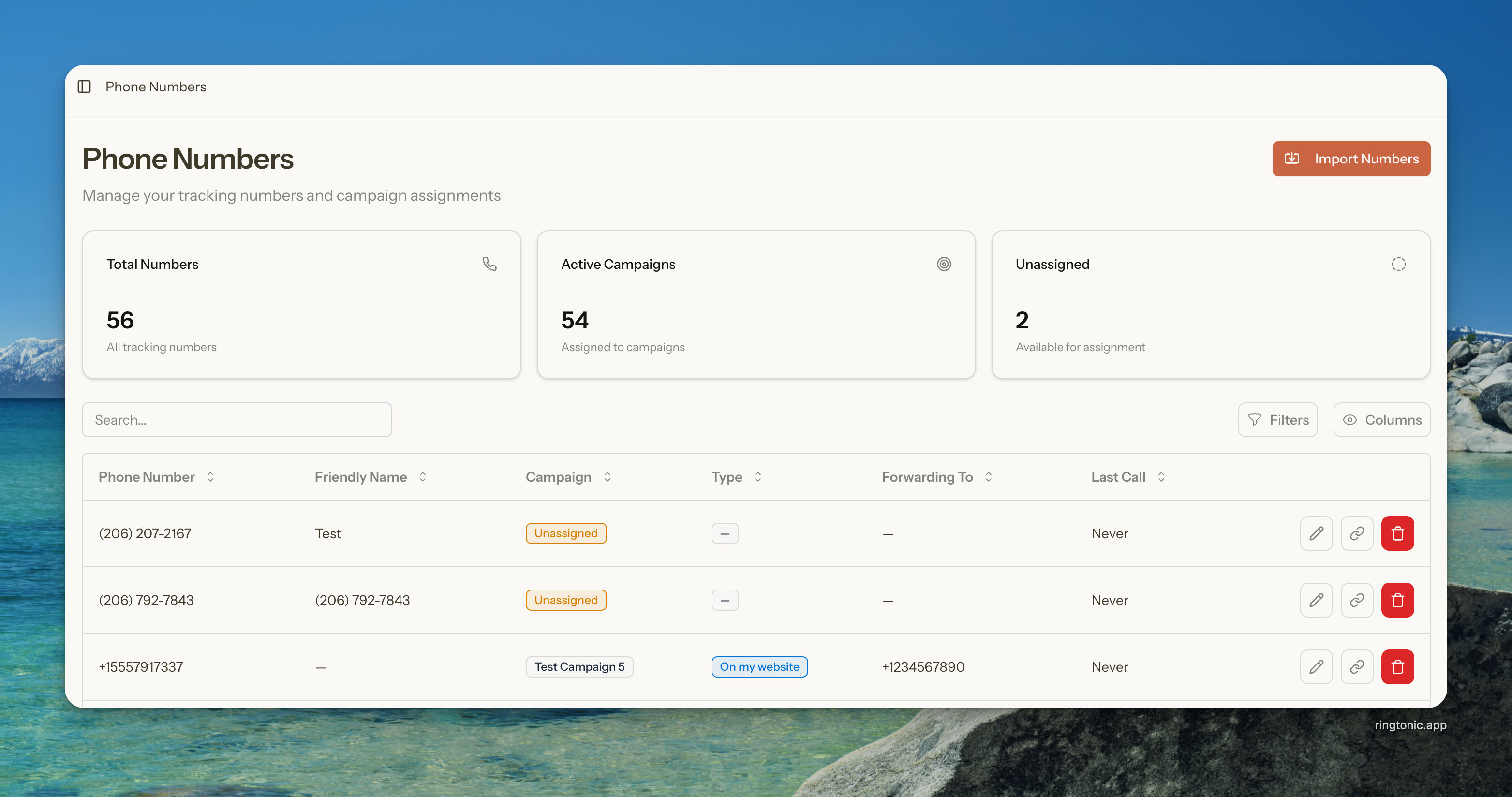
  1. Go to Phone Numbers in the main navigation

  2. View your complete inventory with:

    • Total Numbers: All tracking numbers in your account

    • Active Campaigns: Numbers currently assigned to campaigns

    • Unassigned: Numbers available for assignment

Phone numbers inventory dashboard

The phone numbers table shows:

  • Phone Number: The actual phone number (formatted for readability)

  • Friendly Name: Optional custom label for easy identification

  • Campaign: Which campaign the number is assigned to (or "Unassigned")

  • Type: Campaign type (DNI or Static)

  • Forwarding To: The business number where calls are routed

  • Last Call: When the number last received a call

Filtering and Searching

Use the built-in filters to find specific numbers:

Status Filter:

  • Assigned: Show only numbers linked to campaigns

  • Unassigned: Show only available numbers

Campaign Filter:

  • Filter by specific campaign to see all numbers assigned to it

Search:

  • Search by phone number to quickly locate a specific number

  • Search by friendly name to find numbers by your custom labels


Importing Numbers from Twilio

If you already own phone numbers in your Twilio account, you can import them into Ring Tonic's inventory.

How to Import Numbers

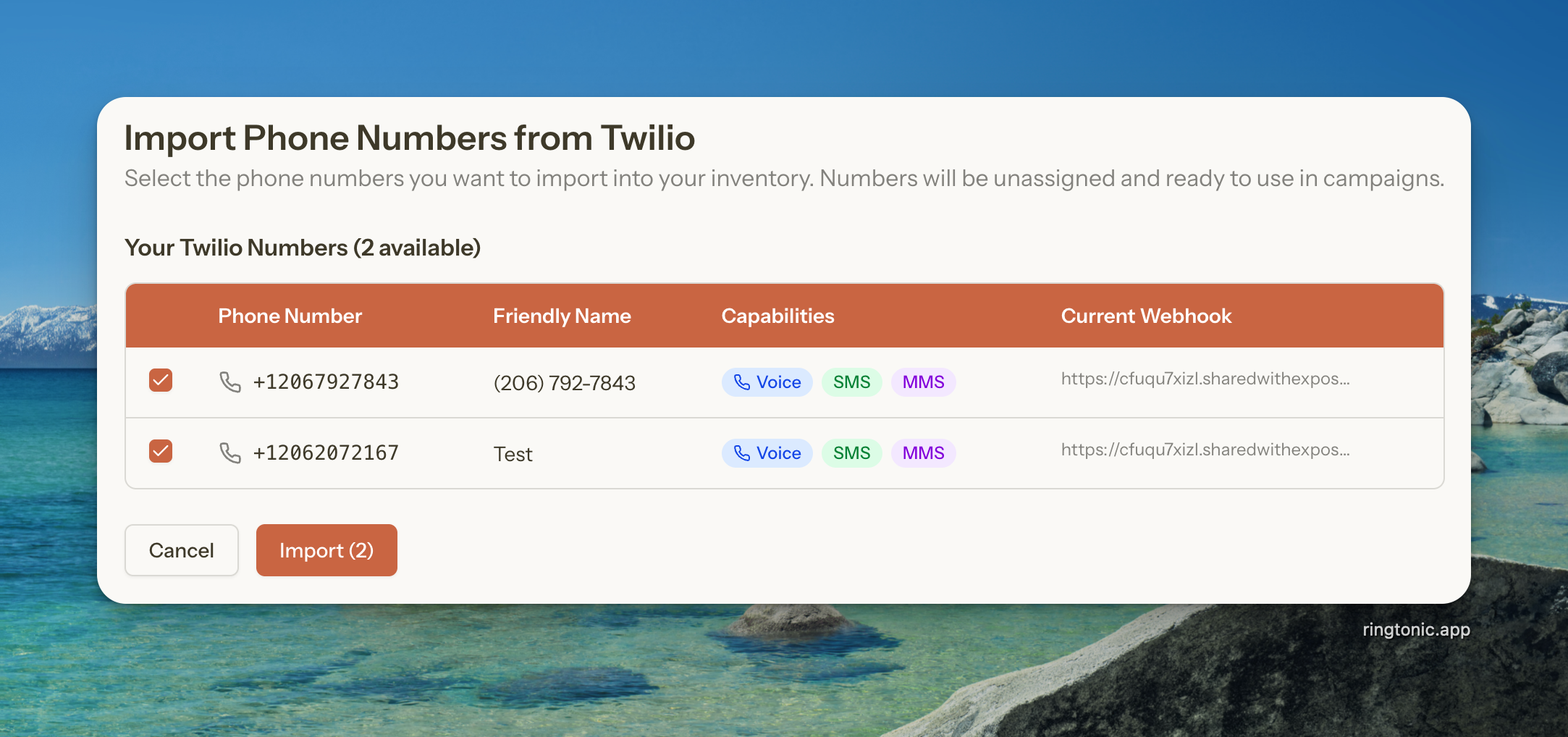
  1. Go to Phone NumbersImport Numbers

  2. Ring Tonic automatically loads all phone numbers from your Twilio account

  3. Browse your numbers showing:

    • Phone number and friendly name

    • Voice/SMS/MMS capabilities

    • Current webhook configuration

    • Import status (whether already imported)

  4. Select the numbers you want to import:

    • Click individual checkboxes to select specific numbers

    • Multiple selection allows bulk importing

  5. Click Import to add them to your inventory

Import existing numbers from your Twilio account
Editing Friendly Names

Friendly names help you identify numbers at a glance without memorizing phone numbers.

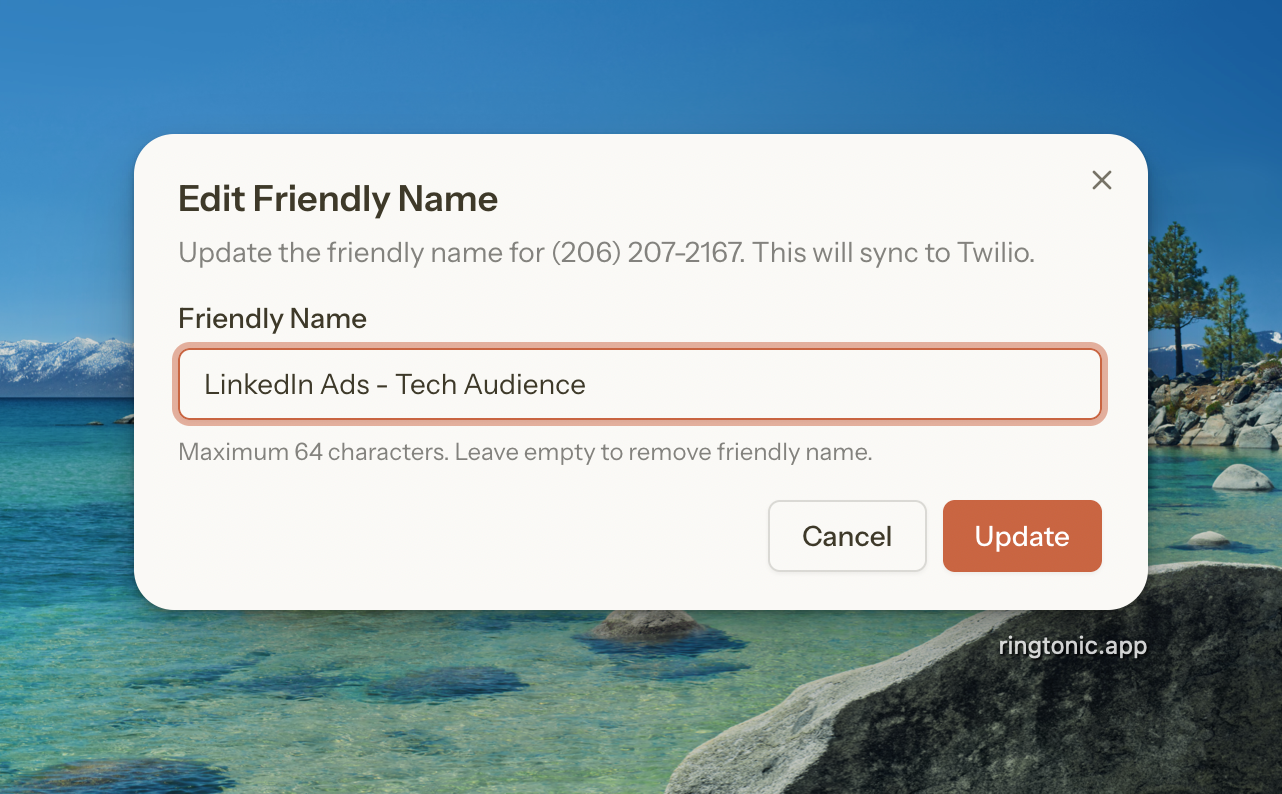
How to Set a Friendly Name

  1. Go to Phone Numbers

  2. Find the number you want to label

  3. Click the Edit (pencil) icon

  4. Enter a friendly name (e.g., "Downtown Billboard", "Facebook Ads Reserve", "VIP Hotline")

  5. Click Update

Set custom friendly names for easy identification

The friendly name is also synced to Twilio, so it appears in your Twilio console as well.


Assigning Numbers to Campaigns

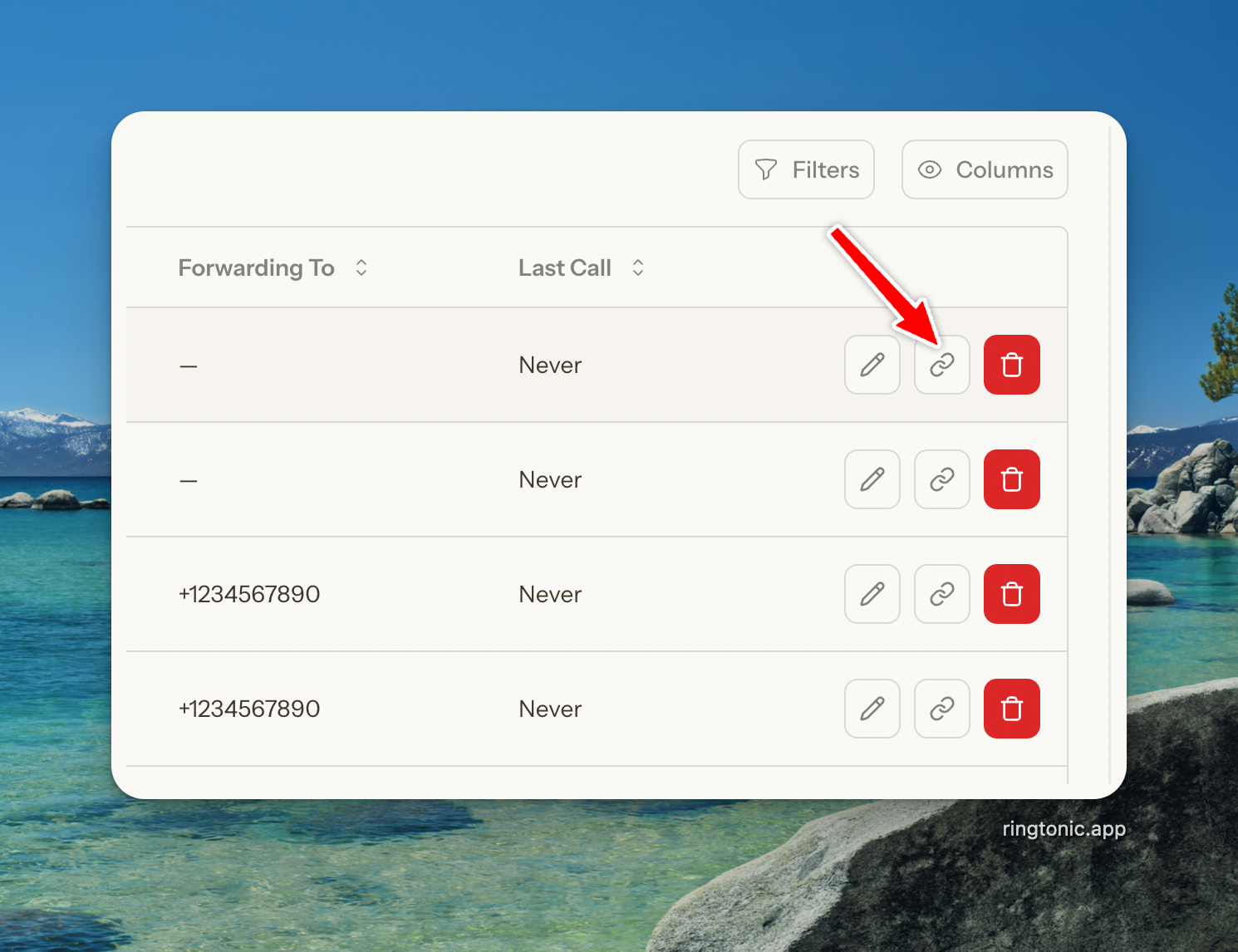
You can assign or reassign numbers to campaigns directly from the phone numbers page.

How to Assign a Number

  1. Go to Phone Numbers

  2. Find the number you want to assign

  3. Click the Assign (link) icon

  4. Select a campaign from the dropdown

    • Shows all campaigns in your workspace

    • Organized alphabetically for easy browsing

  5. Review any warnings (if applicable)

  6. Click Assign to confirm

Assign phone number to a campaign

Assignment Warnings

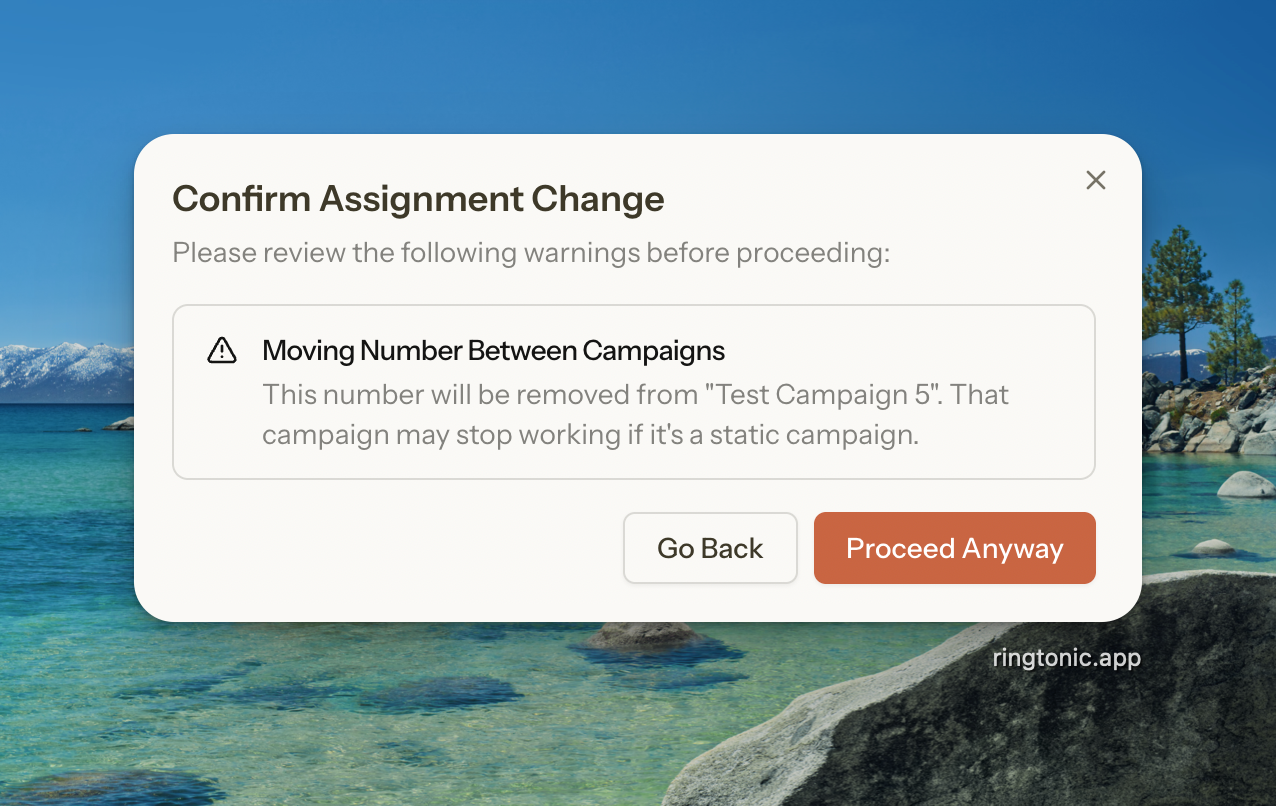
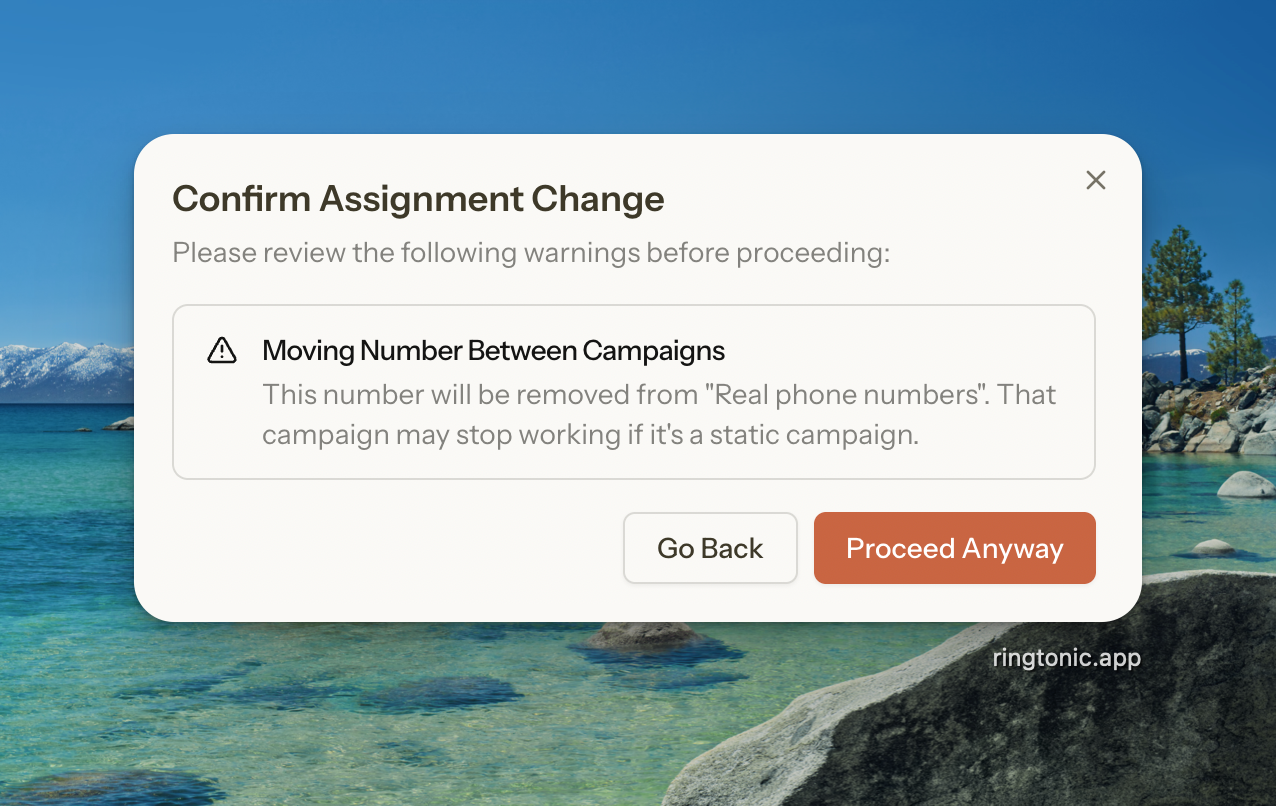
Ring Tonic shows warnings when an assignment could impact existing campaigns or active calls:

Warning 1: Moving Between Campaigns

Warning 1: Moving Between Campaigns

If the number is already assigned to another campaign:

  • Type: Warning

  • Message: "This number will be removed from [Campaign Name]. That campaign may stop working if it's a static campaign."

  • Impact: The origin campaign loses this number

Warning 2: Active Visitor Session

If the number is currently displayed to a visitor on your website (DNI campaigns):

  • Type: Danger

  • Message: "This number is currently displayed to a visitor on your website. Unassigning it now may cause a failed call for that visitor."

  • Impact: Active website visitors may see an error if they call

Warning 3: Empty Campaign

If removing this number would leave the campaign with no numbers:

  • Type: Warning

  • Message: "Removing this number will leave [Campaign Name] with no numbers. Calls to this campaign will stop."

  • Impact: The campaign can't receive any calls

Ring Tonic warns you about potential impacts before reassignment
Unassigning Numbers

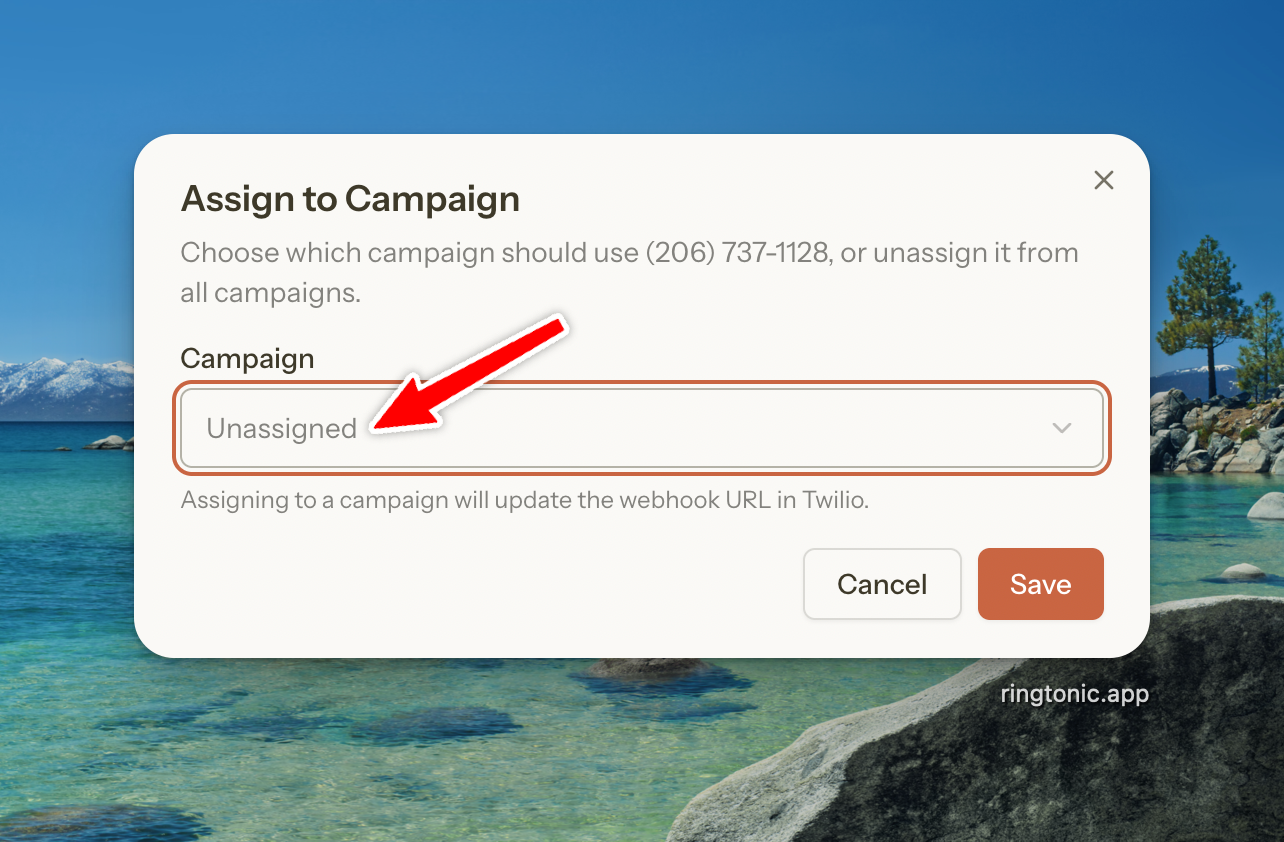
You can also unassign a number to return it to your available inventory:

  1. Click the Assign (link) icon on the number

  2. Select "Unassigned" from the dropdown

  3. Review warnings (same warnings apply as above)

  4. Click Unassign to confirm

The number is returned to your inventory and available for future use.

Unassign number from a campaign

Releasing Numbers

When you no longer need a phone number, you can release it permanently.

How to Release a Number

  1. Go to Phone Numbers

  2. Find the number you want to release

  3. Click the Release (trash) icon

  4. Read the confirmation message carefully

  5. Click Release to confirm

Confirm number release - this action is permanent

Alternative: If you're unsure about releasing a number, consider unassigning it instead. This keeps the number in your inventory but makes it available for other campaigns.


Common Questions

Q: What happens when I import a number?

A: The number's webhook is updated to a parking configuration. It won't receive calls until you assign it to a campaign.

Q: Can I import the same number twice?

A: No, Ring Tonic tracks imported numbers and prevents duplicate imports. Already-imported numbers are marked and disabled in the import interface.

Q: Will releasing a number delete its call history?

A: No, call logs are preserved even after releasing a number. However, you won't be able to use that number for new campaigns.

Q: Can I reassign a number from a DNI campaign to a Static campaign?

A: Yes, but be careful. Removing numbers from DNI campaigns reduces the pool size, which could cause number exhaustion if you have high traffic.

Q: What's the difference between unassigning and releasing?

A: Unassigning keeps the number in your inventory (you still pay for it) but makes it available for other campaigns. Releasing permanently deletes the number from your account.

Last updated