๐Campaigns
What are Campaigns?

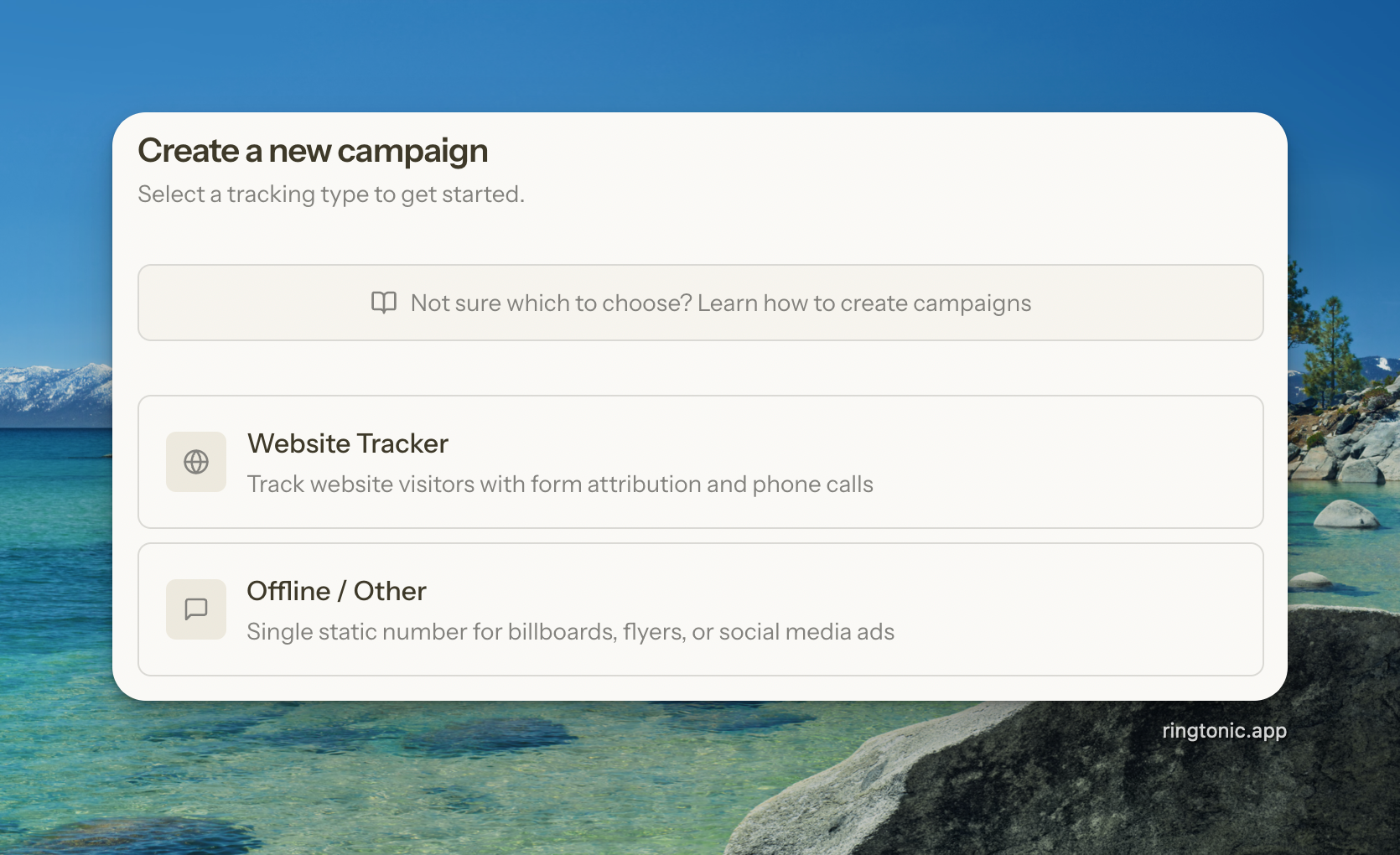
Campaigns help you track conversions from different marketing sources. Ring Tonic offers two types of campaigns to suit different marketing needs:
Website Tracker: Tracks website visitors with form attribution and phone calls. Automatically swaps phone numbers and/or injects attribution data into forms based on visitor source. Perfect for tracking which online channels (organic search, paid ads, social media) drive conversions.
Static: Uses one or more dedicated tracking numbers. Ideal for offline marketing like billboards, print ads, radio spots, or regional advertising campaigns.
Most businesses use Website Tracker campaigns for their website and Static campaigns for offline marketing materials. You can create as many campaigns as needed to track different marketing channels.
When to Use Website Tracker vs Static
Use Website Tracker when:
You want to track website visitors from different sources (Google Ads, Facebook Ads, organic search)
You need to know which online marketing channel drove each call or form submission
You want automatic phone number swapping based on visitor source
You want to capture marketing attribution data (GCLID, UTM params) in your website forms
Use Static Campaigns when:
You're running offline marketing (billboards, flyers, radio ads, TV commercials)
You need one or more dedicated numbers for a specific campaign
You want to track regional campaigns with different local numbers under one campaign
You're tracking calls from a dedicated source that doesn't change (like a newsletter or email signature)
1. Create a Website Tracker Campaign
Website Tracker campaigns let you track website conversions using phone calls, form submissions, or both.
Step 1: Configure Basic Information
Go to Campaigns โ Create Website Tracker
Fill in the campaign details:
Campaign name: Choose a descriptive name (e.g., "Summer Website Campaign" or "2024 Google Ads")
Step 2: Choose What to Track
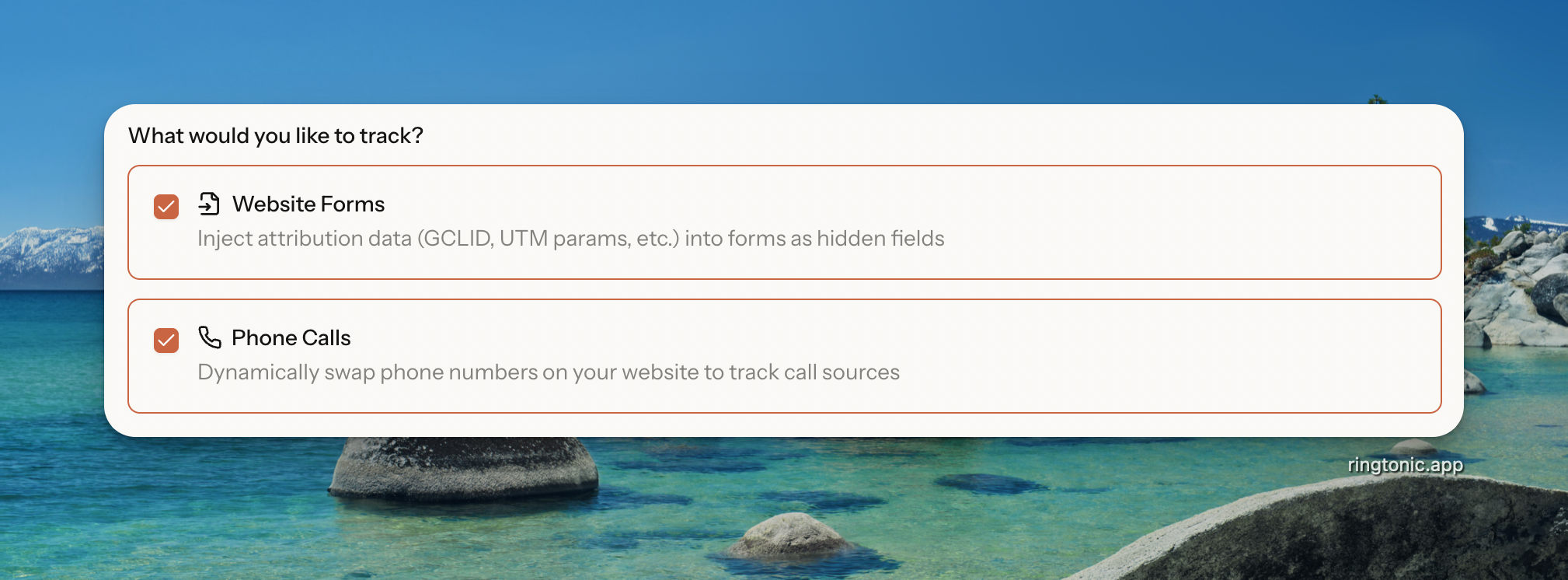
Select one or both tracking methods:
Website Forms โ Injects attribution data (GCLID, UTM params, etc.) into forms as hidden fields. Track which marketing sources drive form submissions.
Phone Calls โ Dynamically swaps phone numbers on your website to track call sources. Requires a pool of at least 2 tracking numbers.
You must enable at least one tracking method. You can enable both to track form submissions and phone calls from the same campaign.

When Phone Calls is enabled, two additional fields appear:
Forward calls to: Enter your business phone number where calls should be routed
Swap target: Enter the phone number currently displayed on your website
The swap target is the phone number visitors currently see on your site. Ring Tonic will automatically replace this number with tracking numbers from your pool.

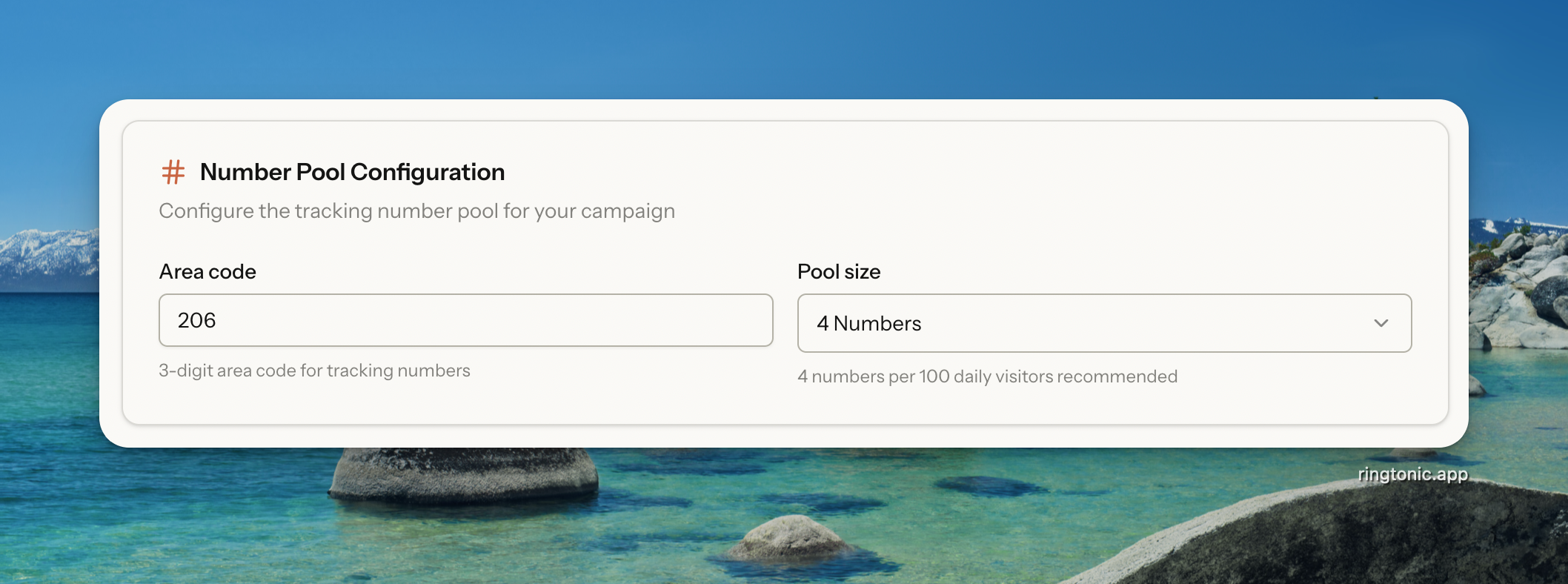
Step 3: Configure Number Pool (Phone Calls only)
This step only appears when Phone Calls tracking is enabled.
Area code: Enter a 3-digit area code (e.g., 206 for Seattle)
Pool size: Choose how many tracking numbers to create (2, 4, 8, 12, 16, or 20 numbers)
Best Practice: Ring Tonic recommends 4 numbers per 100 daily website visitors. For example, if you get 500 visitors per day, choose a pool size of 20 numbers.

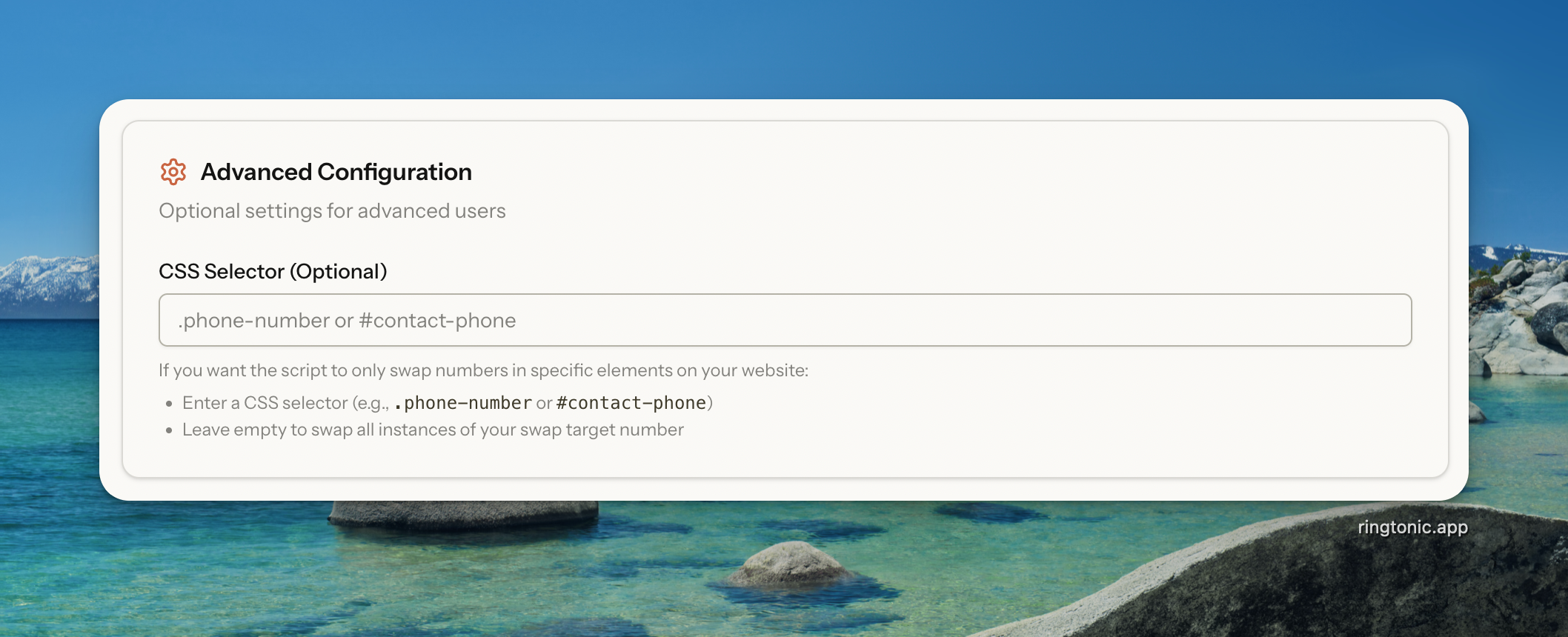
Step 4: Advanced Configuration (Phone Calls only)
This section only appears when Phone Calls tracking is enabled.
CSS Selector - If you want the script to only swap numbers in specific elements on your website:
Enter a CSS selector (e.g.,
.phone-numberor#contact-phone)Leave empty to swap all instances of your swap target number
Common CSS selectors:
.phone-number- Elements with class "phone-number"#contact-phone- Element with ID "contact-phone".header .phone- Elements with class "phone" inside header elements

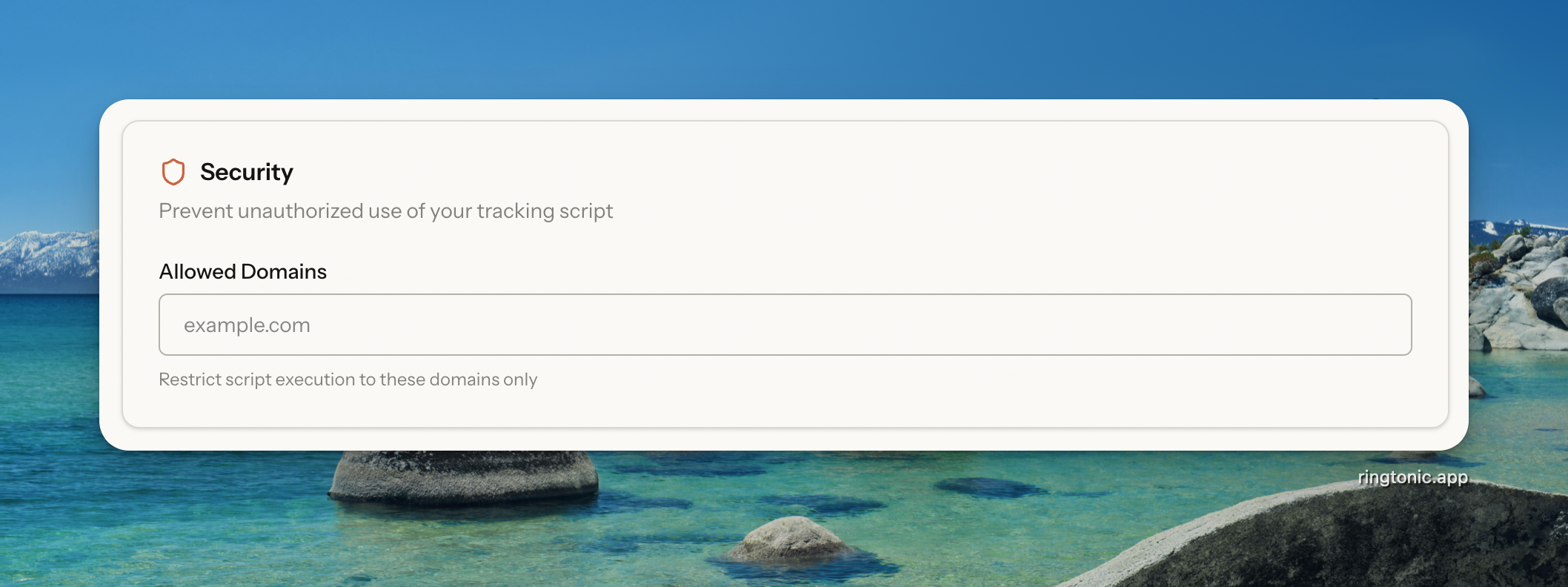
Step 5: Configure Security
Add the domains where your tracking script should run:
Enter your domain (e.g.,
example.com)Add additional domains if needed (e.g.,
www.example.com,shop.example.com)Press Enter after each domain
Security Notice: The tracking script will only execute on domains you specify here. This prevents unauthorized use of your tracking numbers on other websites.

Step 6: Configure Conditional Tracking (Phone Calls only)
This section only appears when Phone Calls tracking is enabled. Conditional Tracking lets you swap phone numbers only for visitors from specific marketing channels. This is useful when you manage some channels but not others, or when you want to use a smaller number pool for targeted tracking.
Conditional Tracking only affects phone number swapping. If you have Website Forms enabled, form attribution injection always works regardless of this setting.

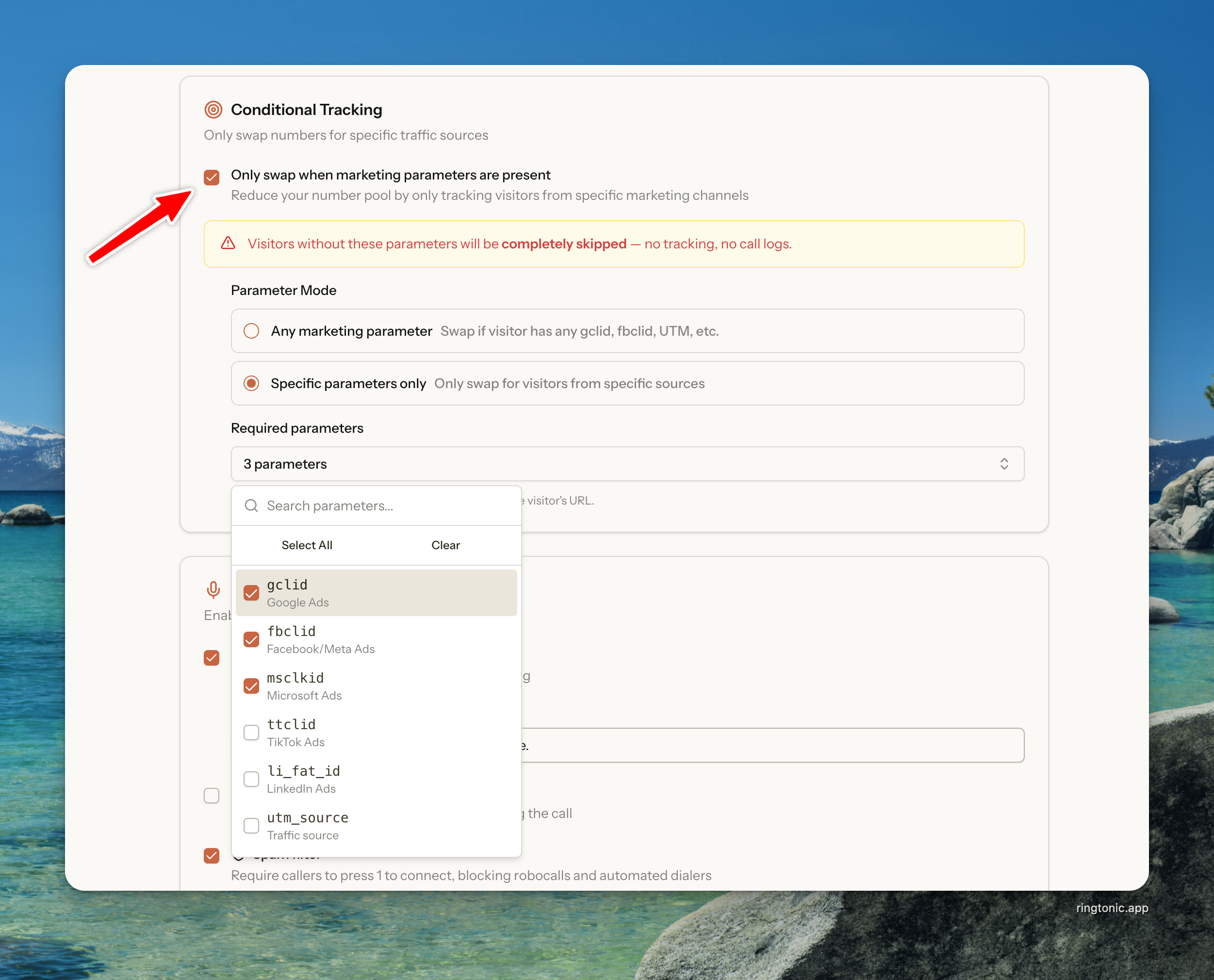
Enable Conditional Tracking:
Check Only swap when marketing parameters are present
Choose your parameter mode:
Any Marketing Parameter Mode:
Numbers are swapped when visitors have any common marketing parameter
Includes: gclid (Google Ads), fbclid (Facebook), msclkid (Microsoft Ads), ttclid (TikTok), utm_source, utm_medium, and more
Best for: Tracking all paid/marketing traffic while ignoring organic visitors
Specific Parameters Only Mode:
Numbers are swapped only for visitors with specific parameters you choose
Select from a list of common parameters (gclid, fbclid, msclkid, utm_source, etc.)
Best for: Tracking specific channels like "Google Ads only" or "Facebook Ads only"
Important: Visitors without the required parameters will see your original phone number and won't be tracked for calls. They won't appear in your call analytics. However, form attribution injection still works for these visitors if Website Forms tracking is enabled.
Use Case Example: You run Google Ads but your client manages their own Facebook Ads. Enable Conditional Tracking with "Specific parameters only" and select just gclid. Now only Google Ads visitors get tracked with phone swapping, reducing your number pool needs and keeping tracking focused on what you manage.
Step 7: Configure Form Attribution Injection (Website Forms only)
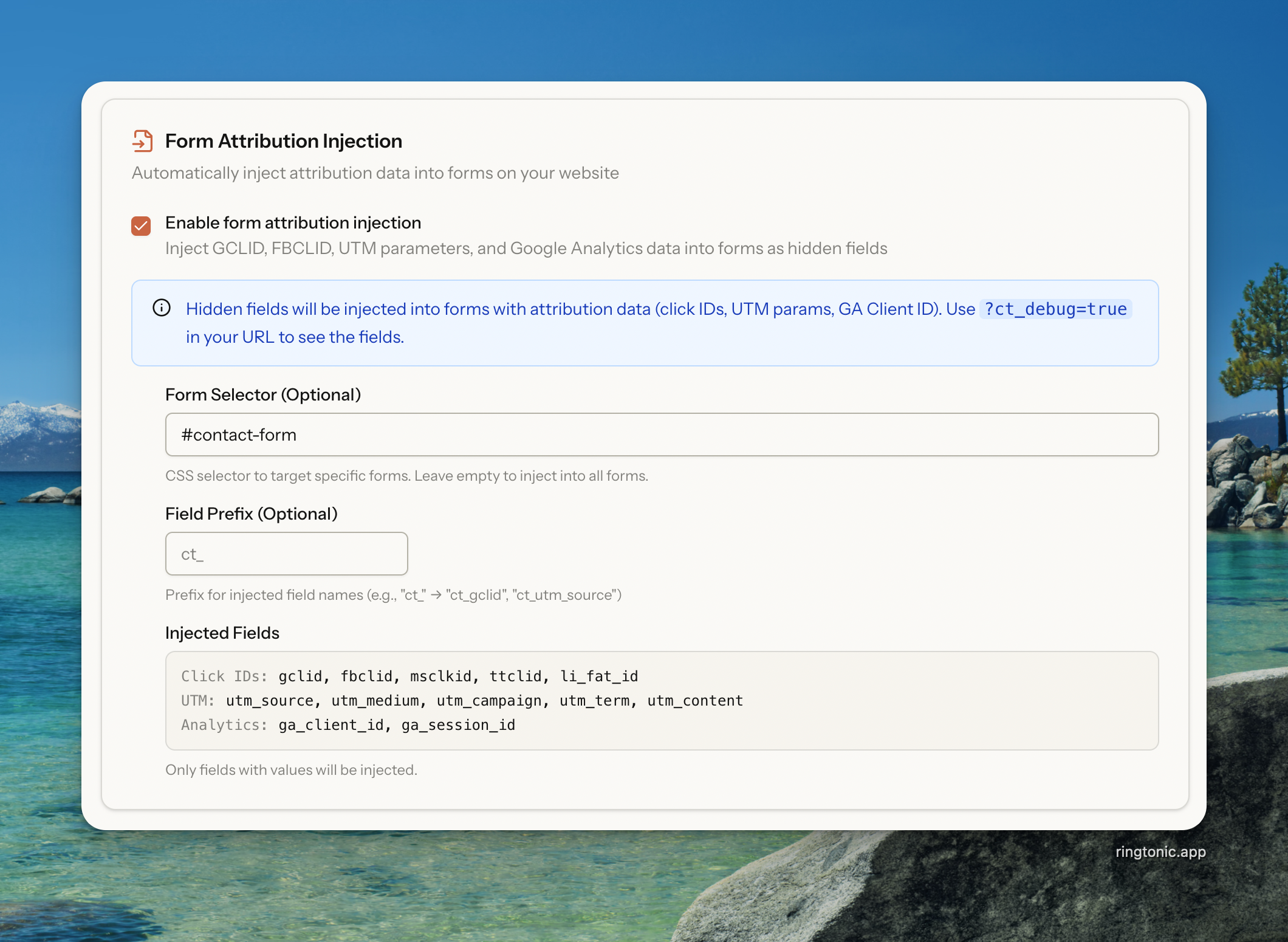
This section only appears when Website Forms tracking is enabled. Form Attribution Injection automatically adds marketing attribution data (GCLID, FBCLID, UTM parameters, Google Analytics IDs) as hidden fields into forms on your website. When visitors submit a form, you capture the same attribution data that's tracked with phone calls.

Configure Form Attribution Injection:
Configure optional settings:
Form Selector (Optional):
Enter a CSS selector to target specific forms (e.g.,
#contact-formor.lead-form)Leave empty to inject into all forms on the page
Field Name Prefix (Optional):
Add a prefix to all injected field names (e.g.,
ct_creates fields likect_gclid,ct_utm_source)Useful to avoid conflicts with existing form fields
Must start with a letter or underscore, and contain only letters, numbers, and underscores
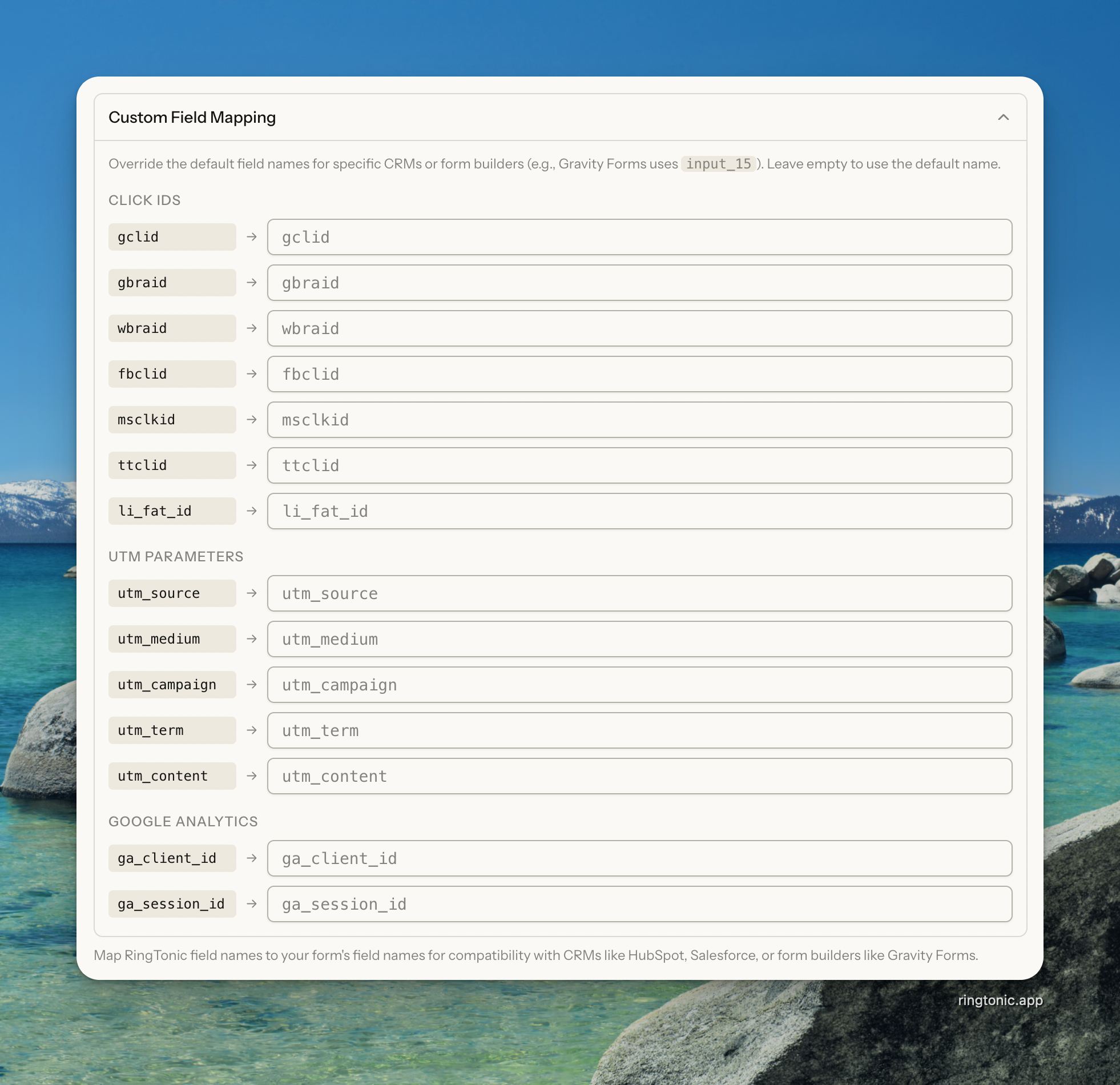
Custom Field Mapping (Optional):
Rename specific fields to match your CRM or form processor requirements
For example, map
gclidtogoogle_click_idif your CRM expects that field name

What data is injected? Ring Tonic injects the following fields (only when they have values):
Click IDs: gclid, gbraid, wbraid (Google), fbclid (Facebook), msclkid (Microsoft), ttclid (TikTok), li_fat_id (LinkedIn)
UTM Parameters: utm_source, utm_medium, utm_campaign, utm_term, utm_content
Google Analytics: ga_client_id, ga_session_id
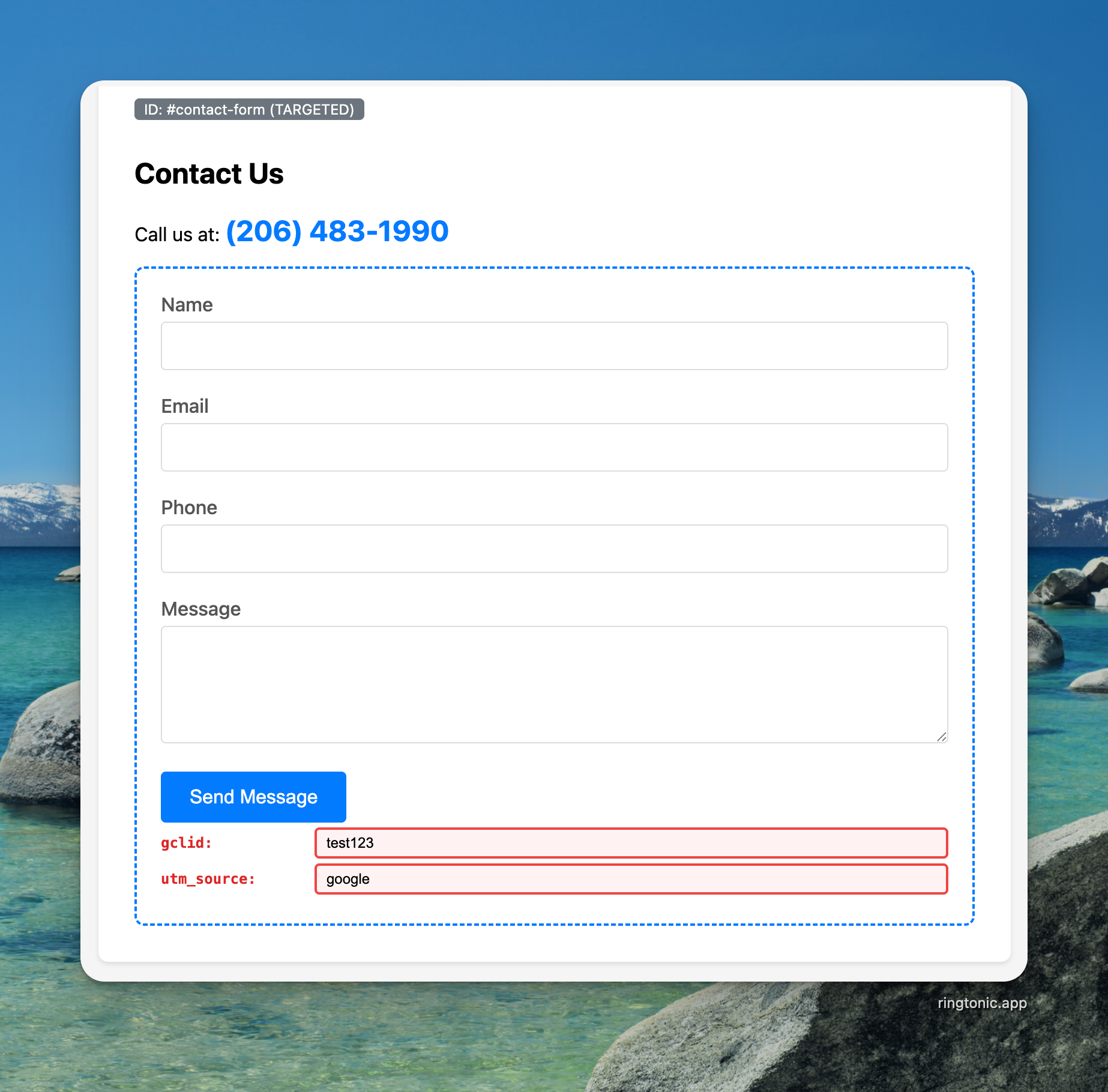
Debug Mode: Add ?ct_debug=true to your URL to make injected fields visible and fetch fresh settings from the server. This bypasses the session cache, so you can test configuration changes immediately without waiting for sessions to expire.

Step 8: Configure Call Features (Phone Calls only)
This section only appears when Phone Calls tracking is enabled.
Call Recording:
Check Call recording to record all calls on this campaign
Optionally customize the recording announcement message (default: "This call will be recorded for quality assurance.")
Transcription Keywords (Optional):

When call recording is enabled, you can add keywords to improve transcription accuracy:
Enter brand names, product names, or industry-specific terms
Press Enter after each keyword to add it
Remove keywords by clicking the X on any tag
Why add transcription keywords? Transcription services may struggle with uncommon words like brand names, technical terms, or industry jargon. Adding these keywords helps the AI recognize and accurately transcribe these terms in your call recordings.
Examples of good keywords:
Your company name and product names
Competitor names frequently mentioned
Industry acronyms (HVAC, SEO, PPC)
Technical terms specific to your business
Whisper Message:
Check Whisper message to play a message to your team before connecting the caller
Enter a custom message (e.g., "Call from Summer Website Campaign")
Leave empty to use the default: "Call from [Campaign Name]"
Whisper messages help your team identify which campaign the call is from before they answer, so they can provide a more personalized greeting.
Spam Filter:
Check Spam filter to require callers to press 1 before connecting
Optionally customize the prompt message (default: "Press 1 to connect with an agent.")
If the caller doesn't press 1, the call is marked as spam and disconnected
Why use spam filter? Robocalls and automated dialers can't press buttons. Enabling spam filter blocks these unwanted calls, ensuring your team only receives calls from real people. Filtered calls are logged with a "Spam Filtered" status for your records.
Bot Detection:
Bot detection is enabled by default for all Website Tracker campaigns
Uncheck to disable if you want bots and crawlers to receive tracking numbers
What is bot detection? Bot detection automatically identifies web crawlers and bots (like Googlebot, Bingbot, and other search engine crawlers) and prevents them from being assigned tracking numbers. This preserves your number pool for real visitors and ensures accurate analytics.
Why keep bot detection enabled? Search engine crawlers regularly visit your website to index content. Without bot detection, these automated visits would consume tracking numbers from your pool, reducing availability for real visitors and skewing your analytics data.

Step 9: Configure Voicemail (Phone Calls only)
This section only appears when Phone Calls tracking is enabled.

Check Enable voicemail to allow callers to leave messages when no one answers
Configure the Ring duration (5-60 seconds) - how long to ring before voicemail activates
Choose the voicemail behavior:
Record voicemail - Play greeting, then record the caller's message. Call status will be Voicemail
Play greeting only - Play an announcement without recording (e.g., "We're closed, call back tomorrow"). Call status remains No Answer since no message is stored
Configure the greeting message:
Text-to-Speech - Enter text that will be read aloud to callers
Custom Audio - Upload your own MP3, WAV, or OGG file (max 5MB)
Check Transcribe voicemails to automatically transcribe voicemail recordings using AI (only available in Record mode)
What happens when voicemail is enabled? When a call goes unanswered after the ring duration, callers hear your greeting message. In Record mode, they can leave a message after the beep. The voicemail appears in your call logs with a "Voicemail" status.
Ghost voicemail filtering: Ring Tonic automatically filters out voicemails shorter than 3 seconds. These "ghost" messages (where callers hang up immediately) are discarded to keep your inbox clean and save storage costs. The call status remains "No Answer" for filtered ghost voicemails.
Step 10: Create Campaign
Click Create Campaign to provision your tracking numbers and create the campaign.
Ring Tonic will automatically search for available numbers in your chosen area code and create your number pool. This process takes just a few seconds.
Step 11: Install the Tracking Script
After creating your Website Tracker campaign, you need to add the tracking script to your website. This script handles both phone number swapping and form attribution injection depending on your campaign configuration.
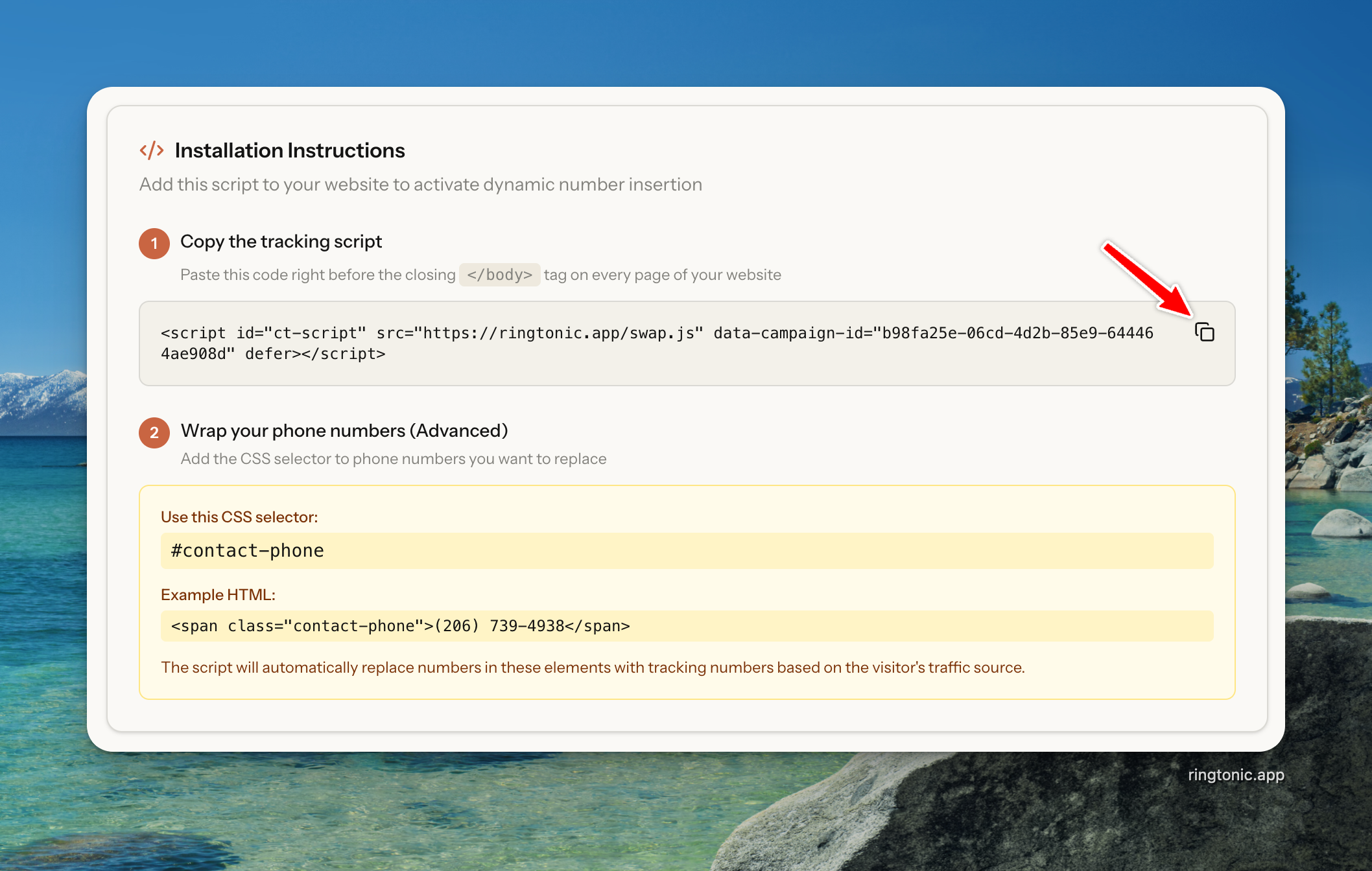
Step 1: Copy the Script
Go to your campaign details page
Copy the installation script from the "Installation" section
The script looks like this:
If you only have Website Forms enabled (no phone tracking), the same script is used. It will only inject attribution data into forms without swapping any phone numbers.

Step 2: Add to Your Website
Paste the script before the closing
</body>tag on every page where you want to track conversionsSave and publish your changes
The script will automatically find and swap phone numbers matching your swap target (if phone tracking is enabled) and inject attribution data into forms (if form tracking is enabled).
Example:
If you specified a CSS selector, the script will only swap numbers in those specific elements. Otherwise, it swaps all instances of your swap target number.
Step 3: Test Your Installation
Visit your website
If phone tracking is enabled, check that phone numbers are being swapped to tracking numbers
If form tracking is enabled, add
?ct_debug=trueto your URL to verify hidden fields are being injected into your formsCall one of the tracking numbers to verify calls are forwarding correctly (if applicable)
The script only runs on allowed domains you specified during setup. If testing on localhost or a staging domain, make sure to add it to your allowed domains list.
GDPR Privacy Compliance (Optional)
If your website serves visitors from the EU or California, you may need to delay tracking until visitors accept your cookie consent banner. Ring Tonic supports GDPR-compliant installation by allowing you to manually start tracking after consent is given.

Step 1: Use the Deferred Script
Add data-auto-start="false" to prevent automatic tracking when the page loads:
With data-auto-start="false", the script loads but does not swap phone numbers or inject form data until you explicitly call window.RingTonic.init().
Step 2: Start Tracking After Consent
Call window.RingTonic.init() when the user accepts cookies in your consent manager:
Replace CookieBanner.on('accept', ...) with the callback from your cookie consent manager (Cookiebot, OneTrust, CookieYes, etc.). Each provider has different callback syntax.
Common Cookie Consent Manager Examples:
Cookiebot
window.addEventListener('CookiebotOnAccept', function() { window.RingTonic.init(); });
OneTrust
OneTrust.OnConsentChanged(function() { if (OnetrustActiveGroups.includes('C0002')) window.RingTonic.init(); });
CookieYes
document.addEventListener('cookieyes_consent_update', function(e) { if (e.detail.accepted.includes('analytics')) window.RingTonic.init(); });
How it works: When visitors arrive without consent, they see your original phone number and forms without attribution fields. After they accept cookies and window.RingTonic.init() is called, the script swaps in the tracking number and injects attribution data into forms. This ensures you only track visitors who have explicitly consented.
IP Anonymization: Ring Tonic automatically anonymizes visitor IP addresses for GDPR compliance. The last octet of IPv4 addresses (e.g., 192.168.1.100 โ 192.168.1.0) and the last 64 bits of IPv6 addresses are zeroed before storage.
Disabling Phone Tracking on an Existing Campaign
If you need to switch an existing Website Tracker campaign from phone + form tracking to form-only:
Go to the campaign's Edit page
Uncheck Phone Calls under "What would you like to track?"
A confirmation dialog will appear warning you that inbound calls to your tracking numbers will be rejected
Click Disable Phone Tracking to confirm
Settings are preserved. When you disable phone tracking, all phone-related settings (forwarding number, call recording, whisper, voicemail, etc.) are saved. If you re-enable phone tracking later, all your previous settings will be restored.
Tracking numbers remain assigned but inbound calls will be rejected with a busy signal. You cannot assign new tracking numbers to a campaign with phone tracking disabled.
2. Create a Static Campaign
Static campaigns use one or more dedicated tracking numbers, perfect for offline marketing materials and regional campaigns.
Step 1: Configure Basic Information
Go to Campaigns โ Create Static Campaign
Fill in the campaign details:
Campaign name: Choose a descriptive name (e.g., "Facebook Ads Campaign" or "Billboard - Highway 101")
Forward calls to: Enter your business phone number where calls should be routed

Step 2: Choose Number Source
Ring Tonic gives you two options for getting tracking numbers. You can select multiple numbers to add to a single campaign.
Option 1: Purchase New Numbers
Perfect when you want fresh numbers with specific criteria:
Select Purchase new number
Choose your Country (e.g., United States)
Basic Filters:
City/Locality: Narrow down to specific cities (e.g., Phoenix, Scottsdale)
Area Code: Enter a 3-digit area code (e.g., 206)
State/Territory: Select your preferred state or region
ZIP Code: Search by postal code for local numbers
Advanced Filters (Optional):
Contains Digits: Find numbers with specific digit patterns
Choose "Starts with" or "Anywhere" for digit position
Enter at least 2 digits (e.g., "55" to find numbers like 555-XXXX)
Click Search Numbers to find available numbers
Browse results showing:
Phone number with location details
Voice/SMS/MMS capabilities
Monthly price
Click Select to add a number to your selection
Selecting Multiple Numbers:
You can select multiple numbers from different searches to add to your campaign:
Select numbers from the search results by clicking Select
Selected numbers appear in the Selected Numbers panel above the search results
Change your search filters (different state, area code, etc.) and search again
Select additional numbers - your previous selections are preserved
Remove numbers from the selection by clicking the X on any selected number
Use Clear all to remove all selected numbers
Tip: Only group numbers that belong to the same marketing source. For example, you might add multiple local numbers for the same radio ad campaign running in different cities.
Pro Tip: Use the "Contains Digits" filter to find memorable or vanity numbers. For example, searching for "777" might find numbers like (206) 777-5555.

Option 2: Use Existing Numbers
Select unassigned phone numbers from your inventory:
Select Use existing number
Ring Tonic displays all unassigned phone numbers from your inventory
Browse available numbers showing:
Phone number (formatted)
Friendly name (if set)
Click Select on the numbers you want to use
Selected numbers appear in the Selected Numbers panel
Remove numbers by clicking the X on any selected number
Only unassigned numbers appear in this list. If you need to use a number that's currently assigned to another campaign, you'll need to unassign it first from the Phone Numbers page.
No Numbers Available? If you don't have any unassigned numbers in your inventory, you'll need to either:
Purchase a new number using Option 1 above, or
Import existing numbers from Twilio into your inventory first

Step 3: Configure Call Features
Call Recording:
Check Call recording to record all calls on this campaign
Optionally customize the recording announcement message
Transcription Keywords (Optional):
When call recording is enabled, you can add keywords to improve transcription accuracy:
Enter brand names, product names, or industry-specific terms
Press Enter after each keyword to add it
Remove keywords by clicking the X on any tag
Why add transcription keywords? Transcription services may struggle with uncommon words like brand names, technical terms, or industry jargon. Adding these keywords helps the AI recognize and accurately transcribe these terms in your call recordings.
Whisper Message:
Check Whisper message to play a message to your team before connecting the caller
Enter a custom message to identify the campaign source
Spam Filter:
Check Spam filter to require callers to press 1 before connecting
Optionally customize the prompt message (default: "Press 1 to connect with an agent.")
If the caller doesn't press 1, the call is marked as spam and disconnected
Why use spam filter? Robocalls and automated dialers can't press buttons. Enabling spam filter blocks these unwanted calls, ensuring your team only receives calls from real people. Filtered calls are logged with a "Spam Filtered" status for your records.

Step 4: Configure Voicemail (Optional)

Check Enable voicemail to allow callers to leave messages when no one answers
Configure the Ring duration (5-60 seconds) - how long to ring before voicemail activates
Choose the voicemail behavior:
Record voicemail - Play greeting, then record the caller's message. Call status will be Voicemail
Play greeting only - Play an announcement without recording (e.g., "We're closed, call back tomorrow"). Call status remains No Answer since no message is stored
Configure the greeting message:
Text-to-Speech - Enter text that will be read aloud to callers
Custom Audio - Upload your own MP3, WAV, or OGG file (max 5MB)
Check Transcribe voicemails to automatically transcribe voicemail recordings using AI (only available in Record mode)
What happens when voicemail is enabled? When a call goes unanswered after the ring duration, callers hear your greeting message. In Record mode, they can leave a message after the beep. The voicemail appears in your call logs with a "Voicemail" status.
Ghost voicemail filtering: Ring Tonic automatically filters out voicemails shorter than 3 seconds. These "ghost" messages (where callers hang up immediately) are discarded to keep your inbox clean and save storage costs. The call status remains "No Answer" for filtered ghost voicemails.
Step 5: Create Campaign
Click Create Campaign to purchase the tracking numbers and create your campaign. The button will show the number of selected numbers (e.g., "Create Campaign with 3 Numbers").
Your tracking numbers are now active! You can use them immediately in your marketing materials. All calls to these numbers will be logged in Ring Tonic with full tracking and analytics under this single campaign.

Step 6: Set Ad Locations (Optional)
For billboards, print ads, and other physical marketing, you can set the exact location where your ad is placed. This enables the Billboard Rule on Money Mapโshowing calls at your ad placement instead of caller locations.

How to Set an Ad Location:
Go to your static campaign's Edit page
Find the tracking number in the Tracking Numbers section
Click the Set Location button next to the number
Search for an address or move the pin on the map to set the location
Optionally add a Location Label (e.g., "Highway 101 Billboard")
Click Save Location
When to use Ad Locations: Billboards, print ads, flyers, vehicle wraps, trade show boothsโany physical marketing with a known location.
No ad location set? Calls will appear on Money Map at the caller's location (based on their phone number). This works fine for tracking call volume, but won't show where your physical ad is placed.
3. Delete Campaigns
If you no longer need a campaign, you can delete it to stop tracking and release the phone numbers.
How to Delete a Campaign
Go to Campaigns
Find the campaign you want to delete
Click Delete (trash icon)
Read the confirmation message carefully
Click Delete to confirm
Warning: Deleting a campaign will permanently delete:
All associated call logs
All tracking numbers (released back to Twilio)
All campaign analytics data
This action cannot be undone
Make sure to export any important data before deleting a campaign.

4. Share Campaigns
Share campaign analytics with clients via a secure public linkโno Ring Tonic account required.
Select a campaign โ Click Share
Toggle Enable sharing to generate your link
Optionally add password protection
Clients get read-only access to call activity, attribution, tracking number performance, and money map with your workspace branding.
See Share Campaign for full details on password protection, white-label branding, and link management.
5. Voicemail Features
When voicemail is enabled, Ring Tonic provides the same AI-powered features for voicemails as live calls.
Call Status
Voicemail
Caller left a message (Record mode)
No Answer
Play greeting only mode, or ghost voicemails (< 3 seconds)
AI Features for Voicemails

All voicemail features require Transcribe voicemails to be enabled:
Transcription - Voicemails are automatically transcribed using your configured provider (Deepgram/AssemblyAI)
Keyword spotting - Campaign keywords are detected and highlighted in voicemail transcriptions
AI lead qualification - Voicemails are auto-qualified using your workspace's qualification guidelines, just like live calls
Deal value estimation - AI estimates potential deal value from voicemail content (if enabled)
Voicemails in analytics: Voicemail metrics appear in Call Activity, Tracking Number Performance, and Attribution reportsโhelping you track which sources drive voicemails.
Last updated