> For the complete documentation index, see [llms.txt](https://help.ringtonic.app/llms.txt). Markdown versions of documentation pages are available by appending `.md` to page URLs; this page is available as [Markdown](https://help.ringtonic.app/guides/switch-phone-provider.md).

# Switch Phone Provider

Move a workspace from Twilio to SignalWire, or from SignalWire back to Twilio, without losing calls. You review what the switch changes before it starts, plan what happens to each number, and your numbers keep working while they move.

{% hint style="info" %}
Moving numbers from another call tracking platform, such as CallRail? See [Port Existing Numbers](/guides/port-existing-numbers.md). This guide is for workspaces that already run on Ring Tonic.
{% endhint %}

***

### Before You Start

* **Credentials for the new provider.** For SignalWire, see [Connect SignalWire](/guides/setup-workspace.md#connect-signalwire). For Twilio, see [Set up Twilio](https://help.ringtonic.app/guides/pages/crg7tMxXMDacQLAiSpgl#1.-set-up-twilio-for-tracking-calls).
* **A port order for each number you want to move.** You file it with the new provider yourself. SignalWire asks for a signed letter of authorization (LOA) dated within 30 days and a recent bill copy. For Twilio, ask what it needs. [Port Existing Numbers](/guides/port-existing-numbers.md) explains how porting works, and step 3 links to the new provider's own guide.
* **Time.** A small US order takes up to 7 business days. Toll-free, Canadian and off-net numbers take up to about 2 weeks, and large orders can take longer.

***

### Start the Switch

Go to **Workspace settings**, find the **Phone provider** card and click **Switch provider** (1). On the next screen, click **Start the switch**. The other provider is already selected.

<figure><img src="https://2905537093-files.gitbook.io/~/files/v0/b/gitbook-x-prod.appspot.com/o/spaces%2FXSbXRgC7knjpaMCHwuKc%2Fuploads%2Fgit-blob-1a89289968b1d702874ba39112e9b2d9ac04b16e%2Fswitch-provider-settings-card.png?alt=media" alt="The Phone provider card with the Switch provider button"><figcaption><p>Click <strong>Switch provider</strong> (1) on the <strong>Phone provider</strong> card</p></figcaption></figure>

{% hint style="success" %}
**Nothing changes until step 4.** You can leave the wizard and come back, or click **Cancel this switch** at the bottom of any step.
{% endhint %}

{% stepper %}
{% step %}

#### Step 1: Connect the new provider

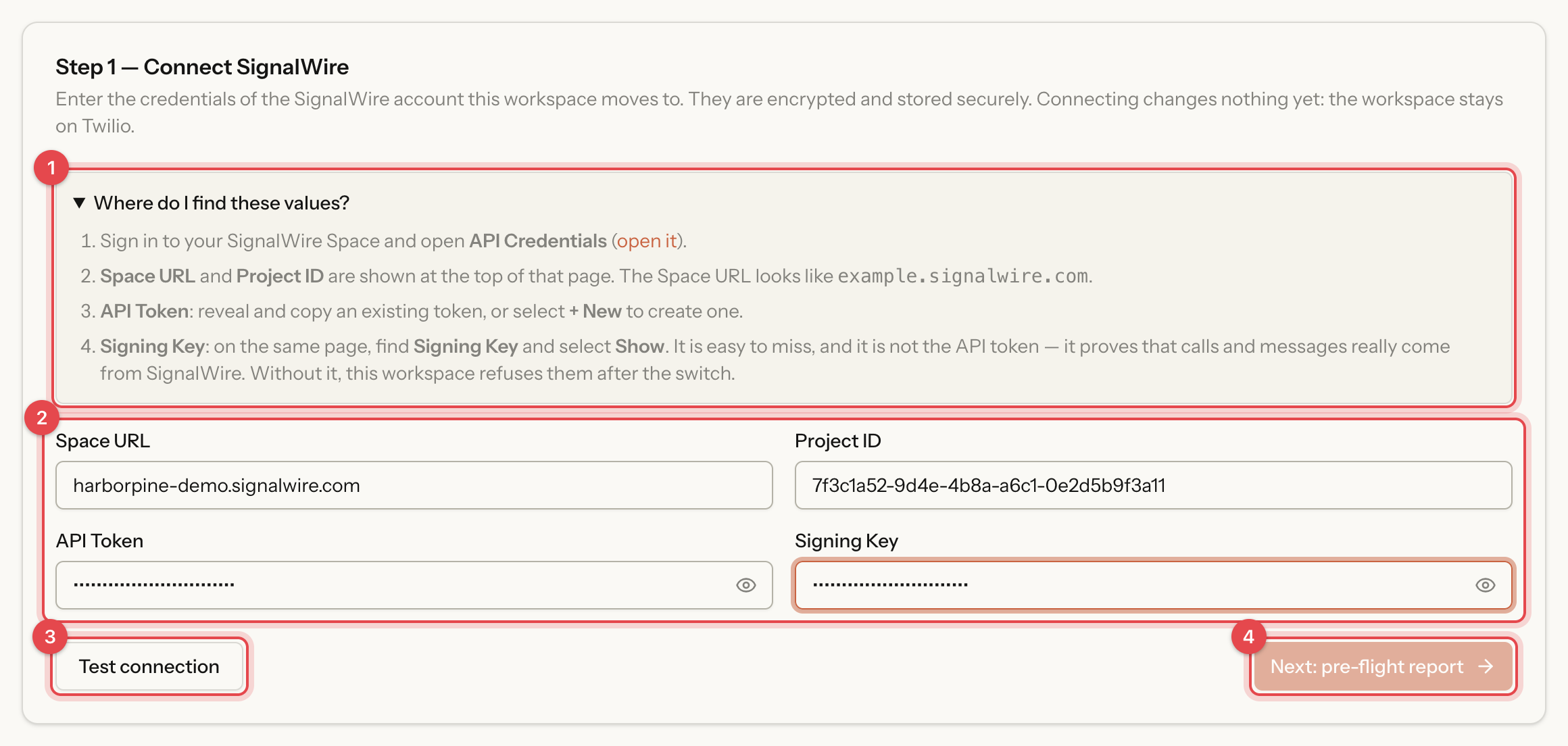
Open **Where do I find these values?** (1) if you need help, fill in the credentials (2) and click **Test connection** (3). When it shows *Connected*, click **Next: pre-flight report** (4). Connecting changes nothing yet: the workspace stays on its current provider.

If the workspace already holds that provider's credentials, the form is replaced by a **Test saved credentials** button.

<figure><img src="https://2905537093-files.gitbook.io/~/files/v0/b/gitbook-x-prod.appspot.com/o/spaces%2FXSbXRgC7knjpaMCHwuKc%2Fuploads%2Fgit-blob-fabf40fef72bde90d1d1069fe3374f9948fdfd5e%2Fswitch-provider-connect.png?alt=media" alt="Step 1 with the SignalWire credentials form"><figcaption><p>Step 1 for a switch to SignalWire</p></figcaption></figure>
{% endstep %}

{% step %}

#### Step 2: Read the pre-flight report

The report is built from how this workspace is used today, so it only lists what applies to you.

* **Features:** each card names a feature the new provider handles differently, how you use it today and what happens to a call after the switch. A badge says how serious it is: **Stops working** (1), **Works differently** (2) or **Good to know**.
* **Good to know:** a note that text-to-speech voices may sound slightly different, and the **SMS senders to register again**. Text message registration does not move with a number, so a moved number can text only after it is registered with the new provider. See [Texting Needs Carrier Registration](/guides/phone-numbers.md#texting-needs-carrier-registration).

<figure><img src="https://2905537093-files.gitbook.io/~/files/v0/b/gitbook-x-prod.appspot.com/o/spaces%2FXSbXRgC7knjpaMCHwuKc%2Fuploads%2Fgit-blob-b5b84689de086e218408c9b34329f0854b905a27%2Fswitch-provider-preflight-features.png?alt=media" alt="Feature cards of the pre-flight report"><figcaption><p>Feature cards with their severity badges</p></figcaption></figure>

Below, **Numbers** gives every number a verdict: **Can move**, **Cannot move** (1) when the new provider does not sell that type or country, or **On SignalWire** (the new provider's name) when the number is already there.

To continue, type the phrase shown (2), for example `switch to SignalWire`, and click **Acknowledge and continue** (3).

<figure><img src="https://2905537093-files.gitbook.io/~/files/v0/b/gitbook-x-prod.appspot.com/o/spaces%2FXSbXRgC7knjpaMCHwuKc%2Fuploads%2Fgit-blob-093de3947496c7e3c20699b35ddc11df40e0c4ca%2Fswitch-provider-preflight-numbers.png?alt=media" alt="The numbers table and the confirmation field"><figcaption><p>The number verdicts and the confirmation phrase</p></figcaption></figure>

{% hint style="info" %}
If you add or remove a number after you acknowledged the report, the wizard sends you back to this step to review the report again.
{% endhint %}
{% endstep %}

{% step %}

#### Step 3: Plan each number

Choose what happens to every number. A number that cannot move is set to keep on the old provider. Nothing runs until you confirm in step 4.

| Plan                                     | What happens                                                                                                                                |
| ---------------------------------------- | ------------------------------------------------------------------------------------------------------------------------------------------- |
| **Port to SignalWire**                   | You move the number with a port order. It keeps working on the old provider until the port completes, then calls arrive through SignalWire. |
| **Keep on Twilio**                       | The number stays where it is and keeps working for as long as the workspace keeps its Twilio credentials.                                   |
| **Replace with a new SignalWire number** | A new number joins the same campaign when you confirm. The old number keeps working for 30 days, then it is released.                       |
| **Release**                              | The number keeps working until you release it from the switch status or complete the switch. It is never released when you confirm.         |

The plan names use your two providers. This guide shows a switch from Twilio to SignalWire.

Tick several numbers (1) and give them the same plan with **Set a plan for the selected** (2), or pick a plan for each number (3). For a port, enter the **FOC date** (4): the date the new provider confirms the port completes. Ring Tonic then checks every minute from that date, for up to 3 days.

<figure><img src="https://2905537093-files.gitbook.io/~/files/v0/b/gitbook-x-prod.appspot.com/o/spaces%2FXSbXRgC7knjpaMCHwuKc%2Fuploads%2Fgit-blob-a748651608c8f7e8526caf0c5083cae709548dad%2Fswitch-provider-plan-numbers.png?alt=media" alt="The number plan with plan selectors and an FOC date"><figcaption><p>The plan for each number</p></figcaption></figure>

Above the numbers, two settings apply to every port:

* **Before you confirm: port orders** (1): file a port order with the new provider for each number you port. Under **Optional: webhook settings for zero missed calls on port day**, each port shows settings to enter in the new provider before the FOC date. Then the number takes calls the second the port completes. Without them, calls can fail for about a minute after the port, or up to 10 minutes without an FOC date.
* **When a port completes** (2): **Automatic** puts each number live as soon as its port is detected. **Confirm each number** waits for you to review each one. Confirming only records that you reviewed it, because calls already reach the number through the new provider.

<figure><img src="https://2905537093-files.gitbook.io/~/files/v0/b/gitbook-x-prod.appspot.com/o/spaces%2FXSbXRgC7knjpaMCHwuKc%2Fuploads%2Fgit-blob-fc340565247f7938a6d0d559a0d15561c2f79790%2Fswitch-provider-plan-port-orders.png?alt=media" alt="The port order checklist and the When a port completes options"><figcaption><p>The port order checklist and the detection mode</p></figcaption></figure>

Click **Save plan and continue** once every number has a plan.
{% endstep %}

{% step %}

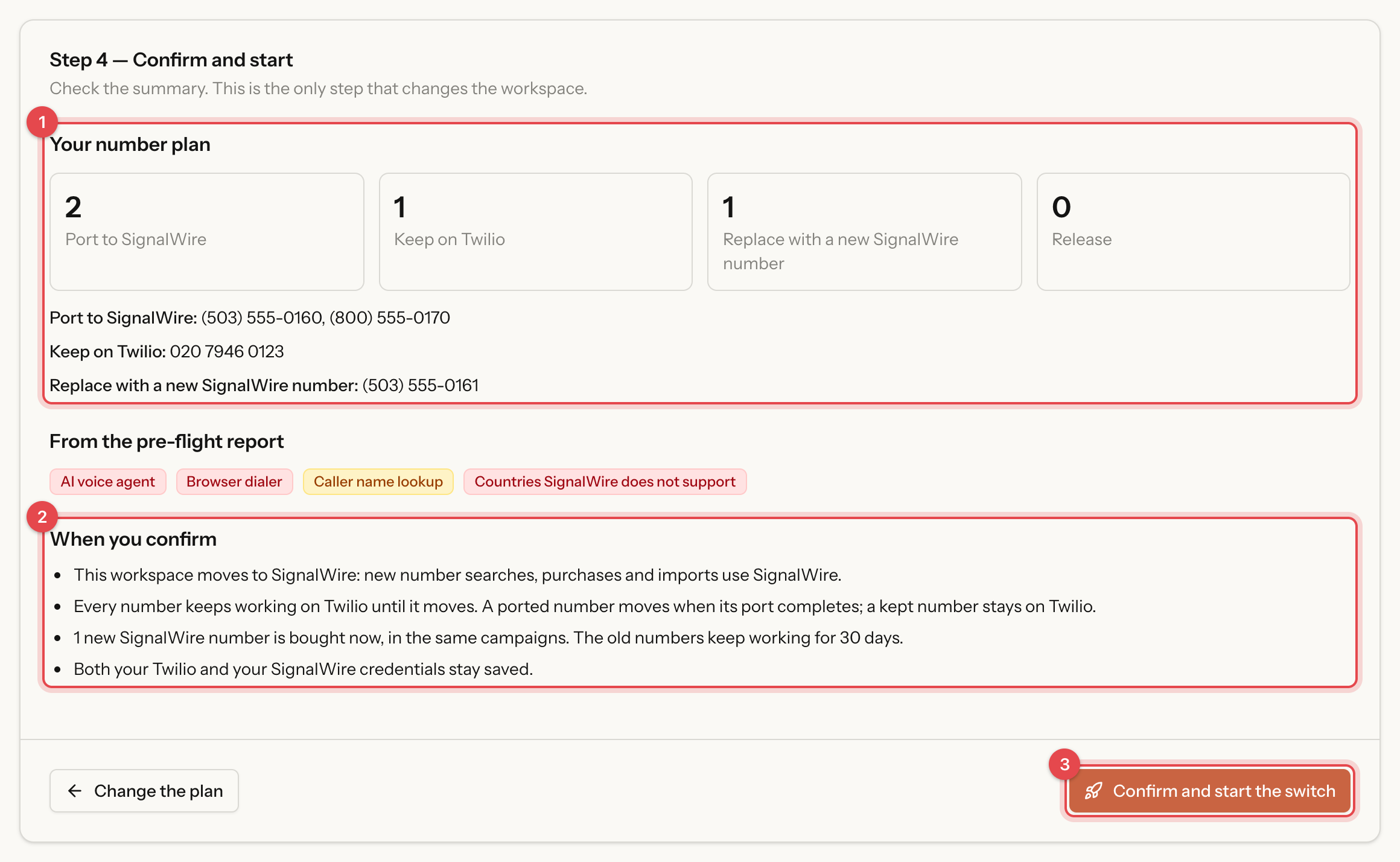
#### Step 4: Confirm and start

Check **Your number plan** (1) and **When you confirm** (2), then click **Confirm and start the switch** (3). This is the only step that changes the workspace:

* New number searches, purchases and imports use the new provider.
* Every number keeps working on the old provider until it moves.
* Each **Replace** number is bought now, on your new provider account.
* Both providers' credentials stay saved.

<figure><img src="https://2905537093-files.gitbook.io/~/files/v0/b/gitbook-x-prod.appspot.com/o/spaces%2FXSbXRgC7knjpaMCHwuKc%2Fuploads%2Fgit-blob-e5ea3d5ae545ce0d62b6ac93eafbc193ec373609%2Fswitch-provider-confirm.png?alt=media" alt="The confirm and start summary"><figcaption><p>The summary before you start</p></figcaption></figure>
{% endstep %}
{% endstepper %}

***

### After You Start

The **Phone provider** card in workspace settings now shows the new provider, and **View the switch** opens the status card. It counts your numbers by state (1) and lists the ones that need you.

<figure><img src="https://2905537093-files.gitbook.io/~/files/v0/b/gitbook-x-prod.appspot.com/o/spaces%2FXSbXRgC7knjpaMCHwuKc%2Fuploads%2Fgit-blob-3d9af46b42b3c876a31cde804acd3d8f99e50138%2Fswitch-provider-status-card.png?alt=media" alt="The switch status card with the number counts and actions"><figcaption><p>The status card of a switch in progress</p></figcaption></figure>

Ring Tonic detects a completed port by itself. It checks every 10 minutes, every minute from the FOC date, and immediately when a call arrives through the new provider on a number it still lists on the old one. It then routes the number's calls and notifies you. Click **Re-scan** to check right away.

| State                   | Meaning                                                              | Actions                                          |
| ----------------------- | -------------------------------------------------------------------- | ------------------------------------------------ |
| **Waiting**             | Not started yet, for example a number planned for **Release**.       | **Release now**, **Re-plan**                     |
| **Port requested**      | The port order is filed. The number still works on the old provider. | **Change FOC date**, **Re-plan**                 |
| **Ported — to confirm** | The port landed and calls already use the new provider.              | **Confirm** (2), in **Confirm each number** mode |
| **Moved to SignalWire** | Done.                                                                | None                                             |
| **Kept on Twilio**      | The number stays on the old provider.                                | None                                             |
| **Replaced**            | The new number took over. The old one is released after 30 days.     | None                                             |
| **Released**            | The number was released.                                             | None                                             |

Use **Re-plan** to change a number's plan, for example when a port order was rejected.

{% hint style="warning" %}
A number planned as a port is protected from transfer to another workspace while its port may still complete, up to 60 days after the switch ends.
{% endhint %}

***

### Finish the Switch

At the bottom of the status card, click **Complete the switch** (3) or **Cancel the switch** (4).

{% tabs %}
{% tab title="Complete" %}
**Complete the switch** ends the switch once every number is moved, kept, replaced or released. It stays unavailable while a port is in progress or waiting for your confirmation. Hover over it to see why.

Numbers planned for **Release** are released now, and the dialog lists them (1). Type `complete switch` (2) and click **Complete the switch** (3).

Kept numbers keep working on the old provider for as long as the workspace keeps that provider's credentials. Keep them saved: Ring Tonic also uses them for port detection and for recordings and voicemails stored there.

<figure><img src="https://2905537093-files.gitbook.io/~/files/v0/b/gitbook-x-prod.appspot.com/o/spaces%2FXSbXRgC7knjpaMCHwuKc%2Fuploads%2Fgit-blob-67fad669c190d845582b164f434e73bd17520684%2Fswitch-provider-complete-dialog.png?alt=media" alt="The Complete the switch dialog"><figcaption><p>The Complete the switch dialog</p></figcaption></figure>
{% endtab %}

{% tab title="Cancel" %}
**Cancel the switch** sends the workspace back to its old provider for new numbers. You can cancel only until a number has moved.

1. Tick **Keep … on …** (1) for each number with a port order in flight.
2. Withdraw each port order with the new provider yourself. Ring Tonic cannot recall it, and a port that completes anyway is still detected and moved.
3. Type `cancel switch` (2) and click **Cancel the switch** (3).

Numbers bought on the new provider during the switch stay there. Release them from **Phone Numbers** if you do not need them.

<figure><img src="https://2905537093-files.gitbook.io/~/files/v0/b/gitbook-x-prod.appspot.com/o/spaces%2FXSbXRgC7knjpaMCHwuKc%2Fuploads%2Fgit-blob-d58d30635f4ffd1aca4fe319b8f96eb49ea4710a%2Fswitch-provider-cancel-dialog.png?alt=media" alt="The Cancel the switch dialog"><figcaption><p>The Cancel the switch dialog</p></figcaption></figure>
{% endtab %}
{% endtabs %}

***

### Common Questions

<details>

<summary>Will I miss calls while a number moves?</summary>

No. A number keeps working on the old provider until its port completes. Entering the new provider's webhook settings before the FOC date closes the short gap right after the port (see step 3).

</details>

<details>

<summary>Can I switch back later?</summary>

Yes. The wizard works in both directions. Open **Switch provider** again once the current switch is complete or cancelled.

</details>

<details>

<summary>What happens to my old recordings and voicemails?</summary>

Ring Tonic keeps the old provider's credentials saved to reach them. Workspace settings say so: the old credentials are used only for numbers still on that provider, port detection, and your recordings and voicemails there.

</details>